
Mercedes Sedan Smartphone Connectivity: Effortless Guide
Connecting your smartphone to your Mercedes sedan is easier than you think! This guide provides a clear, step-by-step process to seamlessly integrate your devices. Enjoy navigation, music, and calls on the go.
Getting your smartphone connected to your Mercedes-Benz sedan can feel a bit tricky at first. The good news? It’s actually quite straightforward once you know the steps. Many owners find this frustrating, but don’t worry; we’ll walk you through it. This guide simplifies the process, ensuring you can enjoy all the benefits of smartphone integration. Let’s dive in and get you connected!
Frequently Asked Questions
- Q: What is Apple CarPlay and Android Auto?
- A: Apple CarPlay and Android Auto are systems that mirror your smartphone’s interface on your car’s infotainment screen, allowing you to use apps, navigation, and make calls safely.
- Q: Is my Mercedes-Benz compatible with Apple CarPlay and Android Auto?
- A: Most Mercedes-Benz models from 2016 onward support Apple CarPlay, while Android Auto compatibility became more common from 2018 onwards. Check your car’s specifications to confirm.
- Q: Do I need any special cables to connect my phone?
- A: Typically, you’ll need a USB cable that’s compatible with your smartphone. Some newer models also offer wireless connectivity.
- Q: How do I update the software in my Mercedes-Benz?
- A: Software updates can be done via over-the-air updates (if supported) or by visiting a Mercedes-Benz dealership.
- Q: What if my phone won’t connect?
- A: Ensure your phone is unlocked, the cable is properly connected, and that CarPlay or Android Auto is enabled in your car’s settings and on your phone.
- Q: Can I use voice commands with Apple CarPlay and Android Auto?
- A: Yes, both systems support voice commands via Siri (Apple CarPlay) or Google Assistant (Android Auto), allowing for hands-free operation.
- Q: Does using Apple CarPlay or Android Auto cost anything?
- A: No, both Apple CarPlay and Android Auto are free to use once you have a compatible smartphone and vehicle.
Understanding Mercedes-Benz Smartphone Integration

Mercedes-Benz offers seamless smartphone integration through systems like Apple CarPlay and Android Auto. These systems allow you to access your phone’s apps, navigation, and music directly through your car’s infotainment screen. This makes driving safer and more convenient.
Benefits of Smartphone Integration
- Enhanced Navigation: Use apps like Google Maps or Apple Maps for real-time traffic updates.
- Hands-Free Communication: Make calls and send texts without taking your hands off the wheel.
- Entertainment: Stream music from apps like Spotify, Apple Music, or Pandora.
- Voice Control: Use Siri or Google Assistant to control various functions with voice commands.
Checking Compatibility
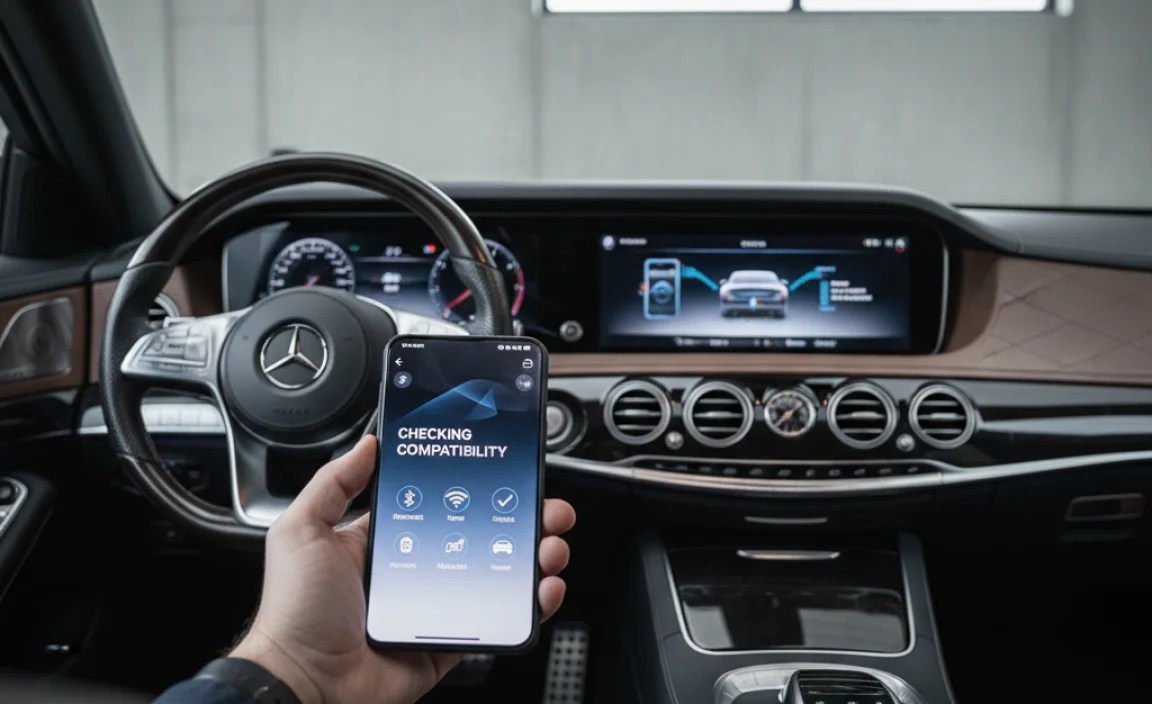
Before you start, ensure your Mercedes-Benz model and smartphone are compatible with Apple CarPlay or Android Auto. Here’s how:
Mercedes-Benz Model Years
Most Mercedes-Benz models from 2016 onwards support Apple CarPlay. Android Auto support is more common in models from 2018 onwards. Check your vehicle’s specifications or consult your owner’s manual.
Smartphone Compatibility
- Apple CarPlay: Requires an iPhone 5 or later with iOS 7.1 or higher.
- Android Auto: Requires an Android phone running Android 5.0 (Lollipop) or higher.
Step-by-Step Guide to Connecting Your Smartphone

Follow these steps to connect your smartphone to your Mercedes-Benz sedan:
1. Prepare Your Smartphone and Car
Make sure your car is parked in a safe location and the engine is running. Have a compatible USB cable ready. For wireless connections, ensure Bluetooth is enabled on your smartphone.
2. Access the Mercedes-Benz Infotainment System
Turn on your Mercedes-Benz infotainment system. Navigate to the main menu using the central controller or touchscreen. Look for the “Apple CarPlay” or “Android Auto” option.
3. Connect via USB
- Plug the USB cable into your smartphone.
- Connect the other end of the USB cable into the USB port in your Mercedes-Benz. The location of the USB port can vary depending on the model, but it’s often found in the center console or glove compartment.
- Your Mercedes-Benz infotainment system should detect your smartphone.
4. Initial Setup on Your Smartphone
Once connected, your smartphone will prompt you to allow CarPlay or Android Auto. Follow the on-screen instructions:
- For Apple CarPlay: Tap “Allow” when prompted on your iPhone.
- For Android Auto: Follow the prompts on your Android phone to grant the necessary permissions.
5. Select Apple CarPlay or Android Auto on the Infotainment System
Return to your Mercedes-Benz infotainment screen and select “Apple CarPlay” or “Android Auto.” The system may take a few moments to initialize.
6. Enjoy Smartphone Integration
Your smartphone interface should now be mirrored on the car’s infotainment screen. Use the central controller, touchscreen, or voice commands to navigate apps, make calls, and play music.
Connecting Wirelessly (if supported)

Some newer Mercedes-Benz models support wireless Apple CarPlay and Android Auto. Here’s how to connect:
1. Enable Bluetooth
Ensure Bluetooth is enabled on your smartphone. Go to your phone’s settings and turn on Bluetooth.
2. Pair Your Smartphone with the Car
On your Mercedes-Benz infotainment system, go to the Bluetooth settings and search for available devices. Select your smartphone from the list and follow the on-screen prompts to pair the devices.
3. Select Wireless CarPlay or Android Auto
Once paired, your infotainment system should automatically prompt you to use wireless Apple CarPlay or Android Auto. Select “Yes” or “Allow” to enable the connection.
4. Automatic Connection
After the initial setup, your smartphone should automatically connect to Apple CarPlay or Android Auto whenever you enter the car with Bluetooth enabled.
Troubleshooting Common Issues
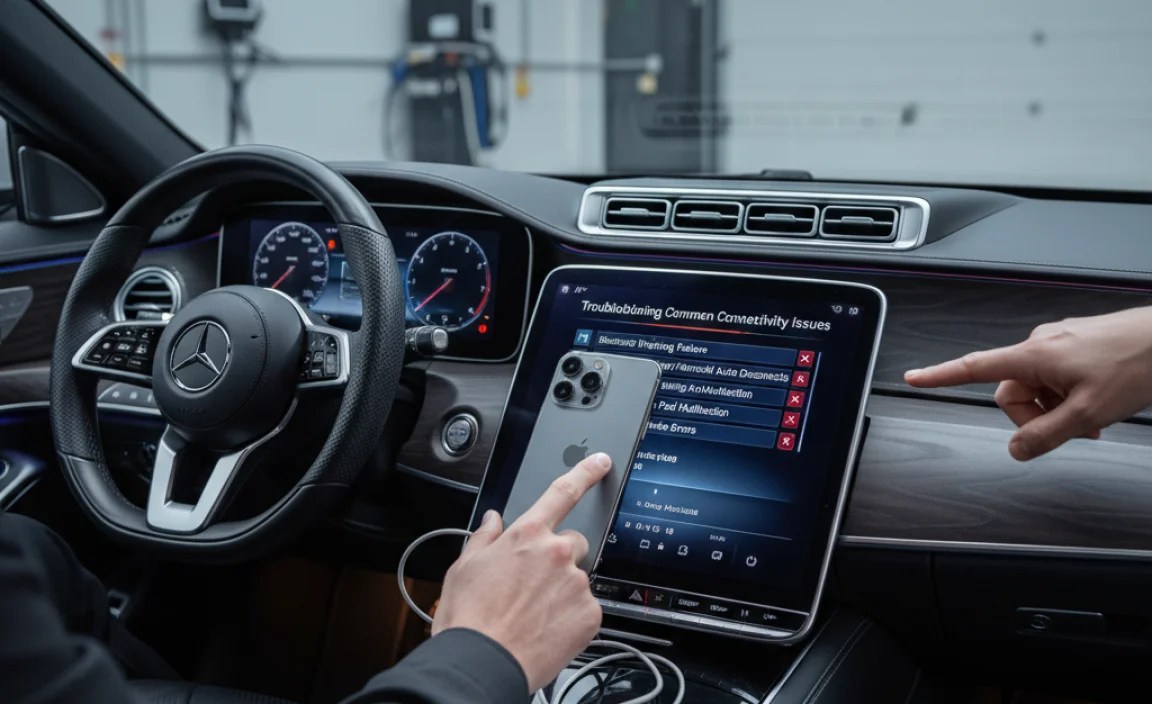
Sometimes, you might encounter issues when connecting your smartphone. Here are some common problems and how to fix them:
Issue 1: Smartphone Not Recognized
- Solution: Ensure the USB cable is properly connected. Try a different USB cable. Restart your smartphone and the car’s infotainment system.
Issue 2: Apple CarPlay or Android Auto Not Launching
- Solution: Check if Apple CarPlay or Android Auto is enabled in your car’s settings. On your iPhone, go to Settings > General > CarPlay and select your car. On your Android phone, go to Settings > Connected devices > Connection preferences > Android Auto.
Issue 3: Connection Drops Frequently
- Solution: Ensure your smartphone’s operating system is up to date. Update your car’s infotainment system software (if available). Try forgetting the device and re-pairing it.
Issue 4: Sound Quality Issues
- Solution: Adjust the volume settings on both your smartphone and the car’s infotainment system. Ensure the correct audio source is selected.
Issue 5: Wireless Connection Problems
- Solution: Make sure Bluetooth is enabled and working correctly. Forget the device and re-pair it. Ensure your car supports wireless CarPlay or Android Auto.
Advanced Tips and Tricks
To enhance your smartphone integration experience, consider these advanced tips:
Updating Software
Keep your Mercedes-Benz infotainment system and smartphone software up to date. Software updates often include performance improvements and bug fixes that can improve connectivity.
Customizing Settings
Explore the settings within Apple CarPlay and Android Auto to customize your experience. Adjust notification preferences, app layouts, and voice control settings to suit your needs.
Using Voice Commands
Master voice commands to control various functions hands-free. Use Siri or Google Assistant to make calls, send texts, play music, and navigate to destinations.
Managing Apps
Organize your apps within Apple CarPlay and Android Auto for easy access. Remove apps you don’t use frequently and prioritize the ones you use most often.
Alternative Connectivity Options
Besides Apple CarPlay and Android Auto, Mercedes-Benz offers other connectivity options:
Mercedes-Benz Apps
Mercedes-Benz offers its own suite of apps that provide additional functionality. These apps allow you to remotely control certain features of your car, such as locking and unlocking doors, starting the engine, and checking vehicle status.
Bluetooth Connectivity
You can connect your smartphone to your Mercedes-Benz via Bluetooth for basic functions like making calls and streaming music. While it doesn’t offer the full integration of CarPlay or Android Auto, it’s a reliable alternative.
USB Media Interface
The USB media interface allows you to play music and other media files directly from a USB drive or external storage device. This is a convenient option if you don’t want to use your smartphone for media playback.
Mercedes Me Connect
Mercedes Me Connect is a suite of connected car services that enhances your ownership experience. It provides features like remote access, vehicle monitoring, and emergency assistance. Here’s what you need to know:
Key Features of Mercedes Me Connect
- Remote Access: Lock and unlock doors, start the engine, and check vehicle status remotely.
- Vehicle Monitoring: Track your car’s location, monitor driving behavior, and set geofences.
- Emergency Assistance: Get automatic emergency calls and roadside assistance in case of an accident or breakdown.
- Concierge Services: Access personalized concierge services for travel planning, restaurant reservations, and more.
Activating Mercedes Me Connect
- Download the Mercedes Me app from the App Store or Google Play.
- Create an account or log in if you already have one.
- Add your vehicle by entering the VIN (Vehicle Identification Number).
- Follow the on-screen instructions to activate the services.
Comparison of Connectivity Options
Here’s a table comparing different smartphone connectivity options in Mercedes-Benz sedans:
| Connectivity Option | Compatibility | Features | Pros | Cons |
|---|---|---|---|---|
| Apple CarPlay | iPhone 5 and later | Navigation, calls, music, voice control | Seamless integration, user-friendly interface | Requires iPhone |
| Android Auto | Android 5.0 and later | Navigation, calls, music, voice control | Seamless integration, user-friendly interface | Requires Android phone |
| Bluetooth | Most smartphones | Calls, music streaming | Easy setup, no cable required | Limited functionality |
| USB Media Interface | USB drives, external storage | Media playback | Simple, reliable | No smartphone integration |
| Mercedes Me Connect | Compatible Mercedes-Benz models | Remote access, vehicle monitoring, emergency assistance | Enhanced ownership experience, added security | Subscription required |
Maintaining a Stable Connection
To ensure a stable and reliable smartphone connection, follow these maintenance tips:
Regular Software Updates
Keep both your smartphone and your Mercedes-Benz infotainment system updated with the latest software. Updates often include bug fixes and performance improvements that can enhance connectivity.
Using High-Quality Cables
If you’re using a USB connection, make sure to use a high-quality cable. Cheap or damaged cables can cause connection issues and data transfer problems.
Cleaning USB Ports
Regularly clean the USB ports in your car and on your smartphone. Dust and debris can accumulate and interfere with the connection.
Avoiding Interference
Keep your smartphone away from sources of electromagnetic interference, such as other electronic devices or metal objects. Interference can disrupt the Bluetooth or Wi-Fi signal and cause connection problems.
Future Trends in Smartphone Connectivity
The future of smartphone connectivity in Mercedes-Benz sedans looks promising, with advancements in wireless technology and integration. Here are some trends to watch out for:
Enhanced Wireless Connectivity
Expect to see more Mercedes-Benz models offering wireless Apple CarPlay and Android Auto as standard features. Wireless connectivity provides a cleaner and more convenient user experience.
Improved Voice Control
Voice control technology is constantly improving, with more accurate and natural language recognition. This will allow you to control more functions with voice commands, making driving safer and more convenient.
Augmented Reality Integration
Augmented reality (AR) technology is being integrated into navigation systems to provide more intuitive and immersive guidance. AR overlays can display directions and other information directly on the road ahead, enhancing situational awareness.
5G Connectivity
As 5G networks become more widespread, Mercedes-Benz sedans will be able to take advantage of faster and more reliable internet connectivity. This will enable new features and services, such as over-the-air software updates and real-time traffic information.
Conclusion
Connecting your smartphone to your Mercedes-Benz sedan enhances your driving experience by providing seamless access to navigation, communication, and entertainment. Whether you choose to connect via USB or wirelessly, the steps are straightforward and the benefits are significant. By following this guide, you can ensure a stable and reliable connection, allowing you to stay connected and enjoy the road ahead. Embrace the technology and make the most of your Mercedes-Benz!
“`


