
Mercedes Sedan Navigation Updates: Effortless & Perfect Guidance
Keeping your Mercedes-Benz sedan’s navigation system updated is essential for stress-free and accurate journeys. Outdated maps can lead to wrong turns, missed exits, and frustrating delays. Luckily, updating your navigation system is easier than you might think!
In this guide, we’ll walk you through the process of updating your Mercedes sedan’s navigation system, ensuring you always have the latest maps and points of interest at your fingertips. Whether you prefer over-the-air updates, USB downloads, or dealer assistance, we’ve got you covered. Get ready to experience seamless navigation and explore the open road with confidence!
Here’s what we’ll cover:
- Understanding the different update methods
- Step-by-step instructions for each method
- Troubleshooting common issues
- Tips for maximizing your navigation system
FAQ: Mercedes Sedan Navigation Updates
Here are some frequently asked questions about updating the navigation system in your Mercedes sedan:
How often should I update my Mercedes navigation system?
Mercedes-Benz recommends updating your navigation system at least once a year to ensure you have the latest maps and points of interest.
Can I update my navigation system myself?
Yes, you can update your navigation system yourself using over-the-air updates or by downloading updates to a USB drive. Some older models may require a visit to the dealership.
How much does it cost to update Mercedes navigation?
Over-the-air updates are typically free. USB updates may require purchasing a map update package. Dealership updates will involve a service fee.
What do I need to update my navigation system via USB?
You will need a USB drive with sufficient storage space (usually 32GB or more), a computer with internet access, and the Mercedes-Benz Download Manager software.
How do I know if my Mercedes navigation system needs an update?
Your system may display a notification indicating that an update is available. You can also check the map version in the system settings and compare it to the latest version available on the Mercedes-Benz website.
What if I encounter problems during the update process?
Consult your owner’s manual or contact your local Mercedes-Benz dealership for assistance. They can provide troubleshooting steps or perform the update for you.
Will updating my navigation system erase my saved destinations?
No, updating your navigation system should not erase your saved destinations or settings. However, it’s always a good idea to back up your data if possible.
Understanding Your Mercedes Navigation System

Before diving into the update process, let’s clarify the key components of your Mercedes-Benz navigation system. Knowing these parts will make the update process smoother.
- Head Unit: This is the main display screen in your dashboard. It shows maps, directions, and other navigation information.
- GPS Antenna: This receives signals from GPS satellites to determine your car’s location.
- Navigation Software: The software that runs the navigation system, including map data and routing algorithms.
- Map Data: The digital maps stored in the system, which include roads, points of interest, and other geographic information.
Mercedes-Benz offers various navigation systems across its sedan lineup, including:
- MB Navigation: Standard navigation system with basic features.
- COMAND Navigation: Advanced navigation system with enhanced features like voice control and real-time traffic updates.
- MBUX Navigation: The latest generation of Mercedes-Benz navigation system, featuring artificial intelligence and augmented reality.
Methods for Updating Your Mercedes Navigation System

There are several ways to update your Mercedes sedan’s navigation system. The method you choose will depend on your car’s model year and the type of navigation system it has.
1. Over-the-Air (OTA) Updates
Over-the-air updates are the most convenient way to update your navigation system. Your car automatically downloads and installs the latest map data via a wireless internet connection.
Benefits:
- Convenient and automatic
- No need for USB drives or computers
- Typically free of charge
Drawbacks:
- Requires an active Mercedes me connect subscription
- May not be available for all models
- Can take a significant amount of time
How to Check for OTA Updates:
- Ensure your Mercedes me connect subscription is active.
- Go to the navigation settings in your head unit.
- Look for an option like “Update Maps” or “Software Update.
- If an update is available, follow the on-screen instructions to download and install it.
2. USB Updates
USB updates involve downloading the latest map data to a USB drive and then installing it in your car. This method is suitable for models that don’t support OTA updates or when you prefer a manual update.
Benefits:
- Available for a wide range of models
- Can be done at your convenience
- Faster than OTA updates in some cases
Drawbacks:
- Requires a computer and USB drive
- May require purchasing a map update package
- More complex than OTA updates
Step-by-Step Guide for USB Updates:
- Check Compatibility: Verify that your Mercedes model supports USB updates by consulting your owner’s manual or the Mercedes-Benz website.
- Download the Mercedes-Benz Download Manager:
- Visit the Mercedes-Benz Navigation Updates portal (Mercedes-Benz Navigation Updates).
- Download the Mercedes-Benz Download Manager software for your operating system (Windows or macOS).
- Install the Download Manager on your computer.
- Purchase and Download Map Updates:
- Launch the Mercedes-Benz Download Manager.
- Log in with your Mercedes me account.
- Select your vehicle model and year.
- Purchase the latest map update package for your region.
- Follow the on-screen instructions to download the map data to your computer.
- Prepare Your USB Drive:
- Insert a USB drive (32GB or larger) into your computer.
- Format the USB drive to FAT32 file system.
- Copy the downloaded map data to the USB drive.
- Install the Update in Your Car:
- Turn on your Mercedes-Benz.
- Insert the USB drive into the USB port in your car.
- The system should automatically detect the update files on the USB drive.
- Follow the on-screen instructions to install the update.
- The update process may take 30-60 minutes, depending on the size of the map data.
- Do not turn off the car or remove the USB drive during the update.
- Verify the Update:
- Once the update is complete, verify that the new map data is installed correctly.
- Go to the navigation settings in your head unit.
- Check the map version to confirm that it matches the latest version.
3. Dealer Updates
If you’re not comfortable updating your navigation system yourself, you can always take your car to a Mercedes-Benz dealership. The technicians there can perform the update for you.
Benefits:
- Hassle-free
- Ensures the update is done correctly
- Technicians can troubleshoot any issues
Drawbacks:
- More expensive than DIY methods
- Requires scheduling an appointment
- May take longer than DIY methods
How to Schedule a Dealer Update:
- Contact your local Mercedes-Benz dealership.
- Schedule an appointment for a navigation system update.
- Bring your car to the dealership at the appointed time.
- The technicians will perform the update and verify that it’s working correctly.
Troubleshooting Common Issues
Updating your navigation system can sometimes be tricky. Here are some common issues and how to resolve them:
- Update Fails to Start:
- Ensure your car is parked in a safe location with a clear GPS signal.
- Check that your battery is fully charged.
- Verify that the USB drive is properly formatted and contains the correct update files.
- Update Freezes or Gets Stuck:
- Do not turn off the car or remove the USB drive.
- Wait for at least 30 minutes to see if the update resumes.
- If the update remains frozen, try restarting the car and repeating the update process.
- Navigation System Not Recognizing USB Drive:
- Try a different USB drive.
- Ensure the USB drive is formatted to FAT32.
- Check that the USB port in your car is working correctly.
- Error Messages During Update:
- Note the error message and consult your owner’s manual or the Mercedes-Benz website for troubleshooting steps.
- Contact your local Mercedes-Benz dealership for assistance.
Tips for Maximizing Your Navigation System
Once your navigation system is updated, here are some tips to get the most out of it:
- Use Voice Control: Use voice commands to enter destinations, make calls, and control other system functions.
- Explore Points of Interest: Search for nearby restaurants, gas stations, hotels, and other points of interest.
- Enable Real-Time Traffic Updates: Stay informed about traffic conditions and avoid delays.
- Customize Your Settings: Adjust the map display, routing preferences, and other settings to suit your needs.
- Save Your Favorite Destinations: Save frequently visited locations for quick and easy access.
Choosing the Right Update Method
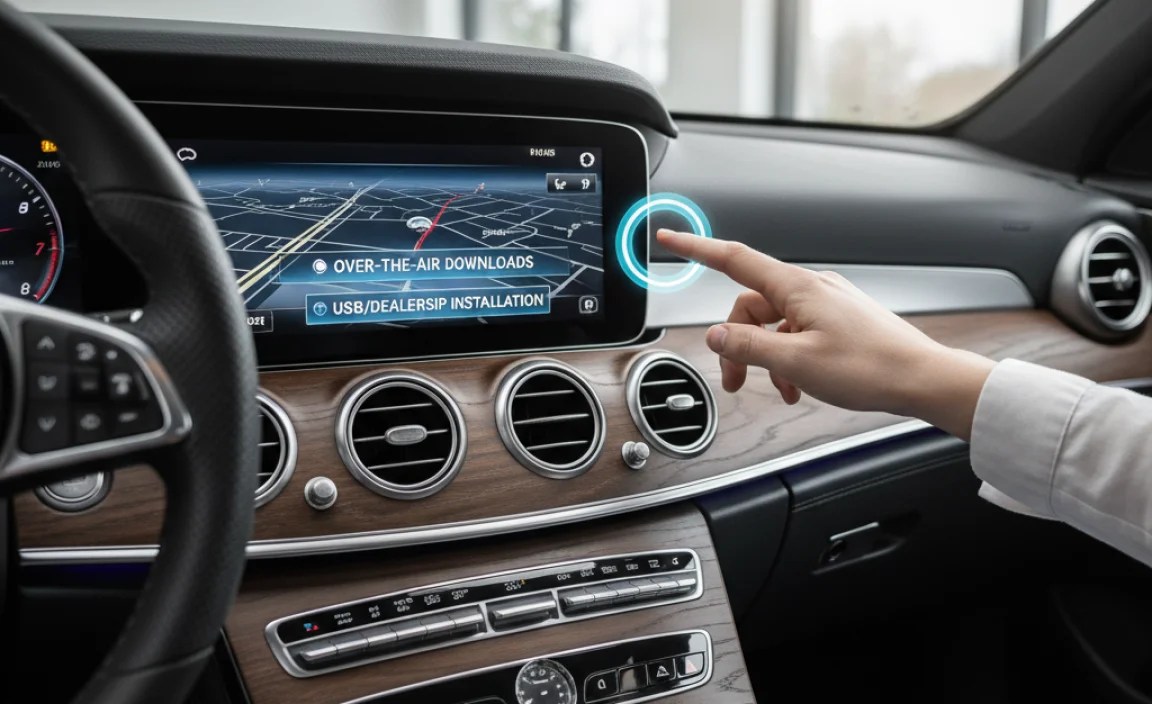
Here’s a table summarizing the different update methods to help you choose the best option for your needs:
| Method | Pros | Cons | Best For |
|---|---|---|---|
| Over-the-Air (OTA) Updates | Convenient, automatic, free | Requires Mercedes me connect, may not be available for all models | Users with an active Mercedes me connect subscription and a compatible model |
| USB Updates | Available for a wide range of models, can be done at your convenience | Requires a computer and USB drive, may require purchasing a map update package | Users who prefer a manual update or don’t have access to OTA updates |
| Dealer Updates | Hassle-free, ensures the update is done correctly | More expensive, requires scheduling an appointment | Users who are not comfortable updating the system themselves or encounter issues |
Consider your technical skills, budget, and the availability of each method when making your decision.
Maintaining Your Mercedes Navigation System
Regular maintenance of your navigation system is crucial for optimal performance. Here’s what you should do:
- Keep the System Clean: Wipe the display screen regularly with a soft, lint-free cloth to remove dust and fingerprints.
- Protect from Extreme Temperatures: Avoid exposing the system to extreme temperatures, as this can damage the components.
- Check for Software Updates: Regularly check for and install software updates to ensure the system is running smoothly.
- Report Issues: If you encounter any issues with the system, report them to your local Mercedes-Benz dealership for diagnosis and repair.
The Future of Mercedes Navigation
Mercedes-Benz is constantly innovating in the field of navigation technology. Here are some exciting developments to look forward to:
- Augmented Reality Navigation: MBUX Augmented Reality for Navigation overlays virtual directions and street names onto the live video feed from the car’s camera, providing a more intuitive and immersive navigation experience.
- Predictive Navigation: Future navigation systems may use artificial intelligence to predict traffic conditions and suggest optimal routes based on your driving habits.
- Integration with Smart Home Devices: Seamless integration with smart home devices will allow you to control your home’s lighting, temperature, and security system from your car.
These advancements promise to make driving even safer, more convenient, and more enjoyable.
Conclusion
Updating your Mercedes sedan’s navigation system is a straightforward process that ensures you always have the most accurate and up-to-date maps. By following this guide, you can keep your navigation system running smoothly and enjoy stress-free journeys wherever you go. Whether you choose over-the-air updates, USB downloads, or dealer assistance, the key is to stay proactive and keep your system current. Safe travels!
“`


