
Mercedes Wireless Android Auto by Model: A Comprehensive Guide
Want to use Android Auto wirelessly in your Mercedes-Benz? Not all models support it, and the setup can be tricky. This guide breaks down which Mercedes models offer wireless Android Auto, how to check compatibility, and step-by-step instructions for a smooth connection. Get ready to enjoy seamless smartphone integration without the hassle of cables!
Connecting your Android phone to your Mercedes-Benz infotainment system should be simple, but wireless Android Auto compatibility varies across models and years. Many owners find themselves frustrated by inconsistent information and complex setup procedures. This article provides a clear, model-specific overview, ensuring you know exactly what to expect and how to get connected. We’ll cover compatible models, essential prerequisites, and a detailed setup guide. Let’s get started and make your driving experience more enjoyable!
Mercedes-Benz Models with Wireless Android Auto

Not all Mercedes-Benz vehicles offer wireless Android Auto. The availability depends on the model year and the specific infotainment system installed. Here’s a breakdown of models that generally support wireless Android Auto:
- A-Class (2019 and newer): Many A-Class models with the MBUX system support wireless Android Auto.
- B-Class (2019 and newer): Similar to the A-Class, models equipped with MBUX typically include wireless Android Auto.
- C-Class (2022 and newer): The latest generation C-Class is designed with wireless Android Auto functionality.
- CLA (2020 and newer): Most CLA models from 2020 onwards with MBUX should support wireless Android Auto.
- GLA (2021 and newer): The newer GLA models come equipped with wireless Android Auto.
- GLB (2020 and newer): GLB models featuring MBUX generally offer wireless Android Auto.
- EQ Models (Specific trims and years): Wireless Android Auto capabilities can vary in EQ models. Verify compatibility with your dealer.
Note: This list is based on general availability and can vary depending on the region and specific vehicle configuration. Always confirm with your local Mercedes-Benz dealer or check your vehicle’s specifications to ensure compatibility.
Checking Compatibility: Is Your Mercedes Ready?

Before attempting to connect, it’s crucial to verify that your Mercedes-Benz model and infotainment system support wireless Android Auto. Here’s how to check:
- Consult Your Owner’s Manual: The owner’s manual is your first resource. Look for sections detailing smartphone integration or Android Auto. It should specify whether wireless connectivity is supported.
- Check the Mercedes-Benz Website: Visit the official Mercedes-Benz website and enter your vehicle’s VIN (Vehicle Identification Number). This will provide you with the exact specifications and features of your car.
- Contact Your Local Dealer: The service or sales department at your local Mercedes-Benz dealership can provide definitive information about your car’s compatibility. They can also check for any available software updates that might enable the feature.
- Infotainment System Settings: Navigate to the settings menu on your car’s infotainment screen. Look for options related to smartphone connectivity, Android Auto, or wireless connections. If you see a setting specifically for wireless Android Auto, your car likely supports it.
Prerequisites for Wireless Android Auto
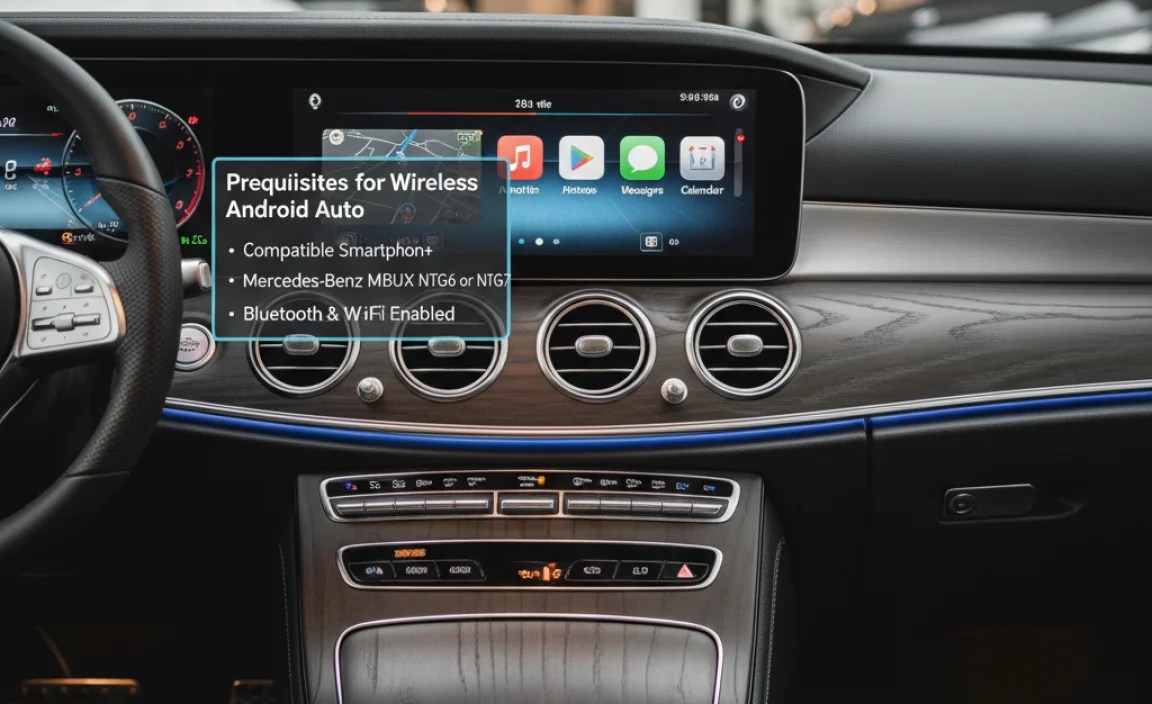
Before diving into the setup process, ensure you meet all the necessary requirements. This will streamline the connection and minimize potential issues.
- Compatible Android Phone: Your Android phone must support wireless Android Auto. Generally, phones running Android 11 or newer are compatible. Some older phones with Android 10 may also work, but compatibility can vary.
- Android Auto App: Make sure you have the latest version of the Android Auto app installed on your phone. You can download it from the Google Play Store.
- Bluetooth and Wi-Fi: Both Bluetooth and Wi-Fi must be enabled on your Android phone. Wireless Android Auto relies on these connections for initial pairing and data transfer.
- Mercedes-Benz User Profile: You need an active Mercedes me account and a user profile set up in your car. This profile links your vehicle to your personal settings and preferences.
- Software Updates: Ensure that your Mercedes-Benz infotainment system has the latest software updates installed. Outdated software can cause compatibility issues with wireless Android Auto.
Step-by-Step Guide to Setting Up Wireless Android Auto in Your Mercedes

Follow these steps to connect your Android phone to your Mercedes-Benz wirelessly:
- Enable Bluetooth and Wi-Fi on Your Phone: Go to your phone’s settings and turn on both Bluetooth and Wi-Fi. Make sure your phone is discoverable by other devices.
- Start Your Mercedes-Benz: Turn on your car’s ignition and ensure the infotainment system is active.
- Navigate to the Connection Settings: On the Mercedes-Benz infotainment screen, go to the settings menu. Look for options like “Device Connection,” “Smartphone Integration,” or “Android Auto.
- Select Android Auto: Choose the Android Auto option from the list. The system will prompt you to connect a device.
- Initiate Pairing on Your Phone: Open the Android Auto app on your phone. If it’s your first time using the app, follow the initial setup instructions.
- Select “Connect a Car”: Within the Android Auto app, select the option to “Connect a Car.” The app will start searching for available Bluetooth devices.
- Choose Your Mercedes-Benz: From the list of available devices, select your Mercedes-Benz. The car’s name should appear on the list.
- Confirm the Pairing Code: A pairing code will appear on both your phone and the car’s screen. Verify that the codes match and confirm the pairing on both devices.
- Grant Permissions: Your phone will ask for various permissions, such as access to contacts, messages, and location. Grant these permissions to allow Android Auto to function correctly.
- Establish Wi-Fi Connection: After Bluetooth pairing, your phone and the car will establish a Wi-Fi Direct connection. This might require you to enter a Wi-Fi password displayed on the car’s screen on your phone.
- Complete Setup: Follow any additional on-screen prompts to complete the setup process. Once finished, Android Auto should launch automatically on your car’s infotainment screen.
Troubleshooting Common Issues
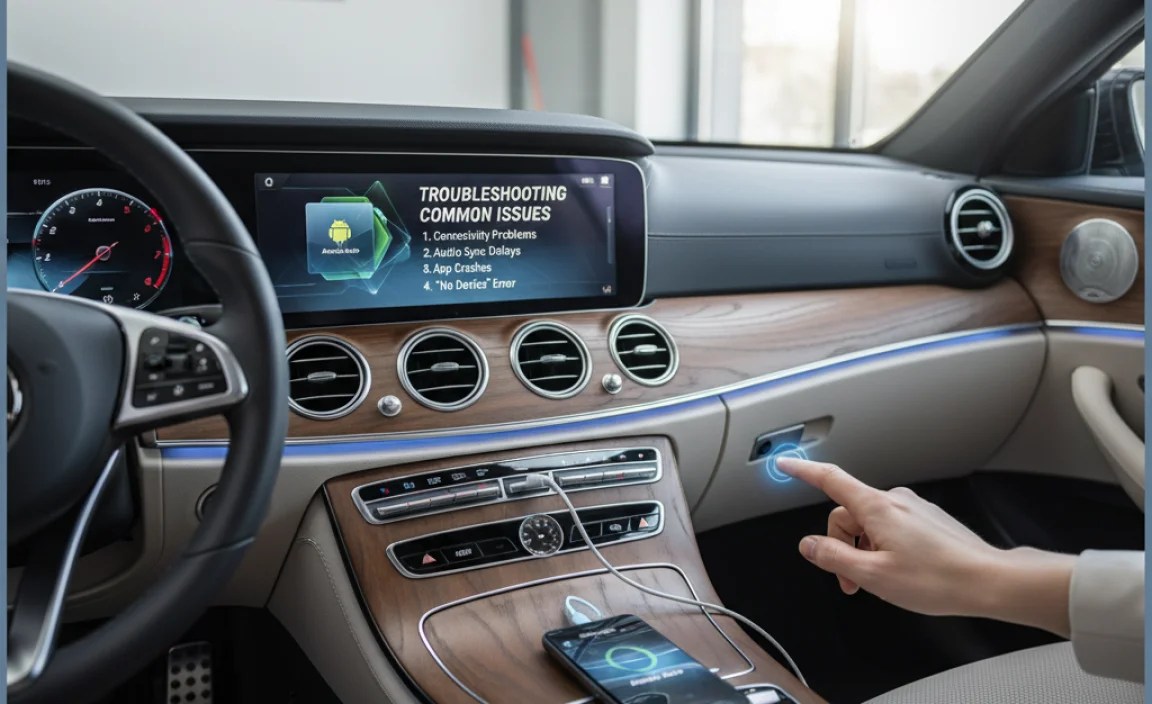
Even with the correct setup, you might encounter some issues. Here are common problems and how to fix them:
- Connection Problems:
- Issue: Android Auto fails to connect wirelessly.
- Solution:
- Ensure Bluetooth and Wi-Fi are enabled and working correctly.
- Restart both your phone and the car’s infotainment system.
- Forget the device in both Bluetooth settings and reconnect.
- Check for software updates on both your phone and the car.
- Unstable Connection:
- Issue: The wireless connection drops frequently.
- Solution:
- Minimize interference from other Bluetooth devices.
- Ensure a strong Wi-Fi signal.
- Try moving your phone to a different location in the car.
- Android Auto Not Launching:
- Issue: Android Auto doesn’t start automatically.
- Solution:
- Check the Android Auto settings on your phone to ensure it’s set to launch automatically.
- Manually launch Android Auto from the car’s infotainment system.
- Verify that Android Auto is not restricted in your phone’s battery-saving settings.
- App Compatibility Issues:
- Issue: Some apps don’t work correctly with Android Auto.
- Solution:
- Ensure that the apps are compatible with Android Auto.
- Update the apps to the latest version.
- Clear the app’s cache and data in your phone’s settings.
Tips for a Smooth Wireless Android Auto Experience
To ensure the best possible experience with wireless Android Auto, consider these tips:
- Keep Software Updated: Regularly update both your phone’s operating system and your car’s infotainment system. Updates often include bug fixes and performance improvements.
- Use a High-Quality USB Cable (for initial setup): While you’re aiming for a wireless connection, using a high-quality USB cable for the initial setup can sometimes help establish a more stable connection.
- Manage Bluetooth Connections: Too many active Bluetooth connections can cause interference. Disconnect any unnecessary Bluetooth devices.
- Optimize Wi-Fi Settings: Ensure your phone is connected to a stable and reliable Wi-Fi network before starting the wireless connection process.
- Check App Permissions: Review and manage the permissions granted to the Android Auto app. Make sure it has all the necessary permissions to function correctly.
Alternative Solutions: Aftermarket Adapters
If your Mercedes-Benz model doesn’t natively support wireless Android Auto, you might consider using an aftermarket adapter. These devices plug into your car’s USB port and create a wireless connection to your phone.
Pros of Aftermarket Adapters:
- Adds Wireless Functionality: Enables wireless Android Auto on cars that don’t have it built-in.
- Easy Installation: Most adapters are plug-and-play and easy to install.
- Cost-Effective: Often cheaper than upgrading to a newer car.
Cons of Aftermarket Adapters:
- Compatibility Issues: Not all adapters work with all car models.
- Performance Variability: Performance can vary depending on the adapter and car.
- Potential for Bugs: Aftermarket devices may have bugs or compatibility issues that the native system doesn’t have.
Here’s a comparison table of popular wireless Android Auto adapters:
| Adapter | Price (USD) | Compatibility | Features |
|---|---|---|---|
| CarlinKit Wireless Adapter | $120 – $150 | Wide range of vehicles | Plug-and-play, OTA updates |
| Ottocast Wireless Adapter | $130 – $160 | Most Android Auto-compatible cars | Fast connection, compact design |
| AAWireless | $80 – $100 | Designed specifically for Android Auto | Open-source, customizable settings |
Disclaimer: Always research and read reviews before purchasing an aftermarket adapter to ensure compatibility and reliability.
The Future of Wireless Connectivity in Mercedes-Benz
Mercedes-Benz is continuously evolving its infotainment systems to offer seamless connectivity. Future models are expected to feature even more advanced wireless integration, including over-the-air updates and improved compatibility with various smartphone platforms. As technology advances, we can anticipate more intuitive and user-friendly wireless solutions in Mercedes-Benz vehicles.
Staying informed about these advancements can help you make the most of your Mercedes-Benz and enjoy a connected driving experience.
Conclusion
Wireless Android Auto can significantly enhance your driving experience in your Mercedes-Benz, providing seamless access to navigation, entertainment, and communication features. By understanding which models support this technology, following the correct setup procedures, and troubleshooting common issues, you can enjoy a hassle-free connection. Whether you’re using a compatible model or considering an aftermarket adapter, the goal is to make your time on the road more enjoyable and connected. Happy driving!
FAQ: Mercedes Wireless Android Auto
- Q: What is Android Auto?
- A: Android Auto is a mobile app that mirrors your Android phone’s features on your car’s infotainment screen, allowing you to use apps like Google Maps, Spotify, and make calls hands-free.
- Q: Is wireless Android Auto available on all Mercedes-Benz models?
- A: No, wireless Android Auto is only available on select Mercedes-Benz models. Check the compatibility list in this article to see if your vehicle supports it.
- Q: What do I need to use wireless Android Auto?
- A: You need a compatible Mercedes-Benz model, an Android phone that supports wireless Android Auto, and the Android Auto app installed on your phone.
- Q: How do I check if my Android phone supports wireless Android Auto?
- A: Most Android phones running Android 11 or newer support wireless Android Auto. Check your phone’s specifications or the Android Auto app settings to confirm.
- Q: Can I add wireless Android Auto to my older Mercedes model?
- A: It depends. Some aftermarket adapters can enable wireless Android Auto, but compatibility and performance can vary. Research your options carefully.
- Q: Why is my wireless Android Auto connection unstable?
- A: Wireless interference, outdated software, or compatibility issues can cause connection problems. Try updating your phone and car’s software, and ensure no other devices are interfering with the Bluetooth or Wi-Fi connection.
- Q: Does using wireless Android Auto drain my phone’s battery faster?
- A: Yes, using wireless Android Auto can drain your phone’s battery faster due to the constant Bluetooth and Wi-Fi connection. Consider using a car charger for longer trips.


