
Sprinter Van GPS Navigation Systems: Ultimate Perfect Drive
Master your Mercedes-Benz Sprinter van’s GPS navigation for an effortless journey. This guide explains how to use, optimize, and troubleshoot your system for the ultimate perfect drive, ensuring you reach your destination with confidence and ease.
Navigating a new route can sometimes feel daunting, especially when you’re behind the wheel of a capable Mercedes-Benz Sprinter van. Whether you’re embarking on a cross-country delivery, a weekend adventure, or simply exploring unfamiliar territory, a reliable GPS navigation system is your co-pilot. However, many Sprinter owners find themselves scratching their heads, wondering how to unlock the full potential of their built-in or aftermarket navigation. This can lead to missed turns, unnecessary detours, and added stress. But fear not! This guide will demystify Sprinter van GPS navigation systems, breaking down everything you need to know to ensure your “ultimate perfect drive” is not just a dream, but a reality. We’ll cover the basics, advanced features, and essential tips to make every journey smoother and more enjoyable.
Understanding Your Sprinter Van GPS Navigation System

Your Mercedes-Benz Sprinter van is equipped with advanced technology designed to enhance your driving experience. The GPS navigation system is a prime example, offering more than just turn-by-turn directions. It’s an integrated part of your vehicle’s infotainment, meant to be intuitive and helpful. Understanding its core functions is the first step towards mastering it.
Built-in vs. Aftermarket GPS: What’s the Difference?
Most modern Sprinter vans come with a sophisticated infotainment system that includes a built-in GPS navigation unit. These are seamlessly integrated into the dashboard, often featuring larger screens and direct access to vehicle data, such as speed limits and traffic information. Aftermarket systems, on the other hand, are devices you purchase separately and mount onto your dashboard or windshield. While they can offer specific features or be a solution for older models without built-in navigation, dedicated Sprinter integration is usually best.
Integrated Navigation Systems
- Seamless Integration: Designed to perfectly fit your Sprinter’s dashboard and interior.
- Intuitive Controls: Often controlled via touchscreen, steering wheel buttons, or voice commands, aligning with the vehicle’s overall user interface.
- Real-time Traffic: Many premium systems offer live traffic updates to help you avoid congestion.
- Vehicle Data: Can often display speed limits, parking assistance, and other vehicle-specific information.
- Regular Updates: Typically updated via software updates or Wi-Fi, ensuring accuracy.
Aftermarket Navigation Devices
- Portability: Can be moved between vehicles.
- Cost: Can sometimes be more budget-friendly, especially for basic models.
- Specific Features: Some devices might offer niche features not found in factory systems.
- Installation: May require separate mounting and power connections.
- Screen Size: Varies greatly depending on the model.
For a true “ultimate perfect drive,” the integrated system in your Sprinter van offers the most cohesive and advanced experience. It’s designed from the ground up to work with your specific vehicle.
Key Components of a GPS Navigation System
At its heart, a GPS navigation system relies on a few key components working together:
- GPS Receiver: This is the antenna that picks up signals from satellites orbiting Earth. Triangulating signals from at least four satellites allows the receiver to pinpoint its exact location (latitude, longitude, and altitude).
- Maps and Database: The system stores detailed digital maps of roads, points of interest (POIs), and other geographical data. This is what allows the system to display your surroundings and plan routes.
- Software/Algorithm: This is the brain of the system. It processes your current location, your destination, and a vast amount of map data to calculate the most efficient route. It also provides the user interface for inputting destinations and preferences.
- Display Screen: This is where you see the map, your current position, upcoming turns, and other vital information.
- Input Device: How you tell the system where you want to go. This can be a touchscreen, buttons, or voice commands.
Understanding these components helps appreciate the technology at play, making you a more informed user.
Getting Started with Your Sprinter Navigation
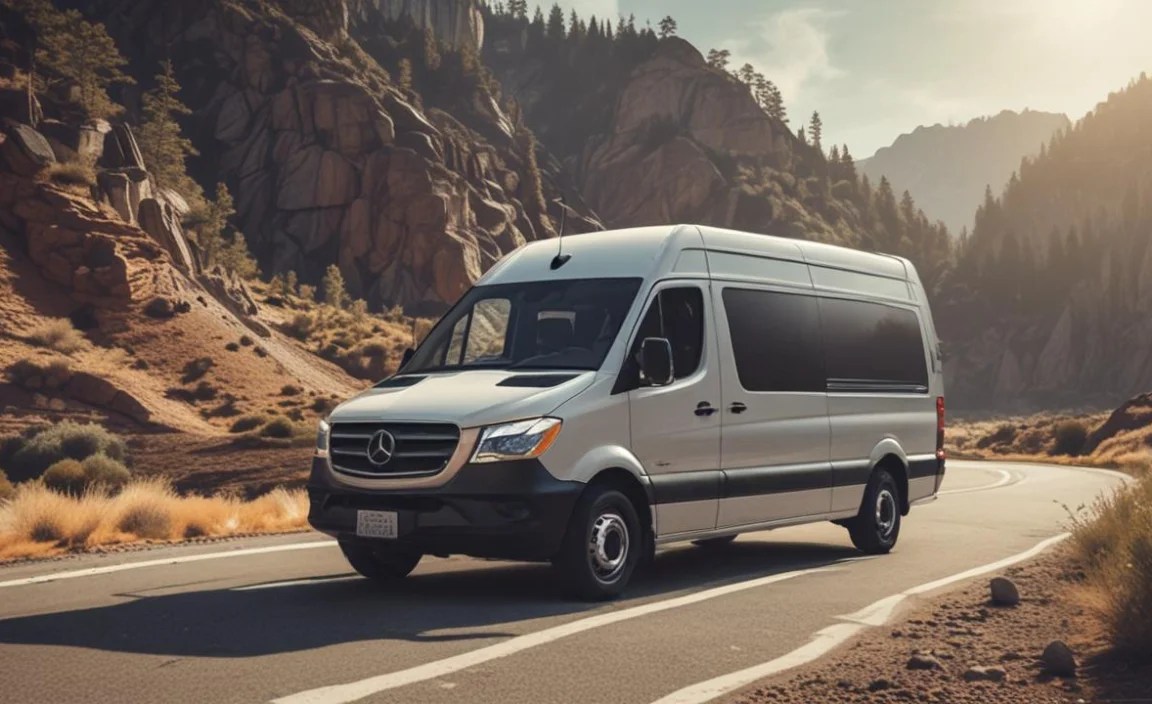
Once you’re familiar with the basics, it’s time to start using your Sprinter’s GPS system. The process is designed to be straightforward, but a little guidance can make it even smoother.
Inputting Your Destination
This is the most common function, and your Sprinter’s system offers several ways to do it:
- Address Search: The most direct method. Enter the street name, number, city, and state/country. Many systems support partial entries and will offer suggestions as you type.
- Point of Interest (POI) Search: Looking for a restaurant, gas station, or specific landmark? Use the POI search function. You can often filter by category (e.g., “Restaurants,” “Hotels,” “EV Charging Stations”).
- Recent Destinations: For frequently visited places, your system will keep a list of recent destinations for quick selection.
- Saved Locations/Favorites: You can save important addresses (like your home or office) into a “Favorites” or “Saved Places” list for easy access.
- Voice Command: Many modern Sprinters allow you to input destinations using voice commands, which is safer and more convenient while driving. Simply say the activation command (e.g., “Hey Mercedes”) followed by your desired address or POI.
Take a moment to explore the input options on your system. Practicing entering a few common destinations before a long trip can build your confidence.
Understanding the Navigation Display
The navigation screen is your primary source of information. Familiarize yourself with its layout:
- Map View: Shows your current location on a map, with the route highlighted. You can often switch between 2D (top-down) and 3D (perspective) map views.
- Turn-by-Turn Directions: Usually displayed prominently at the top or side of the screen, showing the next maneuver (e.g., “Turn right in 500 feet”) and the distance to it.
- Traffic Information: Often indicated by colored lines on the road (green for clear, yellow for moderate, red for heavy congestion). Some systems also show incident icons.
- Speed Limit Indicator: Displays the current speed limit for the road you’re on.
- Estimated Time of Arrival (ETA): Shows your anticipated arrival time, which is dynamically updated based on traffic and your speed.
- Distance Remaining: Shows how much further you have to travel.
Interpreting these elements correctly is crucial for a smooth drive. Notice how the ETA updates—it’s a valuable tool for planning stops.
Setting Navigation Preferences
Your Sprinter’s navigation system is customizable. Adjusting settings can tailor it to your driving style and needs:
- Route Preferences: You can often choose between the fastest route, shortest route, or routes that avoid tolls, highways, or ferries. For a Sprinter van, avoiding height restrictions on bridges or low underpasses is a critical setting if available.
- Voice Guidance Settings: Adjust the volume of voice prompts, the gender of the narrator, or choose spoken street names.
- Map Settings: Customize what POIs are displayed on the map, change the map color scheme, or set the map orientation (e.g., North Up or Heading Up).
- Traffic Settings: Enable or disable live traffic updates, or set preferences for how the system reroutes you due to traffic.
Exploring these preferences before you need them means you won’t be fumbling with settings mid-journey. For Sprinter van operators, routing preferences like avoiding ferries or specific road types can be paramount. Always check if your system has a “truck” or “RV” mode that considers vehicle dimensions and weight restrictions, which is vital for larger vehicles like the Sprinter.
Optimizing Your Sprinter Van GPS for the Perfect Drive

Beyond basic operation, several advanced techniques and features can elevate your Sprinter’s navigation from functional to phenomenal, ensuring that “ultimate perfect drive” every time.
Leveraging Real-Time Traffic Data
Modern navigation systems are incredibly powerful due to their access to real-time traffic information. This feature is a game-changer for avoiding delays.
- How it Works: The system receives anonymized data from other users’ vehicles and sensors to identify traffic flow and incidents.
- Benefits: Reroutes you around congestion, accidents, or construction zones, saving time and reducing stress.
- Enabling it: Ensure “Live Traffic” or “3D Traffic” is enabled in your navigation settings. This often requires an active internet connection for the vehicle or a subscription service.
For commercial Sprinter van operators, minimizing downtime due to traffic is crucial. Prioritizing routes that leverage live traffic data can directly impact efficiency.
Utilizing Voice Commands Effectively
Voice control is the safest way to interact with your navigation while driving. Mercedes-Benz’s MBUX (Mercedes-Benz User Experience) system, often found in newer Sprinters, offers particularly advanced voice capabilities.
- Activation: Typically a “Hey Mercedes” command or a dedicated button on the steering wheel.
- Common Commands: “Navigate to [address],” “Find the nearest [POI],” “What’s my ETA?,” “Add a stop,” “Cancel route.”
- Learning Curve: The more you use it, the better the system understands your speech patterns. Speak clearly and naturally.
Experiment with various commands in a safe environment to build familiarity. Being able to adjust your route or destination without taking your hands off the wheel is a hallmark of a perfect drive.
Planning Multi-Stop Journeys
Many deliveries or road trips involve multiple stops. Your Sprinter’s GPS can handle this efficiently.
- Adding Intermediate Stops: When planning a route, look for an option to “Add Stop” or “Add Destination.” You can typically add multiple stops and reorder them as needed.
- Optimizing Stop Order: Some advanced systems can automatically optimize the order of your stops to create the most efficient sequence, saving you time and mileage. This is particularly useful for delivery routes.
- Saving Route Combinations: If you frequently travel a specific multi-stop route, consider saving it as a custom route or by naming a series of favorite destinations that you can call up sequentially.
This feature transforms your navigation system from a simple point-to-point tool into a powerful route planner, essential for logistical tasks.
Integrating with Smartphone Apps
Modern Sprinter infotainment systems often offer smartphone integration, allowing you to use familiar apps on your vehicle’s display.
- Apple CarPlay & Android Auto: If your Sprinter is equipped, these systems mirror your smartphone’s interface on the car’s screen, granting access to navigation apps like Google Maps or Waze, as well as music and communication apps.
- Benefits: Access to your preferred navigation app with its specific features, interfaces, and updates. Waze, for example, is renowned for its community-reported traffic alerts and speed traps.
- Connection: Typically via USB or wireless connection.
For those who prefer Waze or Google Maps, this integration provides an excellent bridge between your phone and your Sprinter’s advanced display. It’s a fantastic way to get the best of both worlds: the system’s integration and your favorite app’s capabilities.
Keeping Your Maps Up-to-Date
Outdated maps can lead to incorrect directions, especially with new road construction or changes in speed limits. Regularly updating your system’s maps is crucial for accuracy.
- How to Update:
- Online Update: Many systems can download map updates over Wi-Fi when connected to your home network or a hotspot.
- USB Update: Some require downloading update files to a USB drive from the manufacturer’s website and then uploading them to your vehicle.
- Dealer Update: Your Mercedes-Benz dealership can perform map updates during scheduled service appointments.
- Frequency: Map data is typically updated 1-2 times per year. Check your vehicle’s manual or the Mercedes-Benz support website for the latest information.
A reputable source for map updates is through the official Mercedes-Benz navigation portal or your dealership. Maintaining up-to-date maps is a cornerstone of a perfect drive, as it ensures the information displayed is current and reliable.
Troubleshooting Common GPS Issues

Even the most advanced systems can encounter occasional glitches. Knowing how to troubleshoot will save you frustration on the road.
GPS Signal Lost/Inaccurate Location
This is one of the most common issues. It can happen in areas with poor satellite reception.
- Check for Obstructions: Ensure there are no large metal objects (like cargo in the van) blocking the GPS antenna, which is usually located on the roof or within the dashboard.
- Clear Skies: Systems perform best with a clear view of the sky. Tunnels, multi-story car parks, and dense urban canyons can interfere with signals. Most systems will reacquire the signal once you’re back in an open area.
- Restart the System: Sometimes, a simple restart of the infotainment system can resolve temporary glitches. Consult your Sprinter’s manual on how to do this safely.
- Check Antenna Connection: If you have an aftermarket unit, ensure the GPS antenna is properly connected and positioned.
Navigation System Freezing or Lagging
A frozen or slow system can be a major annoyance.
- Close Other Applications: If using smartphone integration (CarPlay/Android Auto), try closing unnecessary apps on your phone.
- Reduce Map Detail: In the map settings, try disabling non-essential POI displays or switching to a simpler map view.
- System Reboot: As with signal issues, a reboot of the infotainment system might be necessary.
- Software Update: Ensure your system’s software is up-to-date. Bug fixes are often included in software updates.
Incorrect or Outdated Maps
If the system consistently provides wrong directions or shows old road layouts.
- Update Maps: This is the most likely solution. Follow the update procedures outlined earlier.
- Report Errors: Most navigation systems allow you to report map errors directly through the interface. This feedback helps map providers improve accuracy.
- Verify Settings: Double-check your routing preferences. For example, ensure “Avoid Tolls” is not selected if you expect to use toll roads.
Voice Command Not Responding
If the “Hey Mercedes” or other voice commands aren’t triggering the system.
- Check Microphone: Ensure the vehicle’s microphone is not blocked or damaged.
- Re-enable Feature: Check the system settings to ensure voice control is enabled.
- System Restart: A reboot of the infotainment system can often resolve temporary communication issues.
- Language Settings: Verify that the system’s language setting matches the language you are speaking.
For any persistent issues that you cannot resolve with these basic steps, consulting your Sprinter’s owner’s manual or contacting a Mercedes-Benz authorized service center is the recommended course of action. You may also find valuable community support on forums dedicated to Mercedes-Benz Sprinter vans.
Essential Accessories for an Enhanced Navigation Experience

While your Sprinter likely has an excellent built-in system, a few accessories can further enhance your navigation experience, especially for long hauls or specific use cases.
Dash Cams with GPS Logging
Modern dash cams often include GPS logging capabilities. While not directly for navigation, the GPS data recorded by the cam can be invaluable for reviewing routes, speeds, and locations, offering a detailed log of your journey.
- Benefits: Provides a chronological record of your drive, useful for insurance claims or personal review.
- Integration: Some dash cams can even integrate with mapping software to visually display your route during playback.
- Consideration: Ensure the dash cam’s GPS function is enabled and regularly check for firmware updates for optimal performance.
A reputable brand for dash cams with GPS is BlackBerry QNX, known for automotive-grade technology, though consumer brands like Garmin or Thinkware also offer robust GPS-enabled units.
Portable Power Banks and Chargers
While your Sprinter has a power source, keeping your devices charged is essential, especially if you’re relying on your smartphone for navigation backup or using CarPlay/Android Auto.
- High-Capacity Power Banks: Essential for keeping phones and tablets charged on long stops or if the van’s ignition is off


