
Unbelievable EQC Digital Cockpit: Perfect Drive
Unlock the magic of your EQC digital cockpit for the perfect drive. Master its intuitive displays and smart features with this easy guide, making every journey more informed and enjoyable.
Driving a Mercedes-Benz is an experience, and the all-electric EQC takes this to a new level, especially with its revolutionary digital cockpit. Sometimes, navigating this advanced technology can feel a bit daunting, leaving you wondering if you’re using it to its full potential. But don’t worry! This guide is here to demystify the EQC’s digital cockpit, transforming it from a complex array of screens into your personal command center. We’ll walk you through every key feature, ensuring you can customize it for your perfect drive, enhance your safety, and truly enjoy the advanced tech at your fingertips. Get ready to connect with your EQC like never before.
Frequently Asked Questions
What exactly is the EQC digital cockpit?
The EQC digital cockpit is essentially a high-resolution digital display that replaces traditional analog gauges. It combines two elegant, expansive screens that show your driving information, navigation, entertainment, and vehicle settings in a customizable, modern interface.
How do I change the display on the EQC digital cockpit?
You can personalize your display using the touch control buttons on the steering wheel. A quick swipe or tap allows you to scroll through different display styles, widgets, and information menus, letting you tailor what you see at any moment.
Is the navigation system integrated into the digital cockpit?
Yes, the navigation system is seamlessly integrated. You can choose to display full-screen maps, or an overview with directions appearing in the instrument cluster, ensuring key navigation prompts are always within your line of sight.
Can I connect my smartphone to the EQC digital cockpit?
Absolutely. The EQC digital cockpit supports smartphone integration via Apple CarPlay and Android Auto, allowing you to access your apps, music, and calls safely through the car’s interface.
How does the EQC digital cockpit help with electric driving?
It provides crucial information for electric driving, such as battery charge level, estimated range, charging status, and even energy flow. This helps you optimize your driving for maximum efficiency and plan your charging stops.
Are the displays touch-sensitive?
While the main screens are not touch-sensitive, they are controlled via the touch control buttons on the steering wheel, the touchpad in the center console, or voice commands, offering multiple intuitive ways to interact with the system.
What are the different display styles available?
The EQC offers several display styles, typically including ‘Classic,’ ‘Sporty,’ and ‘Progressive,’ each with a unique aesthetic and layout for your instrument cluster, allowing you to match the display to your mood or driving focus.
Understanding the EQC Digital Cockpit

Welcome to the command center of your Mercedes-Benz EQC! The digital cockpit is more than just a dashboard; it’s a sophisticated, integrated system designed to put all the essential information and entertainment you need right in front of you. Think of it as a smart, intuitive co-pilot that adapts to your preferences and driving style. It’s built with Mercedes-Benz’s signature blend of luxury, innovation, and user-friendliness, ensuring that while it looks incredibly advanced, it’s surprisingly easy to master. Let’s break down what makes it so special and how you can leverage its power for every drive.
The Stunning Dual-Screen Design
At the heart of the EQC’s digital cockpit are two large, high-resolution screens seamlessly integrated into a single, flowing unit. This “widescreen cockpit” creates a visually impressive and immersive environment.
- Driver Display: Typically on the left, this screen replaces the traditional speedometer and tachometer. It’s highly customizable, allowing you to display navigation, media, phone contacts, driver assistance systems, and more.
- Central Media Display: Usually on the right, this screen is your hub for infotainment, climate control, vehicle settings, and communication. It’s where you’ll manage your music, calls, and the car’s extensive features.
This dual-screen setup not only looks futuristic but also significantly improves how you interact with your vehicle. Information is presented clearly and logically, reducing distractions and keeping your focus on the road.
Intuitive Control Methods
Mercedes-Benz understands that interacting with technology while driving needs to be safe and effortless. The EQC digital cockpit offers several control methods, ensuring you can access what you need without fuss.
- Touch Control Buttons on the Steering Wheel: These are perhaps the most frequently used controls. Subtle touchpads on the left and right spokes of the steering wheel allow you to swipe, tap, and press to navigate through menus and select options on both screens. It’s like having a mini smartphone controller right at your fingertips.
- Touchpad in the Center Console: For a more tactile experience, the central touchpad offers another way to navigate the media display. It supports multi-touch gestures, similar to a tablet, and can also recognize handwriting for inputting destinations.
- Voice Control (Mercedes-Benz User Experience – MBUX): This is where the EQC truly shines. With the MBUX system, you can simply say “Hey Mercedes” followed by your command. Want to adjust the temperature? “Hey Mercedes, lower the AC by two degrees.” Need directions? “Hey Mercedes, navigate to the nearest charging station.” It’s incredibly powerful and understands natural speech, making complex tasks simple.
The beauty of these control options is their redundancy. If one method isn’t convenient, another is readily available, ensuring you always have control.
Customizing Your Display for the Perfect Drive
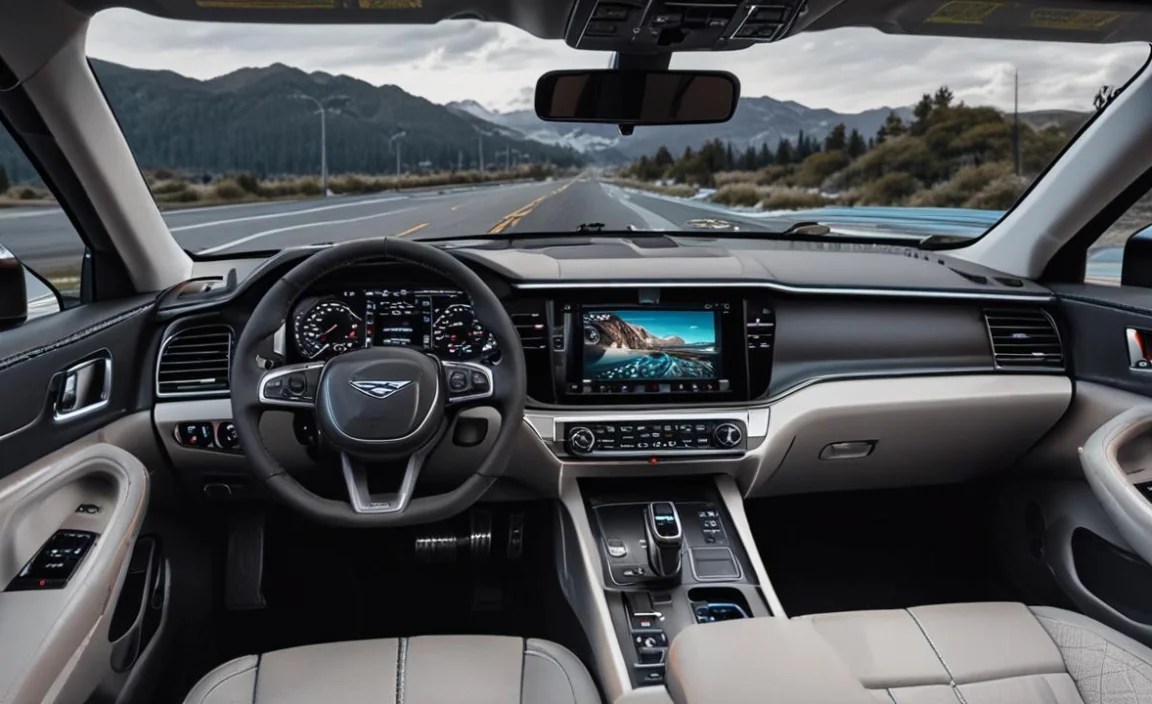
The true magic of the EQC digital cockpit lies in its adaptability. It’s not a one-size-fits-all system; it’s designed to be tailored to your driving needs and preferences. Customization is key to making your EQC feel truly yours and ensuring the information you need is always where you expect it.
Choosing Display Styles
Your EQC comes with several pre-set display styles that change the overall look and feel of the instrument cluster. These are designed to suit different moods and driving situations. Common styles include:
- Classic: Offers a traditional, analog-like display with clear dials for speed and power.
- Progressive: Features a modern, sleek design with clear graphics and emphasis on efficiency information.
- Sporty: Usually presents a more dynamic layout with prominent rev counters (or equivalent electric performance indicators) and performance-oriented graphics.
To change your display style, navigate the menus using the touch control buttons on the steering wheel. Typically, you’ll find this option under ‘Display’ or ‘Style’ within the instrument cluster settings.
Personalizing Widgets and Information
Beyond the overall style, you can fine-tune the specific information displayed within various sections of your chosen style. This is where you can really optimize for your perfect drive.
Let’s say you’re on a long road trip. You might want your navigation map prominently displayed, along with your current speed, the time, and perhaps the music you’re listening to. If you’re focused on efficiency, you might prioritize displaying energy consumption data, regenerative braking information, and your estimated range.
To add, remove, or rearrange these “widgets” or “viewports”:
- Use the touch control buttons on the steering wheel to navigate to the desired area of the instrument cluster you wish to customize (e.g., the central area, or one of the side elements).
- Press the “OK” button on the steering wheel to enter customization mode for that specific area.
- Swipe or scroll through the available information categories (like Navigation, Media, Vehicle Status, Efficiency, etc.).
- Select the information you wish to display.
- Confirm your selection. Repeat for other customizable areas.
This level of personalization means your most critical information is always just a glance away, without needing to dig through menus.
Navigating with Your EQC Digital Cockpit

Navigation in an EQC is a smooth, integrated experience. The digital cockpit ensures that directions are always clearly visible, helping you reach your destination with confidence.
Full-Screen Versus Overview Navigation
You have two primary ways to view navigation in your EQC:
- Full-Screen Map (Central Display): This dedicates the entire central media display to a detailed map, which is excellent for route planning, exploring new areas, or when you need to see the bigger picture. You can pinch to zoom, pan, and access points of interest directly from this view.
- Navigation Overview (Instrument Cluster): This is a fantastic feature for everyday driving. A simplified view of your upcoming route, including turns and distances, is displayed directly within the instrument cluster, often alongside your driving speed. This keeps vital navigation cues in your primary field of vision, minimizing the need to look away from the road.
You can typically switch between these views seamlessly. If you’re using full-screen navigation and want to bring up the overview in the instrument cluster, you can usually select this as a customizable element in your instrument cluster display settings.
Destination Input and Smart Routing
Entering destinations is straightforward thanks to the multiple input methods:
- Voice Command: As mentioned, “Hey Mercedes, set navigation to [address or place name]” is incredibly convenient.
- Touch Input: You can type addresses or place names using the on-screen keyboard on the central media display.
- Touchpad: The center console touchpad can also be used for text input, and it even recognizes handwritten characters.
- Smartphone Integration: If you use apps like Google Maps or Waze on your phone, you can often send destinations directly to the car’s navigation system via Apple CarPlay or Android Auto.
The EQC’s navigation system is also “intelligent.” For an electric vehicle, this means it can plan routes that include charging stops if your journey exceeds the current battery range. Connect your compatible smartphone, and MBUX can even use live traffic data and predictive information to suggest the fastest or most efficient routes.
External Integration for Navigation
For those who prefer using their favorite navigation apps, the EQC offers robust smartphone integration through Apple CarPlay and Android Auto. This allows you to mirror the interface of your phone’s navigation apps directly onto the car’s central media display. This is ideal if you rely on specific features or familiar interfaces of apps like Google Maps or Apple Maps. You can find more general information on the benefits of integrated vehicle navigation systems from official sources, such as the U.S. Department of Transportation’s National Highway Traffic Safety Administration (NHTSA) guidance on driver distraction.
Optimizing for Electric Driving

The EQC digital cockpit is specifically engineered to enhance your electric driving experience. It provides crucial data points that help you understand your energy usage, manage your battery, and maximize your range, turning efficient driving into an engaging part of your journey.
Understanding Range and Battery Status
This is arguably the most critical information for any EV driver. Your EQC’s digital cockpit clearly displays:
- Battery Charge Level: Shown as a percentage, indicating how much energy is left in the battery.
- Estimated Range: A dynamic prediction of how many miles or kilometers you can travel with the current charge. This figure adjusts based on your recent driving style, speed, and external factors like temperature and terrain.
- Charging Status: When plugged in, you’ll see the charging speed, estimated time to full charge, and the current charge percentage.
You can usually find this information in a dedicated ‘Electric’ or ‘EQ’ menu within your display settings or as configurable widgets.
Energy Flow and Regenerative Braking
To truly master EV driving, understanding energy flow is key. The EQC often provides visualizations that show:
- Energy Consumption: Real-time feedback on how much energy your driving is using, broken down by propulsion, auxiliaries (like climate control), and lighting.
- Regenerative Braking: This is a cornerstone of EV efficiency. When you lift off the accelerator or apply the brakes, the electric motor can act as a generator, capturing kinetic energy that would otherwise be lost as heat and sending it back to the battery. The digital cockpit can show you how effectively you’re engaging regenerative braking, encouraging a driving style that maximizes this energy recovery.
You can often adjust the intensity of regenerative braking through dedicated drive modes or steering wheel paddles, allowing you to choose between a ‘one-pedal’ driving experience or a more traditional coasting feel. Monitoring these displays helps you learn how to drive more smoothly and utilize regenerative braking to extend your range.
Charging Management and Planning
The EQC’s system goes beyond just showing you the battery status. It helps you manage charging:
- Pre-conditioning: You can set departure times for your EQC to automatically heat or cool the cabin while it’s still plugged in, using grid power rather than the battery. This ensures maximum range once you start driving.
- Charging Temporization: Depending on electricity tariffs, you might want to schedule charging to begin at off-peak hours. The EQC allows precise scheduling of charging.
- Range Optimization Tips: The system may offer subtle on-screen prompts or information to guide you toward more efficient driving, such as suggesting lower speeds on highways or recommending the most efficient drive mode.
By understanding and utilizing these electric-specific features, you can drive your EQC more confidently and efficiently, making the transition to electric mobility seamless and enjoyable.
Infotainment and Connectivity

Beyond the essential driving information, the EQC digital cockpit is your gateway to a connected and entertaining driving experience, all managed through the intuitive MBUX system.
Media and Audio Control
The central media display is your hub for all things audio:
- Radio: Easily tune into FM, AM, or digital radio stations.
- Music Streaming: Connect your smartphone via Bluetooth or USB to stream music from popular apps. MBUX also supports integrated streaming services.
- Personalization: Set up your favorite radio stations and playlists for quick access.
- Sound Settings: Adjust bass, treble, balance, and explore advanced audio enhancements to create your perfect listening environment.
Navigating through your audio sources is simple using the touch controls, touchpad, or voice commands.
Smartphone Integration (Apple CarPlay & Android Auto)
This is a must-have for modern drivers. By connecting your compatible iPhone or Android device via USB, you can access simplified versions of your phone’s most essential apps on the EQC’s screens:
- Navigation: Use Google Maps, Apple Maps, or Waze with their familiar interfaces and real-time traffic updates.
- Communication: Make and receive calls, send and read text messages (often hands-free via voice assistance).
- Music & Podcasts: Access your favorite music apps and podcast players.
- Voice Assistants: Utilize Siri (for Apple CarPlay) or Google Assistant (for Android Auto) for seamless control.
The integration is deep and secure, ensuring your smartphone experience is safely delivered within the car’s systems. You can choose whether to display these mirrored apps on the central media display or, in some cases, to have key navigation prompts appear in the instrument cluster.
Voice Control with MBUX
The “Hey Mercedes” voice assistant is a standout feature. It’s designed to understand natural language, not just rigid commands. You can use it for:
- Navigation: “Hey Mercedes, find the nearest sushi restaurant.”
- Climate Control: “Hey Mercedes, it’s a bit warm in here.”
- Entertainment: “Hey Mercedes, play some jazz music.”
- Vehicle Settings: “Hey Mercedes, what’s my tire pressure?”


