
Essential MBUX Android Auto Integration Tips
Easily integrate Android Auto with your Mercedes-Benz MBUX system to enhance your driving experience. Connect your phone with a USB cable or wirelessly, using the MBUX interface for seamless access to apps, navigation, and entertainment. Enjoy hands-free convenience and stay connected on the road with this intuitive setup.
Mercedes-Benz’s MBUX system is a marvel of automotive technology, but setting up Android Auto can sometimes leave drivers scratching their heads. Many Mercedes owners want to take full advantage of their car’s infotainment system, making Android Auto integration a must.
Don’t worry—this guide will walk you through the setup process step-by-step. You’ll soon be streaming music, navigating effortlessly, and staying connected while your hands remain safely on the wheel. Let’s dive into how you can integrate Android Auto with your MBUX system.
What is MBUX?

The Mercedes-Benz User Experience, or MBUX, is an advanced infotainment system designed to offer a seamless, intuitive driving experience. It combines voice control, touch displays, and artificial intelligence to adapt to your preferences, making your drive more comfortable and enjoyable.
Features of MBUX
- Voice-activated controls: Speak naturally to interact with your car.
- Touchscreen: Responsive interface with high-resolution display.
- Personalization: Learns your habits and preferences.
- Navigation: Integrated GPS with real-time updates.
- Connectivity: Seamlessly integrates with smartphones.
Getting Started with Android Auto
How To Connect To Android Auto® With Mercedes-Benz MBUX

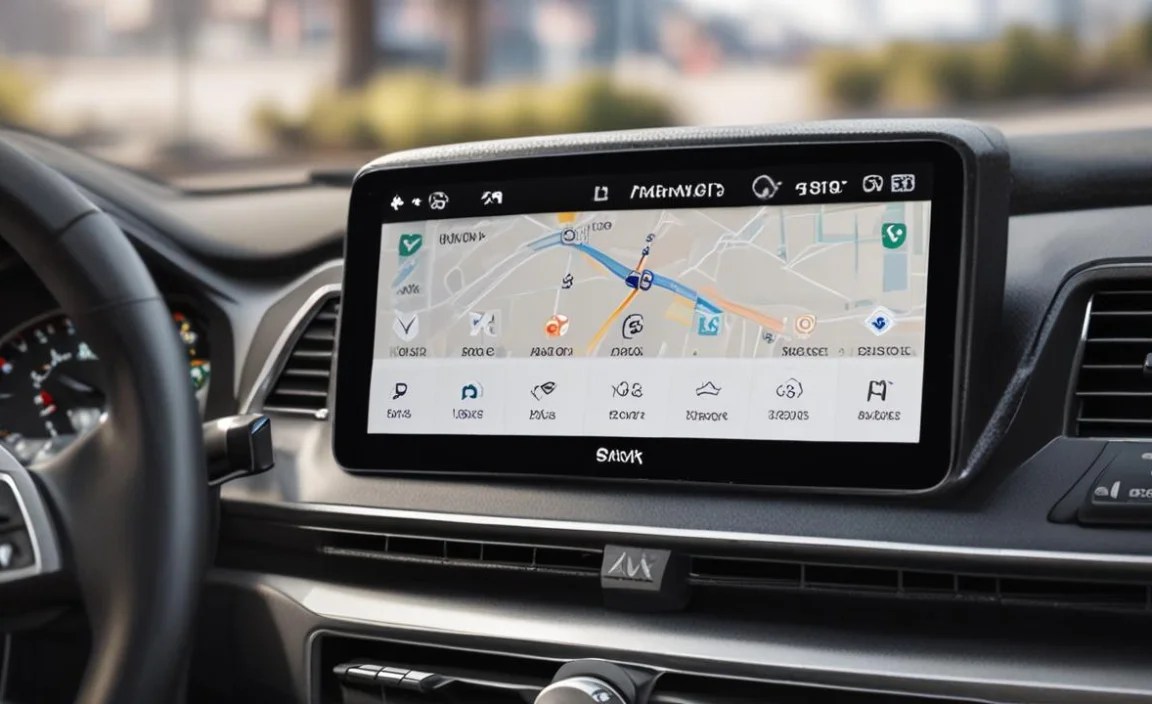
Android Auto allows you to use your smartphone safely while driving. It enables you to access apps, music, messages, and more without taking your eyes off the road. Compatible with the MBUX system, Android Auto simplifies your driving experience.
Steps to Integrate Android Auto with MBUX
- Check Compatibility: Ensure your vehicle is equipped with the MBUX system and your smartphone supports Android Auto.
- Download the App: Install the Android Auto app from the Google Play Store if it’s not pre-installed on your device.
- Connect via USB: Use a USB cable to connect your phone to the car’s USB port. Wait for the prompt on your vehicle’s screen.
- Enable Permissions: Follow the on-screen instructions and allow necessary permissions on your phone to sync with the MBUX system.
- Activate Android Auto: Once connected, select Android Auto from the MBUX menu to access your phone’s apps through the car’s interface.
Wireless Integration Option
If your model supports wireless Android Auto, you can connect without a USB cable. Ensure Bluetooth and Wi-Fi are enabled on your phone, then pair it with the MBUX system. Follow the prompts to complete the setup wirelessly.
Benefits of Using Android Auto with MBUX

| Benefit | Description |
|---|---|
| Hands-Free Operation | Use voice commands to control apps, navigate, and send messages. |
| Seamless Navigation | Access Google Maps and Waze directly from your car’s display. |
| Entertainment On-the-Go | Stream music from Spotify, YouTube Music, and other apps. |
Troubleshooting Common Issues

Encountering issues with Android Auto integration? Here are some solutions:
Connectivity Problems
- Check Cable: Ensure you’re using a compatible and undamaged USB cable.
- Restart Devices: Restart both your phone and vehicle infotainment system.
- Update Software: Ensure both your phone’s OS and the Android Auto app are up-to-date.
App Malfunctions
- Reinstall Apps: If specific apps aren’t working, try reinstalling them on your phone.
- Clear Cache: Clear the app cache in your phone’s settings to resolve glitches.
For more detailed solutions, you can visit the official Android Auto support page.
FAQs
Can I use Android Auto without a cable?
Yes, if your Mercedes-Benz MBUX system supports wireless Android Auto, you can connect without a USB cable by enabling Bluetooth and Wi-Fi on your phone.
Why isn’t my phone connecting to Android Auto?
Ensure your phone is compatible, the Android Auto app is updated, and use a high-quality USB cable. Restart your phone and car infotainment system if needed.
Is Android Auto available on all Mercedes-Benz models?
Not all models are equipped with the MBUX system that supports Android Auto. Check your vehicle’s manual or consult your dealer.
What apps can I use with Android Auto?
You can access navigation apps like Google Maps, messaging apps, and music streaming services. Visit Android Auto’s official site for a full list of compatible apps.
Does using Android Auto affect my data plan?
Yes, Android Auto uses your smartphone’s data for navigation, streaming, and other services. Ensure you have an adequate data plan to avoid extra charges.
How do I update my Android Auto app?
Access the Google Play Store on your phone, navigate to ‘My apps & games,’ and check for updates for the Android Auto app.
Can I customize Android Auto settings?
Yes, in the Android Auto app settings on your phone, you can customize notifications, enable/disable apps, and adjust voice command preferences.
Conclusion
Integrating Android Auto with your Mercedes-Benz MBUX system empowers you with hands-free control and seamless access to your smartphone’s features. Whether you’re navigating a new city or just enjoying your favorite playlist, the integration enhances your driving experience.
By following the steps outlined here, you can easily set up and troubleshoot any hurdles that come your way. Drive with confidence, knowing you’re fully connected and in control.


