
Vito Van Android Auto: Ultimate Integration For Effortless Driving
Vito Van Android Auto integration offers seamless smartphone connectivity for enhanced navigation, entertainment, and communication, making every drive smoother and more enjoyable.
Is navigating unfamiliar roads or managing your music while driving a hassle in your Mercedes-Benz Vito van? You’re not alone. Many drivers find keeping their smartphone functions accessible and safe while on the move a challenge. Fortunately, Mercedes-Benz has integrated advanced technology to make this effortless. This guide will walk you through how to get your Vito Van’s Android Auto system running perfectly, transforming your driving experience from a distraction into a connected delight.
Understanding Vito Van Android Auto Integration
Android Auto is a smart, simplified way to use your Android phone in your Mercedes-Benz Vito van. It mirrors essential apps from your phone onto your van’s infotainment display, giving you access to navigation, music, messaging, and more. The primary goal is to keep your eyes on the road and your hands on the wheel, enhancing safety and convenience. When you connect your Android device via USB or wirelessly (depending on your Vito model and phone compatibility), Android Auto brings a familiar, user-friendly interface directly into your dashboard.
Why Android Auto Matters for Your Vito Van
In today’s connected world, your smartphone is an indispensable tool. For a commercial or personal vehicle like the Mercedes-Benz Vito, seamless integration means:
- Enhanced Navigation: Access real-time traffic updates, precise directions, and route planning with Google Maps or Waze, all displayed on your van’s larger screen.
- Simplified Communication: Make calls, send texts (and have them read aloud), and manage your contacts without fumbling with your phone.
- Uninterrupted Entertainment: Stream your favorite music, podcasts, or audiobooks from apps like Spotify, YouTube Music, or Audible.
- Voice Control: Use Google Assistant to control most functions hands-free, making it safer and easier to interact with your vehicle’s system.
- Access to Essential Apps: Beyond navigation and media, Android Auto supports a curated selection of apps designed for the driving environment.
Getting Started: Connecting Your Android Phone to Vito Van Android Auto

The process of connecting your Android phone to your Vito Van’s Android Auto system is straightforward. Most modern Vito models come equipped with this feature as standard or as an optional upgrade. Here’s what you’ll need and how to do it:
What You’ll Need
- A compatible Android smartphone (running Android 6.0 Marshmallow or later).
- A reliable USB cable (if connecting via USB). For wireless Android Auto, ensure your phone supports Wi-Fi and Bluetooth connectivity.
- Your Vito van’s infotainment system should be powered on.
Step-by-Step Connection Guide
Follow these steps to establish your Android Auto connection:
- Install the Android Auto App: On your Android smartphone, download and install the Android Auto app from the Google Play Store if it’s not already pre-installed. Newer Android versions often have Android Auto built-in, so you might not need a separate download.
- Connect Your Phone:
- USB Connection: Plug one end of your USB cable into your phone and the other into a USB port in your Vito van. Look for ports labeled with a smartphone icon or “Android Auto.”
- Wireless Connection: If your Vito supports wireless Android Auto, ensure Bluetooth is enabled on your phone and in your van’s infotainment system. Follow the on-screen prompts to pair your phone via Bluetooth. Your van may then prompt you to connect via Wi-Fi for the Android Auto signal.
- Grant Permissions: Once connected, your phone and the Vito’s infotainment system will likely prompt you to grant several permissions. This includes access to contacts, location, microphone, and notifications. Review these permissions and accept them to allow Android Auto to function fully.
- Start Android Auto: Your Vito’s infotainment screen should now display the Android Auto interface. If it doesn’t automatically launch, look for an Android Auto icon on the media or phone menu and select it.
- Explore the Interface: Familiarize yourself with the layout. You’ll typically see icons for navigation (Google Maps), phone, media players, and messaging apps.
For a quick reference, here’s a summary of the process:
| Step | Action | Notes |
|---|---|---|
| 1 | Install/Check Android Auto App | Ensure the app is on your phone. |
| 2 | Connect Phone | Use USB cable or Bluetooth/Wi-Fi pairing. |
| 3 | Grant Permissions | Allow access to essential phone functions. |
| 4 | Launch Android Auto | Select the icon on your van’s screen. |
| 5 | Begin Driving Connected | Enjoy your integrated experience. |
Maximizing Your Vito Van Android Auto Experience
Once set up, Android Auto offers a wealth of features to enhance your driving. Here’s how to make the most of it:
Navigation That Keeps You Moving
Google Maps is the default navigation app, offering incredibly useful features for drivers:
- Real-time Traffic: Avoid delays with live traffic updates that suggest faster routes.
- Satellite View: Get a better perspective of your surroundings, especially useful in complex intersections or rural areas.
- Lane Guidance: Confidently navigate multi-lane roads and exits.
- Search on the Go: Easily find gas stations, restaurants, or points of interest using voice commands.
If you prefer Waze, it’s also fully compatible and offers community-driven traffic alerts for hazards and speed traps.
Seamless Communication and Messaging
Stay in touch without compromising safety:
- Voice Calls: Initiate calls by saying, “Hey Google, call [contact name].”
- Read and Reply to Messages: When a message arrives, Android Auto will notify you. You can ask Google Assistant to read it aloud and then dictate a reply.
- Supported Messaging Apps: Works with Google Messages, WhatsApp, Telegram, and others.
Remember to always prioritize your driving safety and use voice commands whenever possible.
Your Mobile Entertainment Hub
Turn your Vito van into a mobile concert hall or a podcast studio:
- Music Streaming: Access your playlists and libraries from Spotify, YouTube Music, Amazon Music, and more.
- Podcasts and Audiobooks: Catch up on your favorite shows or listen to that captivating novel with apps like Audible or Google Podcasts.
- Easy Control: Browse albums, artists, and playlists directly from your van’s touchscreen or using voice commands.
Voice Commands: Your Smart Co-Pilot
The power of Google Assistant is at your command:
Simply say, “Hey Google,” or long-press the voice command button on your steering wheel to activate the assistant. You can use it for almost everything:
- “Hey Google, navigate to the nearest post office.”
- “Hey Google, play my driving playlist.”
- “Hey Google, what’s the weather like today?”
- “Hey Google, send a text to Sarah saying I’m on my way.”
Google Assistant is continuously updated, meaning its capabilities expand over time. For more about Google Assistant’s capabilities, visit the official Google Assistant website.
Troubleshooting Common Vito Van Android Auto Issues
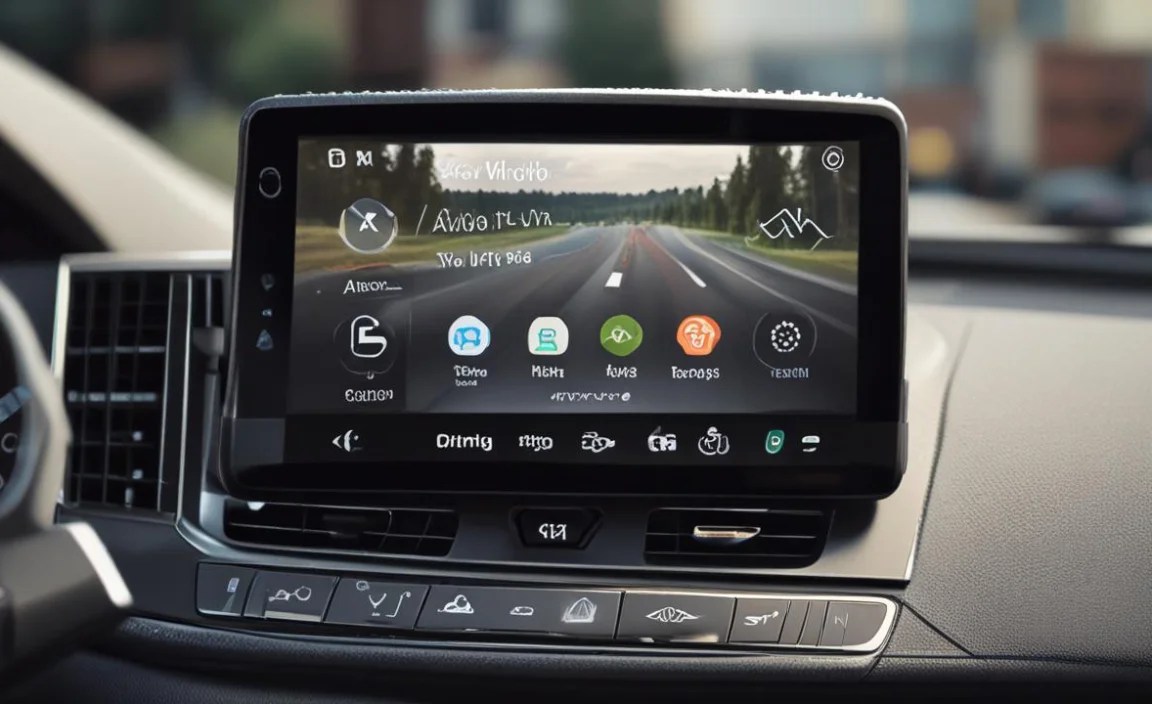
While Android Auto is generally reliable, occasional glitches can occur. Here are some common issues and their solutions:
Connection Problems
Symptom: Android Auto won’t connect or disconnects frequently.
Solutions:
- Check the USB Cable: A damaged or low-quality USB cable is the most common culprit. Try a different, high-quality USB cable, preferably the one recommended by your phone manufacturer. Some cables are for charging only and don’t support data transfer.
- Restart Your Phone and Infotainment System: A simple reboot can resolve temporary software conflicts. Turn off your van, remove your phone, restart your phone, and then reconnect.
- Clear Cache and Data: On your Android phone, go to Settings > Apps > Android Auto > Storage > Clear Cache and Clear Data. Reconnect your phone afterward.
- Update Software: Ensure both your Android phone’s operating system and the Android Auto app are updated to the latest versions. Also, check if your Vito’s infotainment system has any available software updates from Mercedes-Benz. You can usually check for these at a dealership or through your car’s system settings.
- USB Port: Try a different USB port in your van if available.
App Not Responding
Symptom: A specific app within Android Auto is frozen or not working.
Solutions:
- Force Close App: On your phone, force close the problematic app and reopen Android Auto.
- Check App Settings on Phone: Ensure the app is compatible with Android Auto and that any necessary permissions are granted on your phone.
- Reinstall App: If the issue persists, try uninstalling and then reinstalling the app on your phone.
No Sound
Symptom: Audio from Android Auto apps is not playing through the speakers.
Solutions:
- Check Volume Levels: Ensure the volume is up on both your phone and your van’s infotainment system.
- Check Audio Source: Make sure your van’s audio source is set to Android Auto or the connected phone. Sometimes, the system might default back to radio.
- Restart: Restarting your phone and the infotainment system usually resolves sound issues.
Wireless Connection Issues
Symptom: Wireless Android Auto fails to connect or stay connected.
Solutions:
- Bluetooth and Wi-Fi: Ensure both Bluetooth and Wi-Fi are enabled on your phone and that your phone is not connected to any other Bluetooth audio device simultaneously.
- Forget and Re-pair: In your Vito’s Bluetooth settings, “forget” your phone and on your phone, forget the car’s Bluetooth. Then, re-pair them.
- Phone Compatibility: Confirm that your specific phone model supports wireless Android Auto. Visit Google’s official list of compatible phones for confirmation.
Integrating Other Mercedes-Benz Technologies with Android Auto

Your Vito van is more than just a platform for Android Auto; it’s a sophisticated Mercedes-Benz vehicle. Understanding how other onboard technologies can complement Android Auto enhances your driving experience further.
MBUX (Mercedes-Benz User Experience)
If your Vito is equipped with the MBUX infotainment system, you’ll find it beautifully integrated with smartphone connectivity. MBUX offers:
- Intuitive Touchscreen and Voice Control: Complements Android Auto’s functionalities, allowing you to switch between Mercedes-Benz menus and Android Auto seamlessly.
- Customizable Displays: You can often choose what information appears on your widescreen cockpit or central display, including Android Auto elements.
- Advanced Navigation: Even when not using Android Auto’s navigation, MBUX provides excellent in-house navigation with augmented reality options on some models.
Connect your phone via USB or wirelessly for Android Auto to appear as an app icon or selectable source within MBUX. This synergy ensures you always have the best of both worlds.
Mercedes-Benz Pro Connect
For commercial Vito models, Mercedes-Benz Pro Connect offers telematics and management tools. While Pro Connect focuses on fleet management, vehicle tracking, and maintenance alerts, Android Auto enhances the driver’s personal experience within the cabin. These systems operate independently but can coexist, providing a comprehensive solution for both business efficiency and driver comfort.
| Mercedes-Benz Feature | Android Auto Integration | Primary Benefit |
|---|---|---|
| MBUX Infotainment | Appears as a key function/source within MBUX. | Unified digital cockpit experience. |
| Voice Assistant (MBUX) | Complements Google Assistant for vehicle-specific functions. | Enhanced control and accessibility. |
| Steering Wheel Controls | Used to initiate or control Android Auto functions. | Safe, at-a-glance operation. |
| Mercedes-Benz Pro Connect | Operates in parallel; Android Auto enhances driver comfort. | Dual functionality for business & personal use. |
Frequently Asked Questions (FAQ)
Q1: Do all Mercedes-Benz Vito vans support Android Auto?
A: Most Vito vans manufactured from around 2018 onwards come with Android Auto support, either as standard or as an optional feature. It’s best to check your specific Vito’s model year and trim specifications, or consult your owner’s manual.
Q2: Can I use Android Auto wirelessly in my Vito van?
A: Wireless Android Auto availability depends on your Vito’s build year and infotainment system. Newer models often support it. Your Android phone must also support Wi-Fi and Bluetooth for wireless connectivity. If your van only supports USB, you will need to connect via cable.
Q3: Is Android Auto safe to use while driving?
A: Android Auto is designed with safety in mind. It presents a simplified interface, larger icons, and prioritizes voice control to minimize distractions. However, responsible use is key. Always focus on the road and use voice commands whenever possible.
Q4: Which Android Auto apps are available?
A: Android Auto supports a range of apps, including navigation (Google Maps, Waze), music (Spotify, YouTube Music), messaging (WhatsApp, Telegram), and podcasts. A full list of compatible apps can be found on the Google Play Store.
Q5: What should I do if Android Auto doesn’t appear on my Vito’s screen?
A: First, ensure your phone is properly connected and has granted all necessary permissions. Check that “Android Auto” or “Smartphone Integration” is enabled in your Vito’s infotainment settings. If it still doesn’t appear, try restarting your phone and the car’s system.
Q6: Can I customize the Android Auto screen in my Vito van?
A: Yes, to an extent. You can often reorder app icons and choose which apps appear on your phone’s Android Auto settings, which then reflect on your van’s display. You can also select preferred navigation and media apps.
Q7: Is it necessary to have a data plan for Android Auto?
A: Yes, most Android Auto functions, especially navigation and streaming, require an active data connection on your smartphone. Google Maps and Waze use data for real-time traffic and navigation updates. Streaming music and podcasts also consume data.
Conclusion
Integrating Android Auto into your Mercedes-Benz Vito van is a significant upgrade that enhances safety, convenience, and enjoyment on every journey. By following the simple connection steps and troubleshooting common issues, you can unlock a world of seamless smartphone functionality right at your fingertips – or rather, at your voice command. Whether you rely on your Vito for business deliveries, family trips, or personal adventures, Android Auto ensures you stay connected, informed, and entertained without compromise. Embrace this technology, and transform your daily drives into effortlessly integrated experiences.


