
Mercedes Sedan 3D Display Interface: Effortless Luxury
The Mercedes-Benz 3D display interface offers an intuitive, visually stunning, and effortlessly luxurious way to interact with your vehicle’s advanced features, transforming every drive into a connected and premium experience.
Imagine stepping into your Mercedes-Benz and being greeted by a dashboard that feels less like a control panel and more like a portal to your digital world. For many Mercedes sedan owners, the advanced 3D display interface represents a significant leap in automotive technology. It’s designed to be both beautiful and functional, offering a glimpse into the future of driving. However, navigating this sophisticated system for the first time can sometimes feel a bit overwhelming. You might wonder where to start, how to access key features, or simply how to make the most of its incredible capabilities. Don’t worry, this guide is here to demystify the Mercedes sedan 3D display interface, making it as effortless and enjoyable as the luxury you expect from your vehicle. We’ll walk you through its core functions and how to personalize your experience.
Decoding the Mercedes Sedan 3D Display Interface: Your Gateway to Effortless Luxury

The Mercedes-Benz 3D display interface isn’t just a screen; it’s an extension of your digital life seamlessly integrated into the heart of your luxury sedan. It’s engineered to provide information clearly, control vehicle functions intuitively, and enhance your overall driving enjoyment. This sophisticated system aims to simplify your interaction with complex vehicle technology, putting essential features at your fingertips without demanding your full attention.
Understanding the Core Components
At its heart, the Mercedes sedan 3D display interface typically comprises several key elements designed to work in symphony:
- Digital Instrument Cluster: Located directly in front of the driver, this screen replaces traditional analog gauges with sharp, customizable digital readouts. It displays vital driving information like speed, RPM, fuel levels, and navigation prompts.
- Central Media Display: Positioned in the center of the dashboard, this larger screen is your primary hub for infotainment, climate control, navigation, vehicle settings, and communication.
- Touchpad Controller (Optional/Model Dependent): Some models feature a touchpad in the center console that complements the touchscreen, allowing for gesture-based input and quick selections.
- Steering Wheel Controls: Intuitive buttons and trackpads on the steering wheel allow you to navigate menus and control aspects of both displays without taking your hands off the wheel.
The “3D” Effect: More Than Just a Visual Trick
The “3D” aspect of the display refers to its ability to render graphics and information with depth and realism. This isn’t a glasses-free 3D movie experience, but rather a sophisticated visual presentation that:
- Enhances Clarity: Elements can appear to pop out or recede, making it easier to distinguish between different types of information at a glance.
- Improves Depth Perception: Navigation maps, for instance, can display terrain and buildings with a more realistic, three-dimensional feel, aiding orientation.
- Adds a Modern Aesthetic: The visual depth contributes to the overall futuristic and luxurious ambiance of the cabin.
This advanced visual technology is powered by impressive computing capabilities within the vehicle, allowing for real-time rendering of complex graphics. It’s a testament to Mercedes-Benz’s commitment to innovation, making the interface not just a tool, but a sophisticated piece of automotive art.
Getting Started: Navigating Your 3D Display Interface
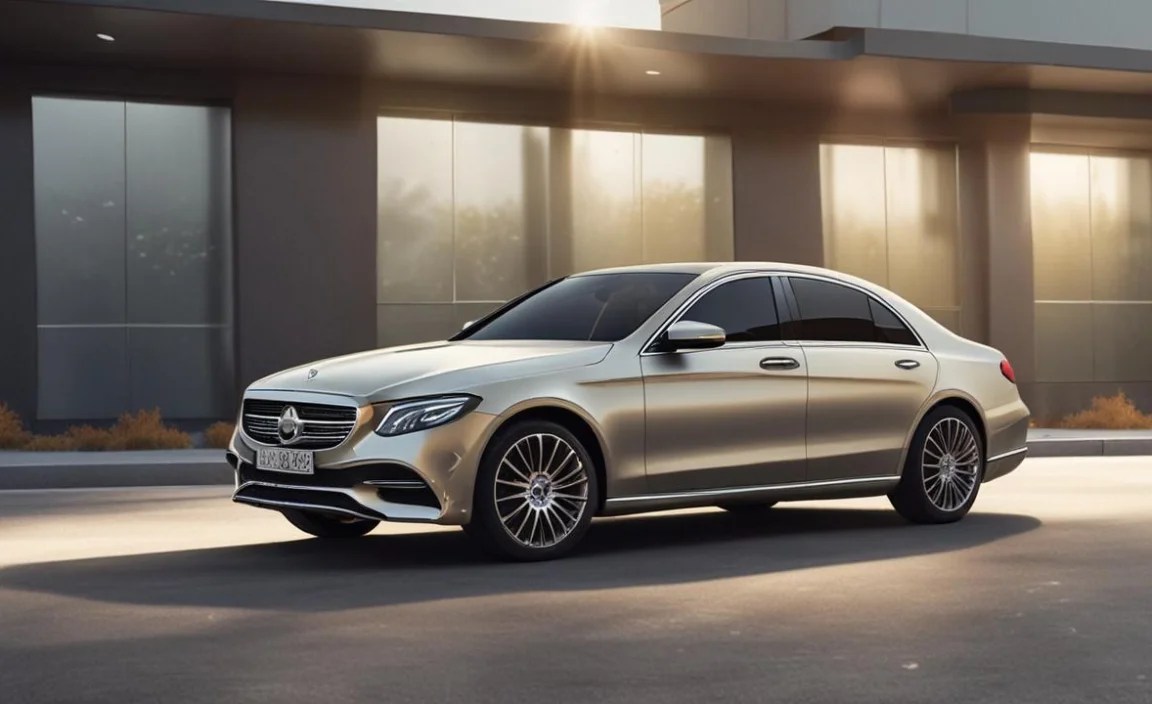
The first step to enjoying your Mercedes sedan’s advanced display is understanding how to interact with it. Mercedes-Benz has invested heavily in making this intuitive, but a little guidance goes a long way.
Interacting with the Central Media Display
The large central screen is your command center. You can interact with it primarily through touch, voice commands, or the steering wheel controls.
Touchscreen Interaction:
Simply tap on icons, menu items, or settings you wish to access. Swipe gestures are used to scroll through lists or change screens. Pinch-to-zoom functionality is often available on the navigation map.
Voice Command (Linguatronic):
Mercedes-Benz’s advanced voice control system, Linguatronic, is a powerful tool. To activate it, typically press the voice command button on your steering wheel and speak naturally. You can control navigation, audio, climate, and even ask general questions. For example, try saying, “Hey Mercedes, navigate to the nearest gas station,” or “Hey Mercedes, play my favorite playlist.” For a comprehensive guide on Linguatronic capabilities, you can refer to the official Mercedes-Benz website’s owner section.
Steering Wheel Controls:
Your steering wheel is equipped with highly functional touchpads or buttons. On the left side, you’ll typically control the instrument cluster, allowing you to cycle through different views and data. On the right side, you’ll often manage the central display, scrolling through menus, selecting options, and confirming choices. Look for trackpads that you can swipe or tap.
Customizing Your Instrument Cluster
The digital instrument cluster is highly adaptable to your preferences. You can change the layout, the information displayed, and even the overall theme.
Here’s a general process for customization:
- Access Settings: Use your steering wheel controls (typically on the left) to navigate to the “Vehicle” or “Display” settings menu within the instrument cluster.
- Select Display Styles: Mercedes-Benz often offers different visual styles. Look for options like “Classic,” “Progressive,” “Sporty,” or “Minimalist.”
- Customize Information Readouts: Within each style, you can usually select what information appears in the various “widgets” or areas of the cluster. This might include navigation maps, media information, trip computers, fuel consumption data, tire pressure, and driver assistance system status.
- Save Your Preferences: Once you’ve set it up to your liking, ensure you save your configuration. Some systems allow you to save multiple profiles.
Personalizing the Central Display
The central media display offers a wealth of options for personalization, from your home screen layout to ambient lighting.
Home Screen Layouts:
Many Mercedes sedan models allow you to customize the “dashboard” view of the central screen. You can often choose to display frequently used apps, navigation shortcuts, media controls, or climate settings.
Ambient Lighting:
A signature feature of modern Mercedes-Benz vehicles is the extensive ambient lighting system. Through the central display, you can adjust the color, brightness, and even the dynamic patterns of the interior lighting to match your mood or preference. This often extends from the dashboard and door panels to the footwells and seat crevices.
Favorite Shortcuts:
To streamline your experience, set up shortcuts for your most-used features. This could include your favorite radio station, a specific navigation destination, or the controls for Apple CarPlay or Android Auto.
To access these settings, navigate to the “Settings” menu on the central display and look for options related to “Display,” “Personalization,” “Ambient Lighting,” or “Home Screen.”
Key Features and How to Use Them

The 3D display interface unlocks a world of advanced features designed for convenience, safety, and entertainment. Let’s explore some of the most impactful ones.
Navigation Integration
The integrated navigation system is seamless and visually rich.
- 3D Map View: Switch to the 3D map mode for a more immersive experience, often displaying buildings and elevation data realistically.
- Augmented Reality Navigation (If Equipped): Higher trims may feature augmented reality, overlaying navigation arrows, street names, and important landmarks onto a live camera feed displayed on either the instrument cluster or central screen. This provides unparalleled directional clarity, especially in complex urban environments.
- Live Traffic Information: The system uses real-time data to provide traffic updates, suggest alternative routes, and estimate arrival times accurately.
- Destination Entry: Easily input destinations via touchscreen, voice command, or by searching points of interest. You can also send destinations from your smartphone via the Mercedes me app.
Infotainment and Media
Your central display is the hub for all your entertainment needs.
- Radio, Bluetooth Audio, USB: Access terrestrial radio, stream audio wirelessly via Bluetooth, or connect your device via USB for high-fidelity playback.
- Apple CarPlay & Android Auto: Seamlessly integrate your smartphone for access to familiar apps like Spotify, WhatsApp, maps, and more, all displayed and controllable through the Mercedes interface.
- Online Music Streaming: With an active Mercedes me connect subscription, you can often access integrated music streaming services directly.
- Personalized Radio Stations: Create custom radio lineups based on your preferences.
Climate Control Management
Adjusting your cabin’s temperature and air quality is straightforward.
- Intuitive Touch Controls: Use the on-screen climate menu to set temperature, fan speed, airflow direction, and activate features like heated or ventilated seats.
- MULTI-YEAR Air Filtration: Many Mercedes models feature advanced air filters designed to remove pollen, dust, and other pollutants. Access and control this system, including its regeneration cycles, through the climate settings. For more on filtration, the Environmental Protection Agency (EPA) offers general information on indoor air quality.
- SYNC Function: Easily match the temperature and settings for all zones with a single button press.
Vehicle Settings and Customization
Fine-tune your Mercedes to your exact preferences.
- Driving Modes: Adjust the vehicle’s performance characteristics (e.g., ECO, Comfort, Sport) to suit your driving style and conditions.
- Driver Assistance Systems: Configure the behavior of safety features like adaptive cruise control, lane keeping assist, and blind-spot monitoring.
- Lighting Settings: Beyond ambient lighting, control exterior lighting behavior, welcome home functions, and interior bulb brightness.
- Seat Adjustments: Access detailed controls for seat positioning, lumbar support, and massage functions (if equipped).
Advanced Features and Technology

Mercedes-Benz continues to push the boundaries of automotive technology, and the 3D display interface is the window into many of these innovations.
MBUX (Mercedes-Benz User Experience)
The Intelligent MBUX system is the backbone of the 3D display experience. It learns your habits and preferences, offering predictive suggestions and a highly personalized interaction.
- Artificial Intelligence: Over time, MBUX adapts to you, anticipating needs like calling a contact you frequently reach at a certain time or suggesting a route based on your usual commute.
- “Hey Mercedes” Voice Assistant: This sophisticated AI understands natural language commands to control a vast array of vehicle functions. It can even answer general knowledge questions.
- Multi-User Profiles: Different drivers can set up their own profiles, saving their seat positions, mirror settings, climate preferences, radio presets, and display configurations.
Augmented Reality (AR) Navigation
For models equipped with AR navigation, the system uses a front-facing camera to capture the real-world view ahead. This live footage is then overlaid with graphical elements, such as:
- Directional Arrows: Clearly indicate which lane to be in or which turn to take.
- Street Names and House Numbers: Help you identify your exact location and destination.
- Traffic Sign Recognition: Displayed directly on the camera feed for quick reference.
- Points of Interest (POI): Highlight nearby restaurants, gas stations, or landmarks.
This feature significantly boosts situational awareness and reduces the mental load of navigating unfamiliar roads. For those interested in the underlying technology, understanding how computer vision transforms data into actionable visual cues is key to appreciating its complexity and benefit.
Connectivity and Mercedes me connect
The 3D display is also your gateway to staying connected.
- Remote Services: Through the Mercedes me app on your smartphone, you can remotely lock/unlock doors, check vehicle status (fuel level, tire pressure), send destinations to the navigation, and even pre-condition the cabin climate before you get in.
- Concierge Services: Some subscriptions offer access to a dedicated concierge who can assist with bookings, reservations, and travel arrangements.
- Over-the-Air (OTA) Updates: Mercedes-Benz can deliver software updates wirelessly, keeping your infotainment system and vehicle functions up-to-date with the latest features and improvements.
Tips for an Effortless User Experience

To truly enjoy the luxury of your Mercedes sedan’s 3D display, a few practical tips can make a world of difference.
Embrace Voice Control
Don’t hesitate to use “Hey Mercedes.” It’s designed for natural conversation and can manage many functions more efficiently than navigating menus, especially while driving. Practice using it for various tasks to become comfortable.
Personalize Your Settings
Take the time to explore the settings menus. Setting up your preferred instrument cluster layout, ambient lighting, and climate presets will make every drive more enjoyable and tailored to you. Create user profiles if multiple people regularly drive the car.
Utilize Steering Wheel Controls
Master the touchpads or buttons on your steering wheel. They are logically placed to allow you to control essential functions without removing your hands from the wheel or your eyes from the road.
Integrate Your Smartphone
If you rely on your smartphone for navigation or media, ensure Apple CarPlay or Android Auto is set up and configured. This integration offers a familiar and expanded interface.
Keep Software Updated
Pay attention to notifications for over-the-air updates. These can introduce new features, improve existing ones, and enhance performance. A stable internet connection is usually required for these updates.
Troubleshooting Common Minor Issues
While the system is robust, occasional minor hiccups can occur. Here are a few common scenarios and solutions:
| Issue | Potential Cause | Solution |
|---|---|---|
| Screen Unresponsive | Temporary software glitch. | Try a soft reset: Turn the vehicle off, open and close the driver’s door, wait 2 minutes, then restart the vehicle. For persistent issues, consult your owner’s manual or a dealer. |
| Voice Command Not Understanding | Background noise, unclear pronunciation, or complex command. | Ensure cabin is quiet. Speak clearly and directly. Try simplifying your command or using a standard phrase from the manual. |
| Navigation Not Updating | Loss of GPS signal or connectivity issue. | Ensure your vehicle has a clear view of the sky. Check Mercedes me connect service status. A soft reset might also help. |
| Bluetooth Pairing Issues | Interference or incorrect pairing sequence. | Restart both your phone and the car’s system. Forget the car on your phone and re-pair. Ensure Bluetooth is enabled on both devices. |
For more in-depth troubleshooting or complex issues, always refer to your vehicle’s owner’s manual, which provides model-specific guidance. The National Highway Traffic Safety Administration (NHTSA) also offers extensive resources regarding automotive safety technology and recalls that might be indirectly related.
Frequently Asked Questions (FAQ)
Q1: What is the Mercedes-Benz 3D display interface?
A1: It’s an advanced digital interface in Mercedes-Benz sedans that uses depth and high-resolution graphics to present information intuitively, enhancing visual clarity and the overall luxury experience.
Q2: Is the “3D” effect like watching a 3D movie without glasses?
A2: No, it’s not a glasses-free stereoscopic display. Instead, it uses sophisticated rendering to give elements on screen a sense of depth and realism, improving readability and aesthetics.
Q3: How do I control the 3D display?
A3: You can control it using the touchscreen, voice commands (“Hey Mercedes”), and the intuitive buttons and trackpads on the steering wheel.
Q4: Can I customize what appears on my instrument cluster screen?
A4: Yes, absolutely. You can select different display styles and choose which information widgets (like navigation, media, or trip data) are shown in various areas of the instrument cluster.
Q5: What is MBUX?
A5: MBUX, or Mercedes-Benz User Experience, is the intelligent software system that powers the 3D display interface. It uses AI to learn your habits and offers advanced voice control and personalization.
Q6: How does Augmented Reality Navigation work?
A6: AR Navigation overlays live camera footage of the road ahead with digital information like navigation arrows and street names, providing exceptionally clear directional guidance, especially in complex environments.


