
Mercedes SUV Infotainment System: Ultimate Driving
Master your Mercedes SUV infotainment system for a seamless and connected driving experience. This guide breaks down its features, navigation, and customization, making every drive more enjoyable and intuitive.
The Mercedes-Benz SUV infotainment system is a marvel of modern automotive technology, designed to enhance your driving pleasure and convenience. Yet, for many new owners, navigating its vast array of features can feel a bit overwhelming. From setting up your favorite radio station to connecting your smartphone or utilizing advanced navigation, mastering this sophisticated system is key to unlocking the full potential of your luxury vehicle. Don’t worry, we’re here to demystify it all.
This guide will walk you through the core functions, help you personalize your experience, and ensure you can confidently use every aspect of your Mercedes SUV’s command center. Get ready to transform your commute into a connected, entertaining, and effortless journey.
Frequently Asked Questions
What is the main screen of the Mercedes SUV infotainment system called?
The main interface is typically referred to as the “COMAND®” system (Cockpit Management and Navigation) or the MBUX (Mercedes-Benz User Experience) system, depending on your model year and specific trim. These systems integrate audio, navigation, climate control, and vehicle settings onto a central touchscreen display or through a touchpad and physical controls.
How do I connect my smartphone to the Mercedes SUV infotainment system?
Most Mercedes SUVs offer seamless smartphone integration via Apple CarPlay® and Android Auto™. You can usually connect via a USB cable or, in newer models, wirelessly. Simply plug in your phone or enable Bluetooth pairing, and follow the on-screen prompts to grant access to your apps, music, and contacts.
Can I customize the Mercedes SUV infotainment system layout?
Yes, absolutely. Both COMAND® and MBUX systems allow for significant personalization. You can arrange app icons, customize dashboard widgets, set up user profiles with individual settings, and create shortcuts for frequently used features to suit your driving habits.
How do I update the Mercedes SUV infotainment software?
Software updates can often be performed wirelessly (Over-The-Air or OTA) via the car’s internet connection, or sometimes through a USB drive. Some updates might require a dealership visit, especially for major system overhauls. Check your owner’s manual or the vehicle’s settings menu for update options.
What is MBUX and how is it different from COMAND®?
MBUX is Mercedes-Benz’s latest generation infotainment system, introduced in 2018. It features advanced artificial intelligence, natural voice control (“Hey Mercedes”), a highly customizable user interface with a widescreen cockpit, and enhanced augmented reality navigation. COMAND® is the predecessor, still highly capable but with a less intuitive voice assistant and a more traditional interface.
How can I use voice commands in my Mercedes SUV?
With MBUX, you can activate the voice assistant by saying “Hey Mercedes” or by pressing the voice command button. You can then issue commands for navigation, music, climate control, phone calls, and even ask general knowledge questions. COMAND® systems also have voice control, but it’s less conversational and may require specific phraseology.
Is it safe to use the infotainment system while driving?
Mercedes-Benz designs these systems with safety in mind. However, it’s always best to minimize interaction while the vehicle is in motion. Utilize voice commands for most functions and set up your navigation or playlists before you start driving. Mercedes-Benz strongly advises against extensive manual input when the vehicle is being driven. Always prioritize your attention to the road.
Understanding the Core: Your Mercedes SUV’s Command Center

At the heart of every modern Mercedes-Benz SUV lies an sophisticated infotainment system, a digital hub designed to keep you connected, informed, and entertained. For models equipped with the latest MBUX (Mercedes-Benz User Experience), the system leverages artificial intelligence and a natural voice assistant to create an intuitive and personalized experience. Older models often feature the robust COMAND® (Cockpit Management and Navigation) system, which also offers comprehensive control over vehicle functions.
The Display and Controls
The primary interface is a high-resolution touchscreen, often complemented by a touchpad on the center console and steering wheel control buttons. The MBUX system frequently features a large, widescreen display that merges the instrument cluster and central infotainment screen for a seamless visual experience.
- Touchscreen: Direct interaction with icons, menus, and on-screen keyboards.
- Touchpad: A physical control on the center console for navigating menus, similar to a laptop touchpad.
- Steering Wheel Controls: Small buttons or touchpads on the steering wheel allow you to navigate the instrument cluster display and control audio/call functions without taking your hands off the wheel.
- Voice Control: Activated by saying “Hey Mercedes” (MBUX) or pressing a dedicated button, this allows hands-free operation of many functions.
Key Features at a Glance
Regardless of whether you have MBUX or COMAND®, the core functionalities are similar and aim to simplify your driving life:
- Navigation: Advanced GPS with real-time traffic updates and often impressive features like augmented reality overlays for clearer direction.
- Audio System: AM/FM/SiriusXM® radio, Bluetooth® audio streaming, USB playback, and integration with streaming services.
- Climate Control: Adjusting temperature, fan speed, air distribution, and activating features like seat heating/ventilation.
- Vehicle Settings: Customizing ambient lighting, driving modes, display preferences, and other vehicle-specific options.
- Connectivity: Pairing smartphones for calls, texts, and app mirroring (Apple CarPlay®/Android Auto™).
Navigating Your Infotainment System: A Step-by-Step Approach

Embarking on your journey with your Mercedes SUV’s infotainment system is akin to learning a new, intuitive language. While it’s packed with features, the designers have prioritized user-friendliness. Here’s how to navigate the essentials:
Powering On and Off
The system typically powers on automatically when you start the engine and powers down when you turn off the vehicle. You can also manually turn the screen off or adjust its sleep settings through the vehicle’s main settings menu, though the system remains active for essential functions.
Understanding the Homescreen
The homescreen is your central dashboard. In MBUX, it’s highly customizable, often showing widgets for navigation, media, and vehicle status at a glance. Older COMAND® systems might have a more static layout with clearly defined icons for each function.
Tip: Spend a few minutes in the “Settings” menu to explore personalization options for your homescreen. You can often rearrange icons or choose which snippets of information are displayed.
Using the Navigation System
1. Destination Entry:
- Voice Command: Say “Hey Mercedes, navigate to [address or point of interest].” This is the safest and quickest method.
- Touchscreen/Touchpad: Select the “Navigation” icon, then choose “Destination” and enter the address, point of interest, or contact from your paired phone. You can also use the onscreen keyboard.
2. Route Options: Once a destination is entered, you’ll be presented with route options, usually including the fastest, shortest, or an eco-friendly route. You can often add waypoints, avoid tolls, or select scenic routes.
3. Navigation in Action: During navigation, the display will show a map with your vehicle’s position, upcoming turns, speed limits, and estimated time of arrival. MBUX may feature augmented reality overlays that project directional arrows onto a live camera feed of the road ahead, making complex intersections much clearer.
External Link: For a deeper dive into the benefits of GPS navigation and its evolution, explore the U.S. Department of Transportation’s resources on Intelligent Transportation Systems: its.dot.gov
Managing Audio and Media
1. Selecting a Source: Access the “Media” or “Audio” menu. Here you can choose between:
- Radio (FM, AM, SiriusXM®)
- Bluetooth® Audio (from your paired phone)
- USB Media (from a connected USB drive)
- Streaming Services (if supported and logged in)
2. Tuning and Browsing: Use the onscreen controls or touchpad to scan for stations, browse playlists, or select albums/artists.
3. Volume Control: Adjust volume using the physical knob on the center console, the touchpad, steering wheel controls, or voice commands (“Volume up/down”).
Climate Control Integration
While physical buttons often remain for quick adjustments, the infotainment screen provides a comprehensive interface for your climate control system. Access this via the “Climate” icon.
- Temperature: Set your desired temperature precisely.
- Fan Speed: Adjust the airflow intensity.
- Air Distribution: Direct airflow to your face, feet, or windshield.
- Seat Climate: Control heated and ventilated seats (if equipped).
- System Sync: Often, you can synchronize the climate settings for both driver and passenger to maintain a uniform temperature.
Personalizing Your Experience: Making it Your Own

A Mercedes-Benz is a personal statement, and its infotainment system should reflect your individual preferences and driving style. Thankfully, both MBUX and COMAND® offer extensive customization options.
Setting Up User Profiles
For MBUX, creating user profiles is highly recommended. This allows each driver to save their preferred settings, including seat positions, mirror angles, radio presets, navigation destinations, and ambient lighting color. To set one up:
- Navigate to the “Settings” menu.
- Select “Profiles” or “User Management.”
- Choose “Create Profile” and follow the on-screen prompts to log in or create a new profile. You can often link it to your Mercedes me account for seamless synchronization across different Mercedes-Benz vehicles.
Customizing the Display
1. Homescreen Widgets (MBUX): Long-press on a widget to move or remove it, or access the “Customization” options within the “Display” settings to add new widgets for navigation, media, trip computers, efficiency monitors, and more. This allows you to tailor the main screen to show exactly what you want to see at a glance.
2. Instrument Cluster Layout: The digital instrument cluster behind the steering wheel is often highly configurable. You can typically cycle through different display styles (e.g., Sport, Classic, Progressive) and choose which information panels (e.g., fuel economy, tire pressure, navigation map details) are shown.
3. Ambient Lighting: Transform your cabin’s mood with customizable ambient lighting. Access this feature through “Settings” or a dedicated quick-access button. You can choose from millions of colors and various lighting zones within the cabin (e.g., dashboard, door panels, footwells).
Favorite Buttons and Shortcuts
To quickly access frequently used functions, you can often set up “Favorites” or assign shortcuts to physical buttons. For example, you might program a favorite radio station, a common navigation destination, or a specific climate control setting to a steering wheel button or a programmable key.
Advanced Features and Connectivity

Beyond the basics, Mercedes SUVs boast intelligent features that enhance safety, convenience, and the overall driving experience.
Smartphone Integration: Apple CarPlay® and Android Auto™
These systems mirror essential smartphone apps onto your car’s display, giving you safe access to navigation, music, calls, and messages. To connect:
- Via USB: Plug your compatible smartphone into the designated USB port using a high-quality cable.
- Via Wireless: If your vehicle and phone support wireless CarPlay/Android Auto™, follow the Bluetooth® pairing instructions, and the system will prompt you to enable app projection.
Once connected, your phone’s interface for supported apps will appear on the car’s screen. This is an excellent way to use familiar apps like Google Maps, Waze, Spotify, or WhatsApp while driving.
Mercedes me connect Services
Mercedes me connect provides a suite of digital services that link your car to your smartphone and the Mercedes-Benz ecosystem. Available features can include:
- Remote Access: Lock/unlock doors, start the engine remotely, or check vehicle status (e.g., fuel level, tire pressure) via the Mercedes me app.
- Concierge Services: Access human assistance for booking appointments, finding restaurants, or getting travel information.
- Navigation Services: Send destinations from your phone to your car, or utilize online map updates.
- Vehicle Monitoring: Receive alerts for maintenance needs or if your car is driven outside a designated geofenced area.
Activating these services usually requires creating a Mercedes me account and linking your vehicle. Some features may require a subscription after an initial trial period.
Augmented Reality Navigation
A standout feature in MBUX, augmented reality navigation uses a front-facing camera to capture live video of your surroundings. It then overlays important information such as street names, turning arrows, house numbers, and traffic sign recognition directly onto the video feed displayed on the screen. This makes complex intersections and crucial turns incredibly easy to follow, reducing driver distraction.
Voice Control & AI Assistant
The MBUX system’s crowning jewel is its natural language understanding. To activate:
- Say “Hey Mercedes.”
- Press the voice command button on the steering wheel.
You can then speak conversationally. Instead of specific commands, try phrases like:
- “I’m cold.” (The system will suggest turning up the heat.)
- “Find the nearest Italian restaurant.”
- “Call Mom.”
- “What’s on my calendar today?”
- “Play some jazz music.”
The system learns your voice patterns over time, becoming even more responsive.
Tech Spec Comparison: Infotainment Features
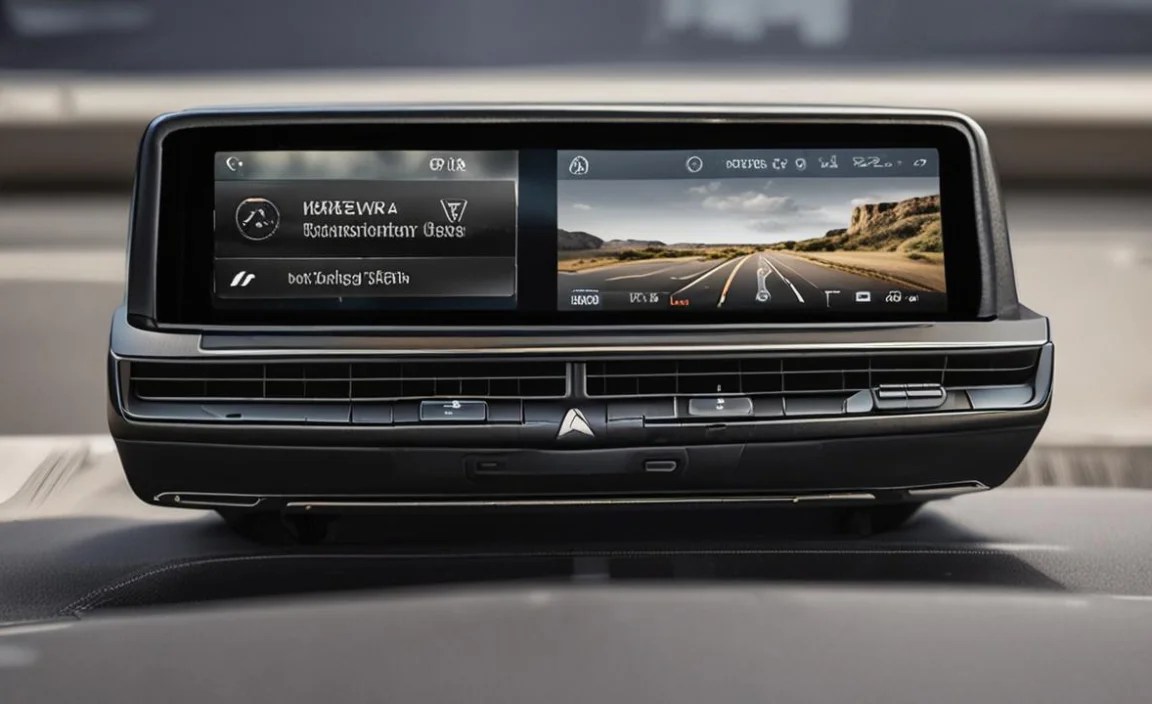
To give you a clearer picture of how the infotainment systems have evolved, here’s a simplified comparison of key features between a recent MBUX-equipped model and a slightly older COMAND® system.
| Feature | MBUX (e.g., 2020+ GLE, GLS) | COMAND® (e.g., 2017-2019 GLE, GLS) |
|---|---|---|
| Voice Assistant | Natural Language Understanding (“Hey Mercedes”), AI-powered, learns user preferences. | Voice Control, requires specific command phrases. |
| Display Type | Large “Widescreen Cockpit” merging instrument cluster and central screen; touchscreen and touchpad. | Central screen with separate instrument cluster; typically controlled via touchpad and rotary dial. |
| Navigation | Augmented Reality overlay, real-time traffic, advanced routing, online map updates. | 3D map display, real-time traffic updates, USB updates. |
| Smartphone Integration | Wireless Apple CarPlay®/Android Auto™, USB connectivity. | Apple CarPlay®/Android Auto™ primarily via USB. |
| Personalization | Extensive User Profiles, customizable widget-based homescreen. | User profiles available, less dynamic homescreen customization. |
| Connectivity | Advanced Mercedes me connect services, OTA updates. | Standard Mercedes me connect services, updates often via USB/dealer. |
| Touch Control | Primary system interface, |


