
Mercedes V-Class Navigation System: Ultimate Driving
Navigate your Mercedes V-Class like a pro with its intuitive, feature-rich navigation system. This guide breaks down its core functions, settings, and tips for ultimate driving ease, turning every journey into a seamless, enjoyable experience.
Embarking on a journey in your Mercedes-Benz V-Class should be all about relaxation and enjoyment, not wrestling with unfamiliar technology. The V-Class navigation system, a cornerstone of its luxurious MBUX (Mercedes-Benz User Experience) interface, is designed to make every drive effortless. However, for those new to this sophisticated system, it can sometimes feel a little daunting. This guide is here to demystify it, offering clear, step-by-step instructions to help you master your V-Class navigation. We’ll cover everything from setting a destination to personalizing your routes, ensuring you get the most out of your premium driving experience. Let’s get started on making every trip smoother than the last.
Understanding Your Mercedes V-Class Navigation System

The Mercedes-Benz V-Class boasts the advanced MBUX infotainment system, and its navigation capabilities are a significant part of that. It’s more than just a GPS; it’s an intelligent co-pilot designed to enhance your driving experience. The system utilizes high-resolution maps, real-time traffic information, and predictive navigation to guide you efficiently and comfortably.
Core Components of the MBUX Navigation
The MBUX navigation system is built around several key components that work together:
- High-Resolution Display: A large, vibrant touchscreen interface that makes interacting with the navigation intuitive and visually appealing.
- Intelligent Voice Control: Activated by saying “Hey Mercedes,” this feature allows you to control navigation, climate, media, and more using natural language.
- 3D Map Views: Offers realistic 3D representations of cities and landmarks, making it easier to orient yourself.
- Live Traffic Information: Provides real-time updates on traffic flow, accidents, and road closures, allowing for dynamic rerouting.
- Personalized Navigation: Learns your driving habits and common destinations to suggest routes proactively.
- Augmented Reality (AR) Navigation (Optional): For supported models and regions, this can overlay navigation arrows and information onto a live camera feed of the road ahead, making tricky junctions crystal clear.
Getting Started: Basic Navigation Functions
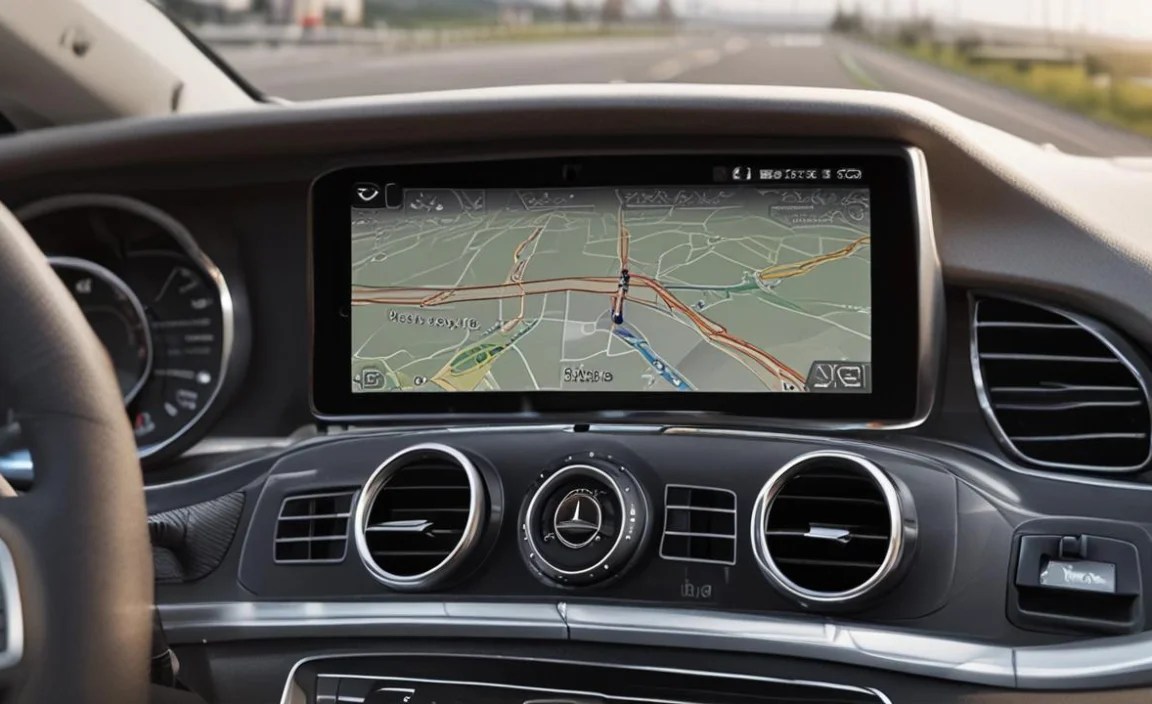
Mastering the basics is the first step to unlocking the full potential of your V-Class navigation. Here’s how to perform common tasks easily.
Setting a Destination
There are several convenient ways to input your desired destination:
- Via Touchscreen:
- Tap the “Navigation” icon on the MBUX home screen.
- Select “Destination” or the search bar at the top.
- You can enter an address, place name (e.g., “Eiffel Tower”), or postcode.
- The system will offer suggestions as you type. Select your desired destination from the list.
- Review the route details presented and tap “Start” to begin navigation.
- Via Voice Control (“Hey Mercedes”):
- Activate the system by saying “Hey Mercedes.”
- Clearly state your destination. For example: “Hey Mercedes, navigate to 123 Main Street, Anytown.” Or, “Hey Mercedes, take me to the nearest Starbucks.”
- The system will confirm your request and present the route.
- Respond “Yes” or “Navigate” to start.
- Via Mercedes-Benz App:
- Use the Mercedes-Benz smartphone app to find a destination.
- You can then send the destination directly to your V-Class’s navigation system. This is incredibly useful for planning ahead.
Understanding the Navigation Display
Once navigation is active, the display provides crucial information at a glance:
| Element | Description |
|---|---|
| Map View | Shows your current location, the road network, and the projected route. Can be toggled between 2D and 3D views. |
| Next Maneuver | Displays the upcoming turn or exit, including distance and direction. |
| Distance to Destination | Shows the remaining distance to your final stop. |
| Estimated Time of Arrival (ETA) | Calculates your expected arrival time, often dynamically updated with traffic. |
| Speed Limit Indicator | Shows the current speed limit for the road you are on. |
| Lane Guidance | Advises which lane you should be in for upcoming turns or changes. |
Advanced Navigation Features for the Savvy Driver

Beyond basic routing, the V-Class navigation system offers features that can significantly enhance your journeys, making them more efficient and enjoyable. These advanced functions are where the true power of the MBUX system shines.
Route Planning and Options
You have control over how your route is calculated. After entering a destination, before you start navigation, you can often access route options:
- Fastest Route: The default option, prioritizing speed based on current traffic.
- Most Economical Route: Can suggest routes that minimize fuel consumption, potentially involving steadier speeds or fewer hills.
- Avoidances: Allows you to specify roads or features to avoid, such as:
- Ferries
- Toll roads
- Motorways
- Caravans (if applicable)
- Eco-Route: Specifically tailored to minimize fuel consumption for hybrid and electric vehicles, though some principles apply to combustion engines too.
Live Traffic and Dynamic Rerouting
One of the most valuable features of modern navigation is its ability to adapt to changing conditions. The Mercedes V-Class navigation system receives live traffic data, often through connected services. If a significant delay or incident occurs on your planned route, the system will:
- Alert You: You’ll receive a notification about the issue ahead.
- Propose an Alternative: It will often suggest a new, faster route.
- Ask for Confirmation: You typically have the choice to accept the new route or continue on the original one.
Keeping this feature enabled is crucial for efficient travel, especially in busy urban areas or during peak travel times. You can often find the settings for live traffic within the navigation menu under “Settings” or “Route Options.”
Personalized Navigation and Learning
The MBUX system is designed to learn. Over time, it recognizes frequently visited locations and common routes. This personalization can lead to:
- Faster Destination Entry: It will often suggest your home, work, or other regular spots as you begin typing or even when you start the car.
- Proactive Suggestions: Based on your calendar and typical travel times, it might suggest routes to upcoming appointments.
- Smarter Route Choices: It learns your preferences, such as whether you tend to prefer motorways or scenic routes when time is not critical.
To manage this learning, you can usually clear learned destinations or manage home/work addresses in the navigation settings. For more information on how Mercedes-Benz uses data, you can refer to their data protection guidelines.
Augmented Reality (AR) Navigation
For V-Class models equipped with this advanced feature, augmented reality navigation takes guidance to the next level. It uses a front-facing camera to capture the live view of the road ahead. Then, it overlays helpful graphical information directly onto the screen:
- Navigation Arrows: Clearly points out where to turn.
- Street Names: Displays the name of the road you are on or approaching.
- House Numbers: Can show specific building numbers for pinpoint accuracy.
- Traffic Sign Recognition Integration: May even highlight important traffic signs.
AR navigation is particularly beneficial in complex urban environments or at confusing intersections. To check if your V-Class has this feature and to enable it, look for “Augmented Reality” or “AR Navigation” within the MBUX system settings, usually under Display or Navigation.
Customizing Your Navigation Experience
Your V-Class navigation system is highly customizable, allowing you to tailor it to your specific needs and preferences. Personalizing settings can make every journey more comfortable and efficient.
Map Settings
The way your map is displayed can be adjusted:
- View Mode: Choose between 2D (North-up or Heading-up) and 3D views. 3D view offers a more immersive experience with topographical details and building models.
- Map Detail: Adjust the level of detail shown on the map, from basic roads to detailed city blocks and points of interest (POIs).
- Day/Night Mode: The system can automatically switch map colors based on ambient light, or you can set it manually.
- Satellite View: Some systems offer an option to display a background satellite image for a more realistic overview.
Voice Control Customization
The “Hey Mercedes” voice assistant is a powerful tool. You can further enhance its usability:
- Language: Select your preferred language for voice commands and responses.
- Voice Profiles: If multiple drivers use the car, different voice profiles can be set up to recognize individual users and their preferences, including learned destinations.
- “Touch & Talk” Functionality: Some MBUX systems allow you to activate voice control by touching an icon on the screen, which can be useful if you don’t want to use the wake-up phrase loudly.
Points of Interest (POIs)
Points of Interest allow you to find specific types of locations along your route or in your destination area. You can customize which POIs are displayed:
- Categories: Select categories like petrol stations, restaurants, hotels, parking, charging stations (for EVs), and more.
- Filter by Brand: You can often filter POIs by specific brands (e.g., a particular coffee chain).
- Search along Route: If you need to find a petrol station or a charging point while already navigating, you can search for POIs along your current route.
Maintaining Your Navigation System

Like any sophisticated technology, your V-Class navigation system benefits from regular updates and proper care to ensure optimal performance.
Map Updates
Road networks are constantly changing. Keeping your navigation maps up-to-date is essential for accurate routing. There are typically two ways to achieve this:
- Automatic Updates: If your V-Class is equipped with connected services, maps may update automatically over-the-air (OTA) when connected to a Wi-Fi network or mobile data.
- Manual Updates: You can also update maps via a USB drive. This usually involves downloading the latest map data from the official Mercedes-Benz portal to your computer, transferring it to a USB stick, and then loading it into your vehicle’s system. The process and frequency of manual updates are often detailed in your owner’s manual or the Mercedes navigation portal.
For detailed instructions on how to check for and perform map updates on your specific MBUX system, consult the official Mercedes-Benz navigation services page.
Software Updates
Beyond just map data, the MBUX infotainment system itself receives software updates. These updates can introduce new features, improve existing ones, enhance performance, and fix bugs. Similar to map updates, these can often be performed over-the-air or via USB. It’s a good practice to check for available software updates periodically through your vehicle’s system settings or the Mercedes me connect portal.
Troubleshooting Common Issues
While the V-Class navigation system is reliable, occasional glitches can occur:
| Issue | Possible Solutions |
|---|---|
| GPS signal lost | Ensure the vehicle is not in an underground car park or area with heavy signal obstruction. Restart the infotainment system. Check vehicle settings to ensure GPS is enabled. If persistent, consult a dealer. |
| Inaccurate navigation | Verify that map data and system software are up-to-date. Clear learned destinations and settings to reset. Check for any antenna issues (rare). |
| Voice control not responding | Ensure the “Hey Mercedes” wake-up word is enabled in settings. Check microphone operation. Try restarting the system. If issues persist, a software update may be needed. |
| Touchscreen unresponsive | Clean the screen gently with a microfiber cloth. Restart the infotainment system. If the issue continues, it may require a dealer inspection. |
Tips for Ultimate Driving with Your V-Class Navigation
To make the most of your Mercedes V-Class’s navigation system and enhance your driving experience, keep these tips in mind:
- Plan Ahead, But Be Flexible: Use the navigation to plan your route and check for potential delays. However, always be prepared for unexpected changes and trust the system’s dynamic rerouting to guide you around issues.
- Utilize Voice Control: For safety and convenience, use the “Hey Mercedes” voice commands for most functions, especially while driving. This minimizes distraction.
- Familiarize Yourself Before Long Trips: If you have an important or complex journey, take some time before you leave to explore the route on the navigation system. Understand the key turns and potential challenges.
- Explore POIs: Don’t just use it for destinations. Use the POI search to find amenities like rest stops, fuel stations, or even restaurants close to your route.
- Understand AR Navigation: If equipped, learn how to interpret the AR overlays. They can be incredibly helpful for stressful junctions.
- Keep the System Updated: Regularly check for map and software updates. This ensures you have the latest road data and the most efficient algorithms. You can find information on maintaining software and updates from official sources like the U.S. Department of Transportation, which often discusses the importance of up-to-date road infrastructure data.
- Personalize Your Home and Work: Setting these addresses makes daily commutes and returning home much faster.
- Learn Navigation Shortcuts: Familiarize yourself with quick ways to access common functions, like how to quickly add a stopover or view alternative routes.
Frequently Asked Questions (FAQ)
What is the fastest way to enter a destination into my V-Class navigation?
The quickest methods are usually using the “Hey Mercedes” voice command or by starting to type the address or place name into the search bar on the touchscreen. The system provides predictive text and suggestions that significantly speed up the process.
How do I get the most accurate traffic information?
Ensure your V-Class is connected to the internet (via Wi-Fi or its built-in SIM card) and that “Live Traffic Information” is enabled in the navigation settings. This allows the system to receive real-time data on traffic flow and incidents.
Can I update my V-Class navigation maps myself?
Yes, you can. Maps can be updated automatically over-the-air if your vehicle is connected, or manually via a USB drive. You’ll typically need to download the latest map data from the Mercedes-Benz portal to your computer and then transfer it to the car.
<div itemprop=”mainEntity


![Mercedes V-Class Advanced Safety Tech: [Power Word] [Sentiment Word]](https://i2.wp.com/mercedesblue.com/wp-content/uploads/2026/05/mercedes-v-class-advanced-safety-tech-power-word-sentiment-word-768x469.webp)


