
Legendary Mercedes SUV Digital Dashboard: Perfect Drive
The legendary Mercedes SUV digital dashboard revolutionizes your drive, offering an intuitive, customizable, and information-rich hub. Master its features for a truly personalized and perfect driving experience.
Driving a Mercedes-Benz SUV is an experience in itself. But have you ever felt a little overwhelmed by the gleaming expanse of your dashboard, wondering how to get the most out of its modern technology? You’re not alone. The digital dashboard on these legendary vehicles is packed with innovation, designed to inform and impress. It can seem complex at first, but unlocking its potential is easier than you might think. This guide will walk you through everything, making your Mercedes SUV’s digital interface feel like second nature.
We’ll demystify the displays, explain how to customize them to your liking, and guide you through some of the standout features. Get ready to transform your daily commute and weekend adventures into a seamless, connected, and utterly enjoyable journey. Let’s dive in and unlock the full potential of your Mercedes SUV’s digital command center.
Frequently Asked Questions
What exactly is a Mercedes SUV digital dashboard?
It’s a modern replacement for traditional analog gauges. Instead of physical needles and dials, it uses high-resolution screens to display speed, RPM, navigation, multimedia, and various vehicle information. These displays are highly customizable and can integrate many functions of the car.
How do I switch between different display styles or themes on my digital dashboard?
Typically, you can toggle through different display styles, such as “Classic,” “Sport,” or “Progressive,” using the touch-sensitive controls on your steering wheel. A press or swipe on the appropriate button will cycle through the pre-set themes.
Can I customize what information is shown on the digital dashboard?
Absolutely. Most Mercedes digital dashboards allow for significant personalization. You can often choose which widgets or information panels appear in the main display areas, such as fuel levels, trip computer data, tire pressure, or even specific navigation prompts.
How do I operate and view the navigation system on the digital dashboard?
You can usually input destinations via the central infotainment screen or using voice commands. Once a route is set, key navigation information, like upcoming turns and distance, can be displayed prominently on the digital driver’s display, often alongside your speedometer.
Is the digital dashboard the same across all Mercedes SUV models?
While the core functionality is similar, the specific screen size, resolution, and available display styles can vary depending on the model and model year of your Mercedes SUV. Newer models generally feature more advanced and larger displays.
How do I adjust the brightness of the digital dashboard?
Brightness is usually controlled through the vehicle’s main settings menu, often found within the infotainment system. Look for “Display” or “Lighting” options, where you’ll find a slider or setting to adjust the screen brightness to your preference.
Understanding Your Digital Command Center
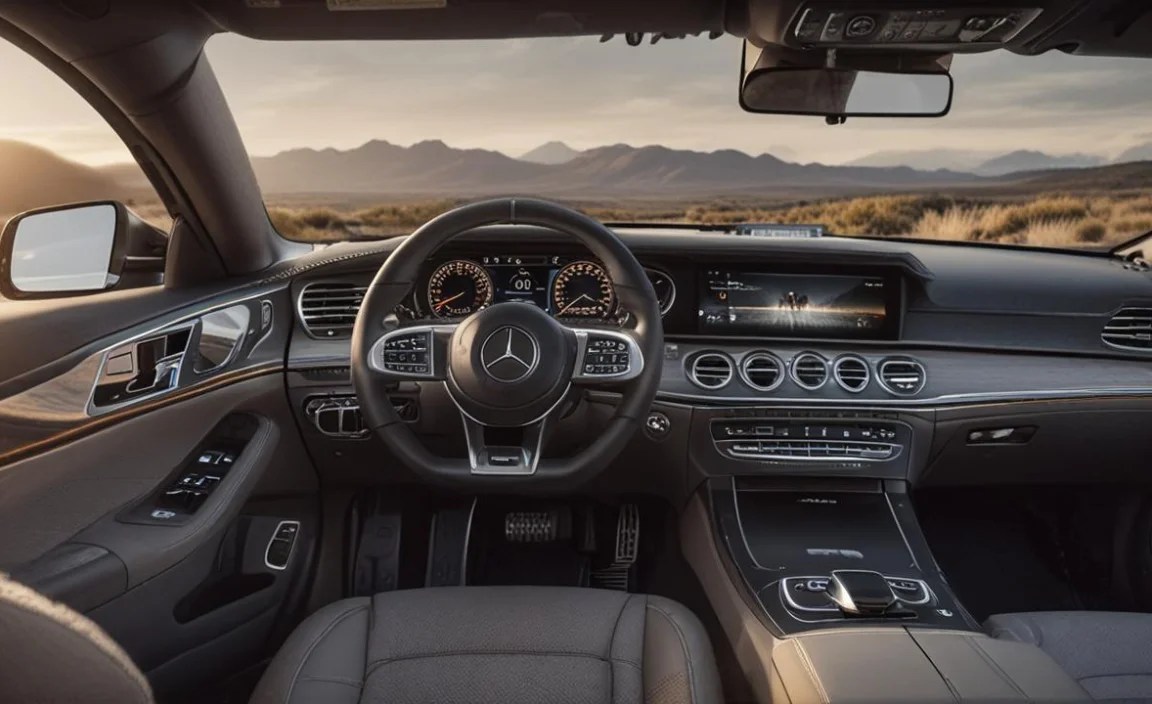
The Mercedes-Benz digital dashboard, officially known as the Widescreen Cockpit or Digital Instrument Cluster, is a marvel of automotive engineering. It replaces the traditional analog speedometer and tachometer with one or two large, high-definition screens. This isn’t just about aesthetics; it’s about a more integrated, intuitive, and personalized driving experience. For newcomers, it can feel like stepping into the future, which is exciting but also can be a bit daunting if you’re not sure where to begin.
Think of it as the central nervous system for your driver-focused information. It’s designed to keep vital data and your preferred features right in front of you, minimizing distractions and enhancing your connection to the vehicle. We’ll break down the key components and their functions, making it easy to understand how to use this advanced system to its full potential.
Key Components of the Digital Dashboard
At its core, the digital dashboard consists of one or two high-resolution screens that are seamlessly integrated into the dashboard. On many models, this takes the form of a continuous widescreen display that spans from the driver’s side to the center console. Let’s look at the main areas you’ll see:
- Driver Display (Instrument Cluster): This is the primary screen directly in front of the driver. It shows crucial driving information like your speed, engine RPM (often represented virtually), fuel level, and warning indicators. Its layout is usually highly customizable.
- Central Media Display: Positioned in the center of the dashboard, this screen controls infotainment functions. You’ll use it for navigation, music, phone calls, climate control, vehicle settings, and more. While often separate, it works in concert with the driver display.
- Touch Controls: Integrated into the steering wheel (often touch-sensitive pads or small joysticks) and the center console, these allow you to navigate menus, select options, and control the displays without taking your hands far from the wheel.
Exploring Display Layouts and Themes
Mercedes-Benz understands that drivers have different preferences and needs. That’s why the digital dashboard offers various display styles, often referred to as “themes” or “layouts.” These aren’t just cosmetic changes; they reconfigure how information is presented.
- Classic: This theme often mimics the traditional look of analog gauges, with circular virtual dials for speed and RPM, providing a familiar feel for those transitioning to digital.
- Sport: Typically, this theme emphasizes performance data. The virtual tachometer might become more prominent, and information like G-force or lap times could be more readily accessible.
- Progressive: This layout often favors a more modern, minimalist aesthetic, potentially showing data in a more abstract or minimalist way, such as simplified speed readouts and prominent navigation graphics.
- Navigation-Focused: Some themes are designed to maximize the view of your navigation map, showing a larger map area with fewer surrounding elements.
Switching between these is usually simple. Look for the “Display” button or a directional pad on your steering wheel controls. A gentle press or swipe can cycle you through the available themes on the driver display.
Mastering the Steering Wheel Controls
Your steering wheel is your primary interface for interacting with the digital dashboard. Most modern Mercedes SUVs feature touch-sensitive pads or small joysticks on the left and right sides of the steering wheel.
- Left-Side Controls: Typically manage the driver display. Swiping left/right on a touchpad or pushing a joystick can scroll through different “views” or widgets within the main instrument cluster. Tapping or pressing confirms selections.
- Right-Side Controls: Usually control the central media display or activate voice control. You might use these to scroll through playlists, answer calls, or navigate infotainment menus.
It’s worth spending a few minutes in a stationary vehicle to get a feel for these controls. A quick reference guide for your specific model can also be found in your owner’s manual, which is often accessible digitally through the infotainment system itself.
Customization for Your Perfect Drive
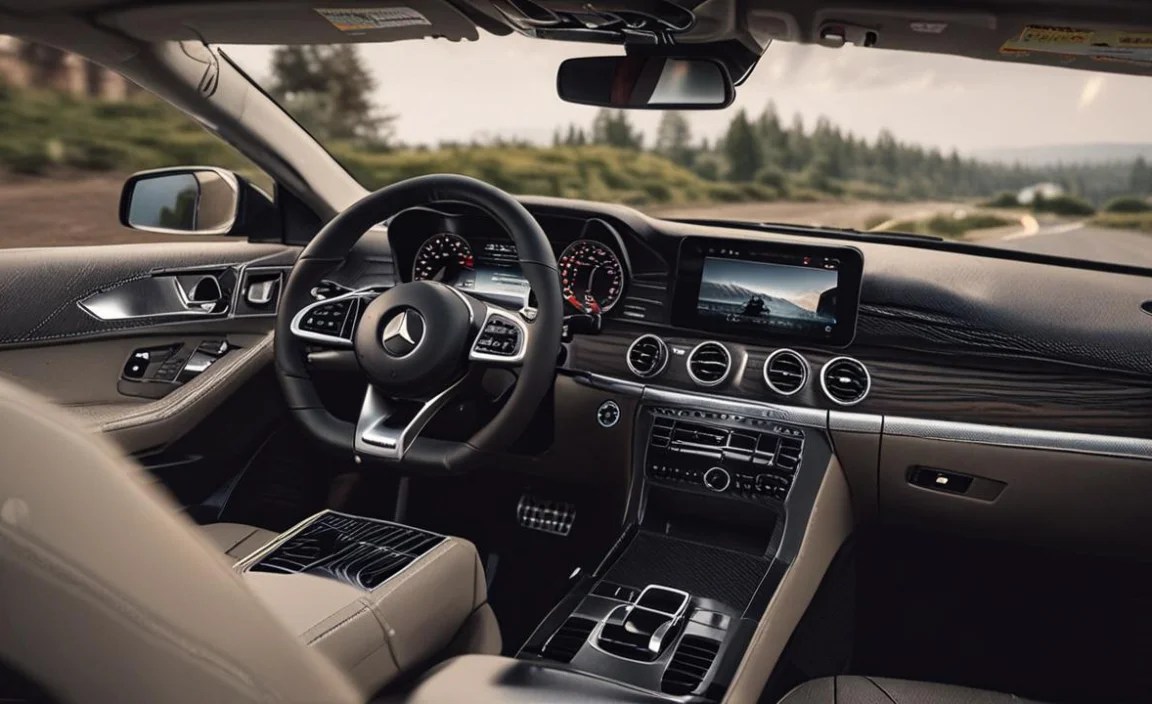
The real magic of the digital dashboard lies in its adaptability to your driving style and preferences. You’re not just a passenger; you’re the director of your driving information. This level of personalization can significantly enhance comfort, safety, and enjoyment.
Mercedes-Benz equips its vehicles with sophisticated systems that allow you to tailor the digital environment. From the information displayed to how it’s presented, almost every aspect can be adjusted to suit your needs. Let’s explore how to make your digital dashboard truly yours.
Personalizing the Driver Display Widgets
The driver display isn’t static. It’s comprised of different areas, many of which are customizable “widgets” or information panels. You can choose what information is most important to you and have it readily visible.
Here’s a typical approach to customization:
- Activate Customization Mode: While parked, navigate to the “Settings” menu on your central infotainment screen. Look for an option related to the “Instrument Cluster” or “Driver Display.”
- Select Display Zones: You will likely see a representation of your driver display, with different zones highlighted. Select a zone you wish to change.
- Choose Information: A list of available information categories will appear. These might include:
- Trip Computer Data (e.g., average fuel consumption, distance to empty)
- Tire Pressure Monitoring System (TPMS)
- Navigation (e.g., next turn, map view)
- Efficiency Assist
- Telephone/Media Information
- Assistance Systems Status (e.g., Active Lane Keeping Assist)
- Confirm Changes: Once you’ve selected your desired information for each zone, confirm the changes. The driver display will immediately update.
Experiment with different combinations. For a long road trip, you might want trip computer data and navigation front and center. For spirited driving, perhaps RPM and performance metrics are more your focus.
Setting Up Navigation Integration
One of the most powerful features of the digital dashboard is its seamless integration with the navigation system. This keeps you informed about your route without constantly needing to look at the central screen.
How to integrate navigation:
- Enter Destination: Use the central media display or voice control (often activated by pressing a button on the steering wheel and saying “Navigate to…”) to set your destination.
- Choose Display Theme: Select a display theme that includes navigation prompts. The “Sport” and “Progressive” themes, for instance, often have dedicated areas for upcoming turns and map previews.
- Customize Navigation View: Within the driver display customization settings, you can often choose the level of detail for navigation. This might include simply showing distance to the next turn, or displaying a mini-map directly within the instrument cluster.
The system will dynamically update the driver display with turn-by-turn directions, estimated arrival times, and distance information, streamlining your journey. For advanced navigation guidance, consider exploring the features of Google Maps within your Mercedes, which offers detailed real-time traffic information and routing.
Personalizing Multimedia and Phone Displays
Your digital dashboard can also keep you informed about your audio and communication when you’re on the move. You can often configure widgets to show currently playing music, the artist and album, or incoming call information.
Tips for multimedia and phone:
- Select Media Widget: In the driver display customization menu, find the option for “Media.” You can often choose to display album art, track information, or simple audio controls.
- Configure Phone Widget: Similarly, when you pair your phone via Bluetooth, you can choose to display incoming call alerts or missed call notifications directly on your driver display.
- Voice Commands: Remember that voice control is your friend. You can often ask the system to “Play [song name] by [artist]” or “Call [contact name]” without touching any buttons.
Advanced Features and Tips for a Perfect Drive

Beyond basic customization, Mercedes-Benz SUVs often offer advanced features that leverage the digital dashboard to enhance safety, convenience, and the overall driving experience. Understanding these can make your journeys even more refined.
Integrating Driver Assistance Systems
The digital dashboard plays a crucial role in visualizing what Mercedes-Benz’s sophisticated driver assistance systems are doing. It provides you with a clear, real-time understanding of the vehicle’s environment and its actions.
- Visualizations: Systems like Active Distance Assist DISTRONIC (adaptive cruise control), Active Steering Assist, and Lane Keeping Assist are often depicted graphically on the digital display. You can see the detected vehicles, lane markings, and the system’s intentions.
- Warnings: Visual warnings for potential hazards, such as blind-spot alerts or forward collision warnings, appear prominently. This immediate visual feedback can be critical, complementing audible alerts.
- System Status: The display clearly indicates when these systems are active, paused, or unavailable, ensuring you’re always informed about the level of assistance you’re receiving.
For detailed information on how these systems work and their limitations, always consult the official Mercedes-Benz manuals. Resources from organizations like the National Highway Traffic Safety Administration (NHTSA) also provide valuable insights into the benefits and proper use of advanced driver-assistance systems.
Using Voice Control Effectively
The MBUX (Mercedes-Benz User Experience) infotainment system, which works hand-in-hand with the digital dashboard, features advanced voice control. This is not just about simple commands; it’s designed to understand natural language.
Tips for voice control:
- Activation: Press the voice control button on the steering wheel or use the wake-up phrase, “Hey Mercedes.”
- Natural Language: Speak as you would normally. Try phrases like:
- “Hey Mercedes, I’m cold.” (The system will ask how you want the temperature adjusted.)
- “Hey Mercedes, find the nearest Italian restaurant.”
- “Hey Mercedes, what’s the tire pressure in the front left wheel?”
- “Hey Mercedes, send a message to Sarah saying I’ll be there in 15 minutes.”
- Contextual Understanding: The system can often understand context. If you’re looking at the navigation map and say “Navigate there,” it understands “there” refers to the current map displayed.
Mastering voice control significantly reduces the need to interact with touchscreens or buttons while driving, keeping your focus on the road.
Night Driving and Display Settings
Driving at night requires careful management of dashboard illumination to avoid glare and eye strain. Mercedes digital dashboards offer several solutions:
- Automatic Dimming: The system typically uses light sensors to automatically adjust the brightness of the displays based on ambient light conditions.
- Manual Brightness Control: You can always manually adjust the brightness. Navigate to the “Settings” menu, then “Display,” and use the slider to set your preferred illumination level.
- Dark Mode/Themes: Some models offer a “dark mode” or specific night-time themes that use darker color palettes, which can be less intrusive in the dark.
- Ambient Lighting: Don’t forget the ambient lighting. You can customize the mood and color of the interior lighting, which can complement your digital display settings for a more cohesive nocturnal experience.
Integrating with Smartphone Apps
Your Mercedes SUV’s digital dashboard can often extend the functionality of your smartphone. Through systems like Apple CarPlay and Android Auto, you can mirror certain apps directly onto your central media display and sometimes access features on the driver display.
Key integration points:
- Wired or Wireless Connection: Depending on your model, you can connect your smartphone using a USB cable or wirelessly.
- Essential Apps: Access navigation apps (Google Maps, Waze, Apple Maps), music streaming services (Spotify, Apple Music), messaging apps, and phone functions safely.
- Driver Display Support: While most comprehensive integration happens on the central screen, some navigation prompts from CarPlay or Android Auto can be mirrored to the driver display on certain Mercedes models.
You can find compatibility information and setup guides on the official websites for Apple CarPlay and Android Auto.
Practical Data at a Glance
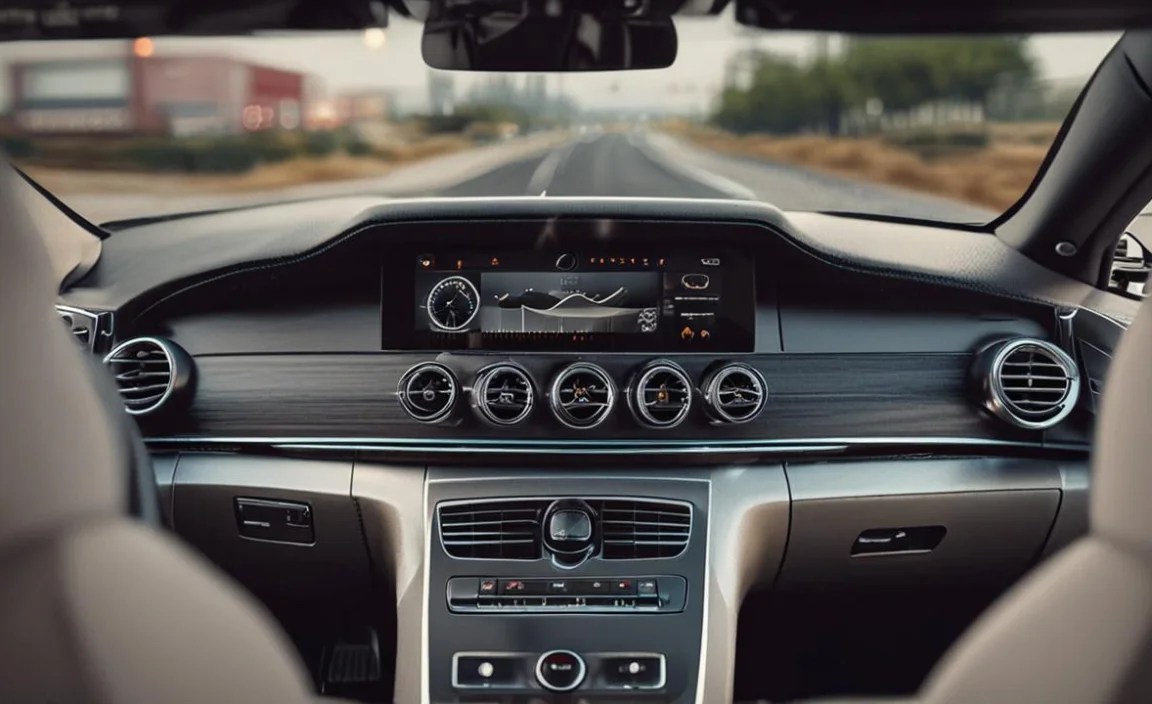
Understanding key vehicle metrics quickly is vital for efficient and safe driving. The digital dash excels at presenting this essential information clearly. Here’s a look at some of the most useful data points you can access and their importance.
Fuel Efficiency and Range Monitoring
Keeping an eye on your fuel consumption and remaining range is


