
Mercedes GLA Digital Cockpit: Ultimate Visuals
Your Mercedes GLA Digital Cockpit offers stunning, customizable visuals to enhance your driving experience. This guide will help you navigate its features, personalize displays, and unlock its full potential for ultimate clarity and style.
Mercedes-Benz has always been at the forefront of automotive innovation, and the GLA is no exception. One of the most captivating features in the modern GLA is its Digital Cockpit. This isn’t just a dashboard; it’s a dynamic, high-resolution display that can be tailored to your preferences, offering a truly immersive and informative driving experience. However, with so many options, understanding how to get the most out of it can sometimes feel a little overwhelming. Fear not! This guide is crafted to demystify the Mercedes GLA Digital Cockpit, transforming it from a complex system into your personal command center. We’ll walk you through its core functions, customization options, and how to make those visuals truly work for you.
What Exactly is the Mercedes GLA Digital Cockpit?

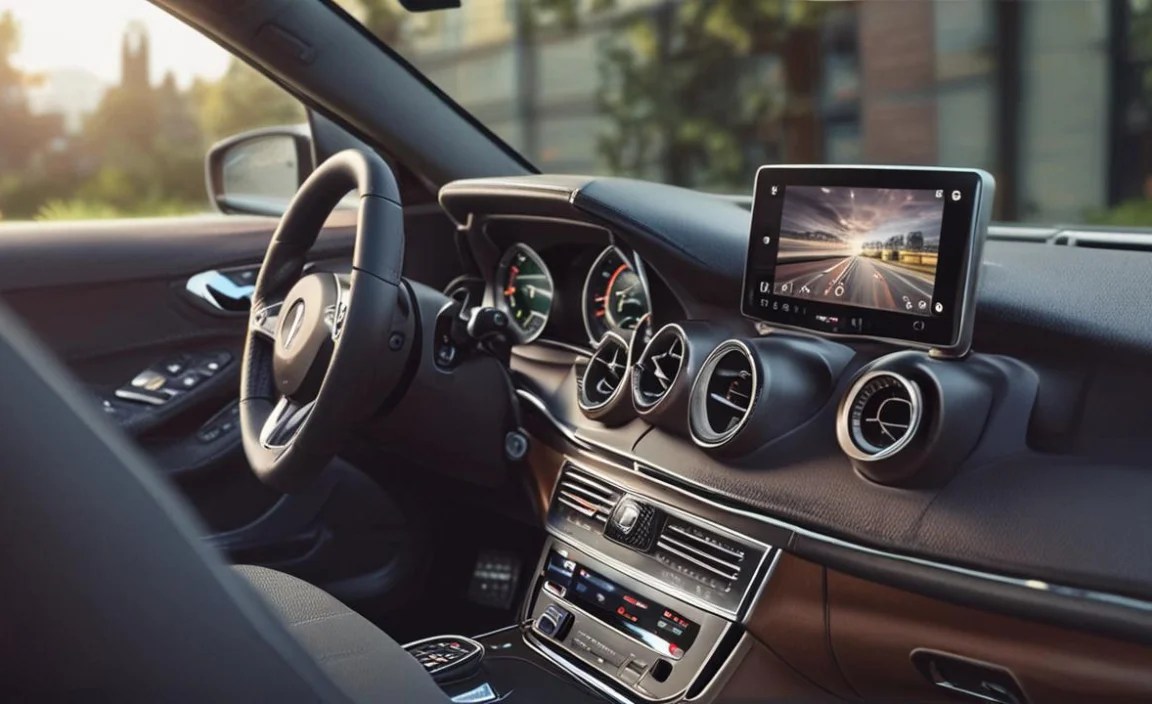
The Mercedes GLA Digital Cockpit, often referred to as the MBUX (Mercedes-Benz User Experience) Digital Instrument Cluster, replaces the traditional analog gauges with a fully digital, high-definition screen. This cutting-edge system is designed to provide you with all the information you need—from speed and fuel levels to navigation and media—all presented in a sleek, modern, and highly customizable interface. It’s more than just a display; it’s an intelligent assistant that adapts to your driving style and preferences.
This advanced technology allows for seamless integration of various vehicle functions and information sources. Unlike older systems, the Digital Cockpit offers a fluid and intuitive way to interact with your car’s data. It’s a key element that elevates the driving experience in the GLA, making every journey more engaging and informed.
Navigating Your Digital Cockpit: A Beginner’s Guide

Getting started with your GLA’s Digital Cockpit is designed to be straightforward. The primary control interfaces are typically found on the steering wheel, giving you immediate access to various displays and settings without taking your hands off the wheel. It’s a brilliant piece of ergonomic design that prioritizes your safety and convenience.
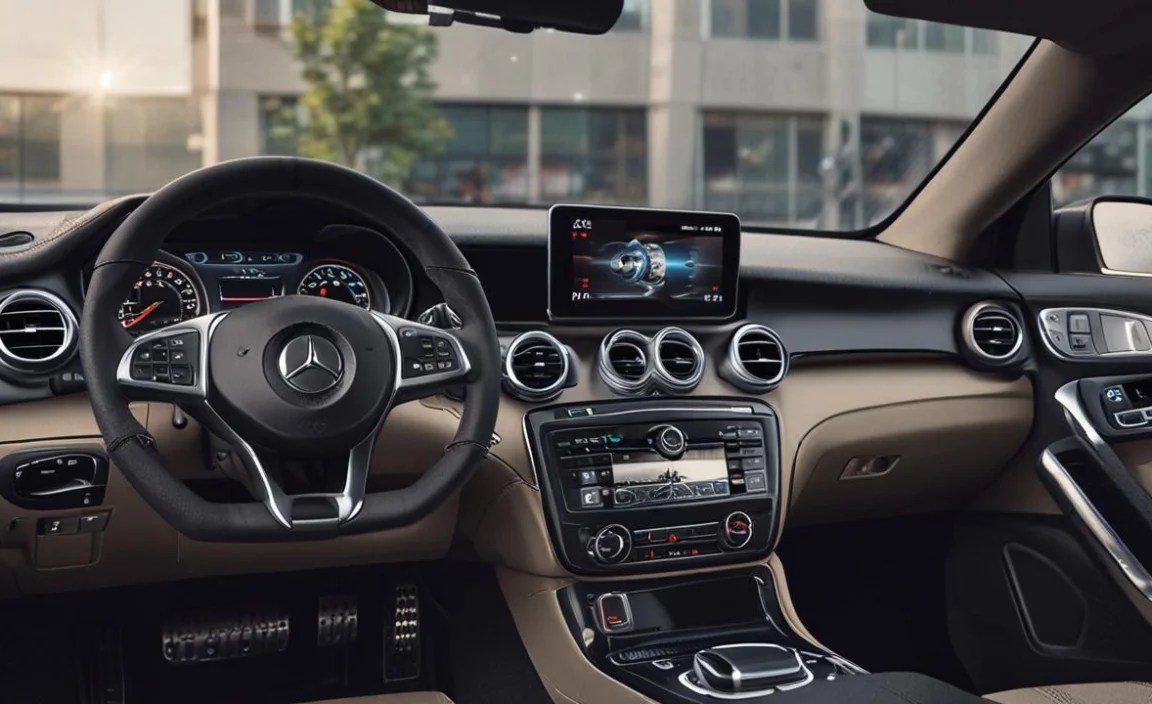
You’ll primarily use the touch-sensitive control buttons on the left and right sides of your steering wheel. The left side usually controls the central display, where you can cycle through different information modules, while the right side often manages infotainment and phone functions. A light tap or swipe on these buttons can change what you see in front of you, from classic speedometer layouts to athletic AMG displays, or even detailed navigation maps.
Understanding the Steering Wheel Controls
Mercedes-Benz has refined the user experience over the years, and the steering wheel controls for the Digital Cockpit are among the most intuitive. Let’s break down the common layouts:
- Left-Hand Side Controls:
- Home/Back Button: Returns you to the main menu or the previous screen.
- Scroll/Select Button (often a rocker switch): Use this to scroll through different menus or content displayed in the instrument cluster. Pressing it in selects the highlighted option.
- “Ok” Button: Confirms a selection or action.
- Right-Hand Side Controls:
- Touchpad/Swipe: Often integrated into the steering wheel trim, these allow you to swipe left, right, up, or down to navigate through menus or media.
- Phone Button: Answers or ends a call, or initiates voice commands.
- Voice Assistant Button (often with a microphone icon): Activates the MBUX voice assistant, allowing you to control various functions using natural language.
Exploring these buttons while parked is the best way to familiarize yourself. You’ll quickly discover how easy it is to adjust your display settings, check trip information, or select your preferred radio station.
Basic Display Modes
The GLA Digital Cockpit typically offers several predefined display modes that cater to different needs and preferences. These modes offer a starting point for customization and are a great way to see the versatility of the system.
- Classic/Standard Mode: This is often the default view, featuring prominent speedometer and tachometer dials, just like traditional analog gauges, but with a modern digital flair. It also usually includes fuel and temperature gauges on the sides.
- Sport Mode: Designed for the driving enthusiast, this mode emphasizes performance-oriented information. You might see a larger, more central tachometer, a digital speed readout, and real-time performance metrics like g-force or engine power.
- Progressive Mode: This mode often features a more minimalist and modern design, with prominent navigation or media information taking center stage. It’s about presenting key data in a clean, uncluttered way.
- Navigation Mode: As the name suggests, this mode prioritizes navigation instructions, displaying a clear map and turn-by-turn directions prominently within your line of sight.
You can switch between these modes using the steering wheel controls. Simply navigate to the display settings and select your preferred layout. Experimenting with each mode will help you find the one that best suits your daily driving needs.
Customizing Your GLA Digital Cockpit Visuals

The true magic of the Digital Cockpit lies in its personalization capabilities. Beyond the preset modes, you can fine-tune what information is displayed and how it’s arranged, ensuring your cockpit is as unique as your driving style. This level of customization allows you to prioritize what matters most to you while you’re on the road.
Mercedes-Benz understands that drivers have diverse needs. Whether you’re commuting, embarking on a road trip, or enjoying a spirited drive, your Digital Cockpit can be configured to provide the most relevant information at a glance. This not only enhances convenience but also significantly improves safety by reducing the need to look away from the road.
Changing the Layout and Content
Within each display mode, you can often customize the individual “squares” or “widgets” that make up the screen. This allows you to swap out generic information for something more specific.
Here’s a general process for customization:
- Access Settings: While parked, use your steering wheel controls to navigate to the “Settings” menu within the instrument cluster.
- Select Instrument Cluster: Within Settings, find and select the “Instrument Cluster” or “Display” option.
- Choose View Mode: Select the current display mode you wish to customize (e.g., Classic, Sport).
- Customize Areas: You’ll typically see options to change the content of specific areas, often referred to as ” Supersport,” “Classic,” “Discreet,” or individual “modules.”
- Select Information: For each customizable area, you can then choose from a list of available information, such as:
- Average speed
- Current speed
- Distance to empty
- Trip odometer
- Average fuel consumption
- Tire pressure
- Navigation details (next turn, route overview)
- Media playback information
- Phone status
- Driver assistance system status
- Confirm Changes: Once you’ve made your selections, confirm the changes. The instrument cluster will update immediately to reflect your choices.
Tip: Don’t be afraid to experiment. Scrolling through the available options will give you a clear idea of what information can be displayed where. You can always reset to default settings if you want to start over.
Setting Up the Navigation Display
For many drivers, navigating efficiently is a top priority. The GLA’s Digital Cockpit can seamlessly integrate your navigation system, providing clear, real-time directions directly in your line of sight. This feature is particularly useful when driving in unfamiliar areas or complex city environments.
To activate and customize the navigation display:
- Select a Navigation-Friendly Mode: Choose a display mode like “Sport” or “Progressive,” or a specifically designated “Navigation” view if available. These often have dedicated areas for map data.
- Activate Navigation in MBUX: Use the central MBUX infotainment screen to start your route planning, either by voice command (“Hey Mercedes, navigate to…”) or by manually entering your destination.
- Link to Instrument Cluster: Once navigation is active, the system usually defaults to showing route information in the Digital Cockpit. You can often fine-tune this by going into the instrument cluster settings and selecting “Navigation” as the content for a specific display module.
- Customize Map View: Within the MBUX system, you can often adjust the map view itself – choosing between 2D and 3D perspectives, or selecting what information is overlaid on the map (e.g., speed limits, points of interest). These adjustments will often reflect in the Digital Cockpit.
Having navigation directly in front of you can significantly reduce the need to glance at the center screen, keeping your eyes on the road where they belong. For more detailed information on MBUX navigation, you can refer to the official Mercedes-Benz guides or resources from reputable automotive tech sites.
Color Schemes and Themes
Beyond the content, the Digital Cockpit often allows for adjustments to the overall aesthetic, including color schemes or themes. These options let you personalize the look and feel to match your mood or the driving environment.
Look for options within the “Settings” menu, specifically under “Display” or “Instrument Cluster,” that might be labeled “Color Scheme,” “Theme,” or “Ambience.” Some models may offer:
- Default Colors: The standard color palette.
- Specific Themes: Such as “Red,” “Blue,” or “Modern,” which alter the background, font colors, and accent colors.
- AMG Specific Themes: If your GLA has AMG styling or performance aspects, you might unlock exclusive, sportier color themes.
These visual tweaks can dramatically change the perceived character of your cabin, making it feel more dynamic, serene, or luxurious depending on your choice.
Advanced Features and Tips
Once you’re comfortable with the basics, you can explore some of the more advanced features and subtle tips to further enhance your Digital Cockpit experience.
Voice Control Mastery
The MBUX voice assistant is incredibly powerful and can control many functions within the Digital Cockpit. Don’t just use it for navigation; try controlling your media, setting climate control, or even asking for information.
Useful Voice Commands for the Cockpit:
- “Hey Mercedes, show me the map.”
- “Hey Mercedes, change the display to Sport mode.”
- “Hey Mercedes, what’s my fuel economy?”
- “Hey Mercedes, set the temperature to 22 degrees.”
- “Hey Mercedes, play my favorite playlist.”
The system learns your preferences over time, becoming more intuitive. For more in-depth understanding of MBUX voice commands, you can visit the official Mercedes-Benz MBUX technology page.
Integrating Infotainment and Driver Assistance
The Digital Cockpit is designed to be a central hub, integrating information from various systems. You can often display:
- Driver Assistance Status: See how systems like Active Distance Assist DISTRONIC or Active Lane Keeping Assist are functioning, with visual representations of surrounding vehicles and lane markings.
- Media Information: Control music playback and see track details without taking your eyes far from the road.
- Phone Connectivity: View incoming calls and contact information.
Configuring these displays ensures you have a comprehensive overview of your vehicle’s operations and your surroundings, contributing to a safer and more informed drive.
Performance Metrics for AMG Enthusiasts
If your GLA is an AMG model, or equipped with AMG styling, the Digital Cockpit often unlocks exclusive performance displays. These can include:
- AMG-Specific Dials: Unique speedometer and tachometer designs.
- Performance Data: Real-time horsepower and torque readouts.
- G-Force Meter: Visualizes lateral and longitudinal forces during spirited driving.
- Lap Timer: For track day enthusiasts.
- Engine Data: Oil temperature, coolant temperature, and turbo boost pressure.
These screens turn your dashboard into a performance analysis tool, allowing you to monitor and appreciate the engineering prowess of your AMG.
Troubleshooting Common Issues
While the Digital Cockpit is robust, like any advanced technology, you might occasionally encounter minor issues. Here are a few common ones and their solutions:
| Issue | Possible Cause | Solution |
|---|---|---|
| Display is unresponsive or frozen | Software glitch | Try a system reset. Often, holding down the power button on the infotainment screen for a longer period (e.g., 10-15 seconds) or performing a specific key combination on the steering wheel can initiate a reboot. Consult your owner’s manual for the exact procedure. If it persists, visit a dealer. |
| Navigation not displaying correctly | MBUX app conflict or connection issue | Ensure the navigation app is updated. Restart both the infotainment system and the Digital Cockpit. Check for any map data updates via Wi-Fi or at a dealership. |
| Information modules not updating | Data feed interruption | Verify that all relevant vehicle systems (e.g., GPS, sensors) are functioning correctly. Sometimes, simply turning the car off and on again resolves temporary data syncing issues. |
| Steering wheel controls not working | Intermittent connection or software glitch | Check if the touch surfaces are dirty. Try a system reboot. If the problem continues, it may require a dealer inspection for a faulty control module. |
For detailed troubleshooting steps and specific error codes, always refer to your Mercedes-Benz owner’s manual. It’s an invaluable resource for understanding your vehicle’s systems.
FAQ: Mercedes GLA Digital Cockpit
Q1: How do I change the display theme on my Mercedes GLA Digital Cockpit?
A1: You can usually change themes by navigating through the “Settings” menu on your infotainment screen or directly via the steering wheel controls to “Instrument Cluster” and then selecting “Display Style” or “Theme.”
Q2: Can I display my music playlist on the Digital Cockpit?
A2: Yes, you can configure a display module to show current media playback information, including track title, artist, and album art, when using compatible media sources.
Q3: My Digital Cockpit is showing a warning light, what should I do?
A3: Warning lights indicate a potential issue. Consult your owner’s manual for the specific meaning of the light. If it’s a critical warning, pull over safely and contact your Mercedes-Benz service center.
Q4: Is it possible to turn off the Digital Cockpit completely?
A4: Generally, you cannot turn off the entire Digital Cockpit display. However, you can choose the “Discreet” or a minimalist display mode that shows only the essential information, such as speed, to reduce distractions.
Q5: How do I update the software for my Digital Cockpit?
A5: Software updates for the MBUX system, which includes the Digital Cockpit, are often delivered wirelessly over-the-air (OTA) or can be installed by your authorized Mercedes-Benz dealer during a service appointment.
Q6: Can I customize the AMG performance displays?
A6: While the dedicated AMG performance displays offer specific metrics, you can often customize the surrounding areas or select which AMG mode to activate via the steering wheel controls or central display menu.
Q7: What is the purpose of the touch-sensitive controls on the steering wheel?
A7: These controls allow you to navigate


