
Mercedes GLB 360 Camera: Stunning & Effortless Parking
Unlock stress-free parking in your Mercedes-Benz GLB with the intelligent 360 Camera system. See a bird’s-eye view of your surroundings, making tight spots and complex maneuvers simple and safe. This guide explains how to activate, use, and maximize this essential driver assistance feature for a truly effortless parking experience.
Parking can sometimes feel like a puzzle, especially in busy urban environments or tight garages. The Mercedes-Benz GLB understands this challenge and equips it with a revolutionary 360 Camera system. This technology offers a panoramic view around your vehicle, transforming what could be a daunting task into a remarkably simple and confident maneuver. If you’ve ever wished for an extra set of eyes to help you navigate tricky parking situations, you’ve come to the right place. We’ll guide you through everything you need to know to make parking your GLB a breeze.
This comprehensive guide will demystify the Mercedes GLB 360 Camera. You’ll learn how to activate it, understand the different camera views it provides, and discover tips for using it effectively. By the end, you’ll feel empowered to tackle any parking scenario with precision and ease.
Understanding the Mercedes GLB 360 Camera System

The Mercedes GLB 360 Camera system is more than just a rearview camera; it’s a sophisticated suite of cameras designed to give you a comprehensive understanding of your vehicle’s environment. It stitches together images from multiple cameras strategically placed around the exterior of the GLB to create a seamless, overhead (bird’s-eye) view. This composite image is displayed on your infotainment screen, dramatically enhancing your spatial awareness.
This system is particularly helpful in several scenarios:
- Navigating narrow parking spaces.
- Maneuvering in tight multi-story car parks.
- Avoiding unseen obstacles like curbs, pillars, or children.
- Pulling out of blind driveways or busy intersections.
- Attaching a trailer (with specific guidance).
How the 360 Camera Works

The magic behind the 360 Camera lies in its network of cameras and advanced image processing. Typically, the GLB features cameras integrated into the front grille, the rear tailgate, and both side mirrors. These cameras capture live video feeds of the vehicle’s immediate surroundings.
Sophisticated software then takes these individual feeds and processes them to create a unified, top-down perspective. This view is digitally “warped” and stitched together, eliminating blind spots and presenting a clear, undistorted image of what surrounds your car, as if viewed from directly above. Dynamic guide lines often overlay this image, indicating the vehicle’s trajectory as you steer, further aiding precise maneuvering.
Key Components of the 360 Camera System

The system comprises several critical components working in harmony:
- Multiple Cameras: Usually four, located at the front, rear, and sides.
- Control Unit: A central processor that receives camera feeds and generates the composite image.
- Infotainment Display: Your central screen where the combined camera view is presented.
- Sensors (Optional but common): Ultrasonic parking sensors may integrate with the camera feed to provide audible and visual proximity warnings.
Activating and Using Your GLB 360 Camera

One of the beauties of the Mercedes GLB 360 Camera system is its intuitive operation. It’s designed to be readily accessible and easy to engage, often activating automatically or with a simple touch.
Automatic Activation
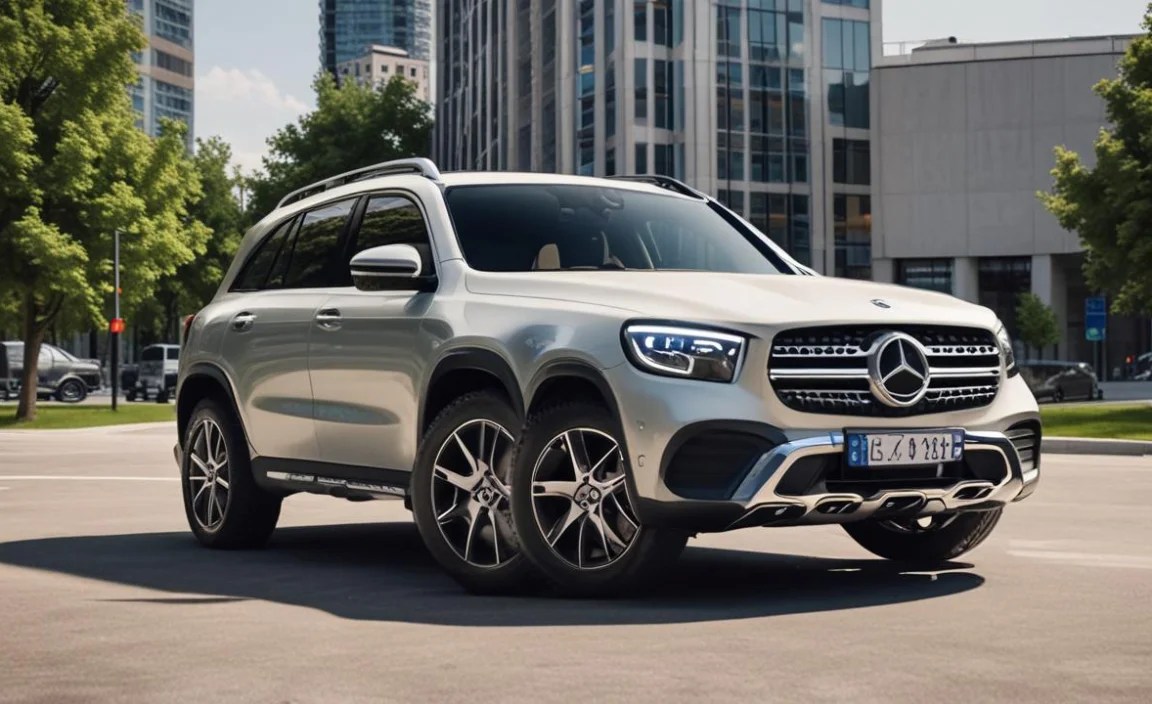
In most driving situations, the 360 Camera system is designed to activate automatically. This typically occurs when you engage reverse gear. The rearview camera will display on your infotainment screen, and the system will often default to showing a wide-angle view or the bird’s-eye perspective. If the system doesn’t automatically switch to the 360 view, there’s usually a manual override.
Manual Activation

Should you need to access the 360 Camera view at other times, or wish to change the displayed angle, you can usually do so manually through the infotainment system. The exact method can vary slightly depending on your GLB’s specific model year and MBUX (Mercedes-Benz User Experience) version, but it generally involves navigating through the vehicle settings or the camera menu.
Here’s a general guideline for manual activation:
- Ensure the vehicle is stationary or moving at a very low speed (often below 15 mph or 25 km/h for full camera functionality).
- Access the main menu on your COMAND or MBUX infotainment screen.
- Look for an icon or menu option related to “Camera,” “Parking Assist,” or “Assistance Systems.”
- Within this menu, you should find an option to “Activate 360 Camera” or select a specific camera view.
Navigating Camera Views

Once activated, the system typically presents a default view. However, you can often cycle through various perspectives to get the clearest picture for your specific parking maneuver. Common views include:
- Bird’s-Eye View: The signature overhead image, perfect for judging distances to all sides.
- Rear View: A standard camera feed from the rear.
- Front View: A camera feed from the front, useful for approaching obstacles or curbs.
- Wide-Angle Rear/Front Views: Offers a broader perspective than the standard view.
- Split-Screen Views: Simultaneously showing multiple camera angles (e.g., rear and side).
- Corner Views: Particularly useful for inching around tight corners or into garage openings.
You can typically switch between these views by tapping on specific icons displayed on the infotainment screen or by using the steering wheel controls. Experimenting with these different views before you really need them is highly recommended. This allows you to become familiar with what each view represents and how it corresponds to your physical surroundings.
Maximizing the Benefits of Your GLB 360 Camera

The 360 Camera is an incredibly powerful tool, but its effectiveness is amplified when you understand how to best utilize its capabilities. Think of it as an extension of your own senses, providing clarity where visual perception might be limited.
Parking in Tight Spaces

This is where the 360 Camera truly shines. When approaching a parking spot, engage reverse and observe the bird’s-eye view. Pay close attention to the dynamic guidelines, which show your intended path. Use them to align your vehicle perfectly between the lines. The overhead view allows you to see how close you are to the vehicles or obstacles on either side simultaneously, preventing costly scrapes and dings. For parallel parking, the system can be invaluable in judging the required distance to the curb and other cars.
If you’re entering a perpendicular parking spot, the front cameras and side views become critical as you maneuver into the space, ensuring you don’t clip the car next to you or drive too far forward and hit a wall or parking barrier.
Navigating Complex Driveways and Obstacles

Pulling out of a driveway where visibility is limited by hedges, parked cars, or buildings can be tense. By activating the front camera or bird’s-eye view (often possible at low speeds even when not in reverse), you can scan for oncoming traffic or pedestrians before committing to pulling out. Similarly, navigating through narrow gateways, alleys, or areas with low-hanging branches is made much safer.
Using Trailer Assist (If Equipped)

Some GLB models offer Trailer Assist functionality that integrates with the 360 Camera. This feature can help you maneuver a trailer more easily by allowing you to set a desired angle and direction using a control on the center console. The system then translates your input into steering wheel movements, guiding the trailer precisely. Always refer to your owner’s manual for specifics on how to use this advanced feature safely.
Combining with Parking Sensors

Your GLB’s 360 Camera system often works in tandem with its ultrasonic parking sensors. The sensors provide audible (beeping) and visual (color-coded proximity indicators on the screen) alerts as you get closer to objects. This combination offers multiple layers of protection: the visual display from the cameras shows you what you might be approaching, while the sensors tell you how close you are. Trusting both systems provides the most comprehensive safety net.
Understanding the Display: What You’re Seeing

The graphics on your GLB’s infotainment screen are designed to be both informative and easy to interpret. Understanding the nuances of the display will significantly improve your confidence and parking precision.
Dynamic Guidelines

These colored lines (usually red, yellow, or green) are projected onto the camera view, indicating the intended path of your vehicle based on the current steering angle.
- Yellow Lines: Generally indicate the path your vehicle will take as you turn the steering wheel.
- Red Line: Often marks the outer limit of your vehicle’s trajectory, showing where the furthest point of the car will end up.
It’s crucial to remember that these guidelines are based on the steering angle at the exact moment they are displayed. If you change your steering input, the projected path will also change. They are an excellent guide but do not replace the need for constant visual confirmation of your surroundings.
Object Detection and Warnings

In addition to the camera feeds, the system may highlight detected obstacles on the screen. These can appear as generic shapes or more specific icons. When paired with parking sensors, proximity warnings will also be displayed, often with a color gradient that changes from green to yellow to red as you get closer to an object.
Choosing the Right View for the Job

Here’s a quick guide to selecting the optimal view:
| Parking Scenario | Recommended View(s) | Why |
|---|---|---|
| Parallel Parking | Bird’s-Eye View, Wide-Angle Rear View | Judges distance to curb, vehicles behind, and parallel alignment. |
| Perpendicular Parking (Into space) | Bird’s-Eye View, Front View | Aligns with the space, avoids hitting cars beside you, checks for front obstacles. |
| Tight Maneuvering / Garage Entry | Bird’s-Eye View, Corner Views | Precise positioning, avoids low barriers or tight turns. |
| Pulling out of Blind Spot | Front View, Corner Views | Scans for approaching traffic or pedestrians with minimal forward projection. |
Troubleshooting and Maintenance

Like any advanced technology, the 360 Camera system may occasionally require attention. Understanding basic maintenance and potential issues can save you time and eliminate frustration.
Keeping the Cameras Clean

The image quality of your 360 Camera is directly dependent on the cleanliness of the lenses. Dirt, mud, snow, ice, or even heavy pollen can obscure the view, rendering the system less effective or even useless. Regularly clean the camera lenses just as you would your windshield or mirrors.
Procedure for cleaning:
- Use a soft, lint-free cloth (microfiber is ideal).
- For tougher grime, dampen the cloth with water or a mild, automotive-specific glass cleaner. Avoid abrasive materials or harsh chemicals that could scratch the lenses.
- Gently wipe each camera lens until it is clean and clear.
- The cameras are typically located within the front grille, on the underside of the side mirrors, and on the tailgate.
When to Seek Professional Assistance

While keeping the lenses clean is simple, there are instances where the system might not function correctly and requires professional diagnosis. These include:
- Display shows incorrect images: If the stitched image appears distorted, warped in an unusual way, or shows elements that aren’t there.
- System reports an error: If a warning message related to the camera system appears on your dashboard or infotainment screen.
- Cameras are physically damaged: If a camera lens is cracked, chipped, or the housing is visibly broken.
- No image is displayed: If the screen remains black or shows a standard rearview camera image when the 360 view is expected.
In such cases, it’s best to consult your Mercedes-Benz dealer or a qualified Mercedes-Benz technician. They have the specialized diagnostic tools needed to identify and repair any issues with the camera hardware, control unit, or software. For more information on Mercedes-Benz vehicle maintenance and diagnostics, you can refer to resources like the official Mercedes-Benz USA website (Mercedes-Benz USA Contact) or consult your vehicle’s owner’s manual.
Software Updates
Like all advanced automotive systems, the MBUX infotainment system and its associated camera software can receive updates. These updates can improve performance, add features, or fix bugs. Mercedes-Benz typically rolls out these updates during scheduled service appointments at dealerships, or sometimes they can be installed over-the-air (OTA). If you suspect a software-related issue, ask your service advisor about the latest available updates for your vehicle.
FAQ: Your Mercedes GLB 360 Camera Questions Answered
Q1: Does the Mercedes GLB 360 Camera system work in bad weather?
A1: The system can operate in rain, fog, or light snow, but visibility might be reduced by heavy precipitation or accumulated dirt/ice. Regular cleaning of the camera lenses is crucial for optimal performance in all weather conditions.
Q2: Can I turn off the 360 Camera system?
A2: While the system is designed to be helpful, you can typically exit the camera view by selecting another function on the infotainment screen or by shifting the gear selector (e.g., out of reverse). The 360 Camera usually deactivates automatically when you reach a certain speed.
Q3: How accurate are the dynamic guidelines on the parking display?
A3: The dynamic guidelines are generally very accurate for indicating the vehicle’s projected path. However, they are based on the current steering angle and assume a flat, even surface. Always use them in conjunction with direct visual scanning of your surroundings.
Q4: Is the 360 Camera system standard on all Mercedes-Benz GLB models?
A4: The availability of the 360 Camera system can vary by model year, trim level, and optional packages. It is often included in premium packages or as a standalone option. It’s best to check the specific vehicle’s window sticker or configuration for definitive information.
Q5: How do I know if the 360 Camera is active?
A5: When the system is active, you will see the camera views displayed on your infotainment screen, typically the bird’s-eye view when in reverse. You might also see specific camera icons or menu options related to the 360 Camera interface.
Q6: Can the 360 Camera system detect pedestrians or animals?
A6: While the cameras provide a comprehensive view of the surroundings, they are primarily designed for obstacle detection and distance judgment related to vehicle maneuvering. They are not a substitute for active pedestrian or animal detection systems, which are often part of more advanced driver assistance packages. Always be vigilant.
Conclusion
The Mercedes-Benz GLB 360 Camera system is a testament to the brand’s commitment to making driving not only luxurious but also remarkably easy and safe. By providing a clear, comprehensive view of your surroundings, it transforms potentially stressful parking situations into confident, controlled maneuvers. Understanding how to activate it, navigate its various views, and maintain its components ensures you’re always getting the most out of this intelligent technology.
Whether you’re squeezing into a tight city spot, navigating a camp site, or simply pulling into your garage, the 360 Camera is your digital co-pilot. Embrace this feature, practice using its different perspectives, and enjoy the peace of mind that comes with effortless parking. Your Mercedes-Benz GLB is equipped with innovation to simplify your journey, and its 360 Camera is a shining example of that.


