
Mercedes Sedan Interior Ambient Modes: Effortless Guide
Want to personalize your Mercedes sedan’s interior lighting? This guide simplifies Mercedes-Benz ambient lighting, showing you how to effortlessly adjust colors, brightness, and themes to match your mood and driving style. Learn to create your perfect in-cabin atmosphere!
Mercedes-Benz ambient lighting can transform your driving experience. But figuring out the system can be tricky. Many owners feel overwhelmed by the options and struggle to get the lighting just right. This guide breaks down everything you need to know, step-by-step.
We’ll cover accessing the ambient light settings, customizing colors, using preset themes, and troubleshooting common issues. By the end, you’ll be able to create a stunning, personalized interior that enhances every drive. Let’s dive in!
Understanding Mercedes-Benz Ambient Lighting

Mercedes-Benz ambient lighting allows you to customize the interior of your vehicle with a range of colors and settings. This feature enhances the overall driving experience by creating a unique and personalized atmosphere. The system uses LED lights strategically placed throughout the cabin to provide subtle yet impactful illumination.
Key Features of the System
- Multiple Color Options: Choose from a wide spectrum of colors to match your mood or preference.
- Adjustable Brightness: Control the intensity of the lighting to suit different driving conditions.
- Preset Themes: Select from pre-configured themes that offer coordinated color combinations.
- Zoned Lighting: Customize different areas of the interior separately, such as the dashboard, door panels, and footwells.
- Dynamic Modes: Some models offer dynamic modes that change colors automatically based on driving conditions or music.
Benefits of Using Ambient Lighting
- Enhanced Aesthetics: Adds a touch of luxury and personalization to your vehicle’s interior.
- Improved Mood: Creates a relaxing or energizing atmosphere, depending on the chosen colors and settings.
- Increased Visibility: Provides subtle illumination that enhances visibility without being distracting.
- Customizable Experience: Allows you to tailor the interior lighting to your individual preferences.
Accessing Ambient Light Settings

The process for accessing ambient light settings can vary slightly depending on the model and year of your Mercedes-Benz sedan. However, the general steps are similar across most vehicles.
Using the MBUX System
- Start the Vehicle: Ensure your Mercedes-Benz is turned on.
- Access the MBUX System: Use the central display screen to navigate to the main menu.
- Select “Vehicle Settings”: Look for an icon or menu option labeled “Vehicle,” “Settings,” or “Car.”
- Find “Ambient Lighting”: Within the vehicle settings, locate the “Ambient Lighting” option. It may be under a sub-menu like “Light & Sight.”
- Enter the Ambient Lighting Menu: Select “Ambient Lighting” to access the customization options.
Using the Older COMAND System
- Start the Vehicle: Ensure your Mercedes-Benz is turned on.
- Access the COMAND System: Use the central control knob or touchpad to navigate to the main menu on the display screen.
- Select “Vehicle”: Look for the “Vehicle” option in the main menu.
- Find “Lighting”: Within the vehicle settings, find the “Lighting” or “Interior Lighting” option.
- Enter the Ambient Lighting Menu: Select the appropriate option to access the ambient lighting settings.
Alternative Access Methods
- Steering Wheel Controls: Some models allow you to access basic ambient lighting settings through the steering wheel controls. Check your owner’s manual for specific instructions.
- Voice Control: Use the Mercedes-Benz voice control system (if equipped) to directly access the ambient lighting menu. Say something like “Hey Mercedes, open ambient lighting.”
Customizing Colors and Brightness

Once you’ve accessed the ambient lighting menu, you can begin customizing the colors and brightness to create your desired atmosphere.
Selecting Colors
- Open the Color Palette: Within the ambient lighting menu, you should see a color palette or a list of available colors.
- Choose a Color: Select your desired color from the palette. Many systems offer a color wheel for a wider range of options.
- Apply the Color: Once selected, the new color should immediately apply to the interior lighting.
Adjusting Brightness
- Locate the Brightness Slider: In the ambient lighting menu, find the brightness control, usually a slider or a set of buttons.
- Adjust the Brightness Level: Use the slider or buttons to increase or decrease the brightness of the ambient lighting.
- Test the Settings: Observe the changes in the interior lighting to ensure the brightness level is to your liking.
Zoned Lighting Customization
Some Mercedes-Benz models allow you to customize the lighting in different zones of the interior separately.
- Access Zoned Lighting Options: Within the ambient lighting menu, look for options to customize specific zones, such as the dashboard, door panels, and footwells.
- Select a Zone: Choose the zone you want to customize.
- Adjust Color and Brightness: Use the color palette and brightness slider to set the desired lighting for that zone.
- Repeat for Other Zones: Repeat the process for any other zones you wish to customize.
Using Preset Themes
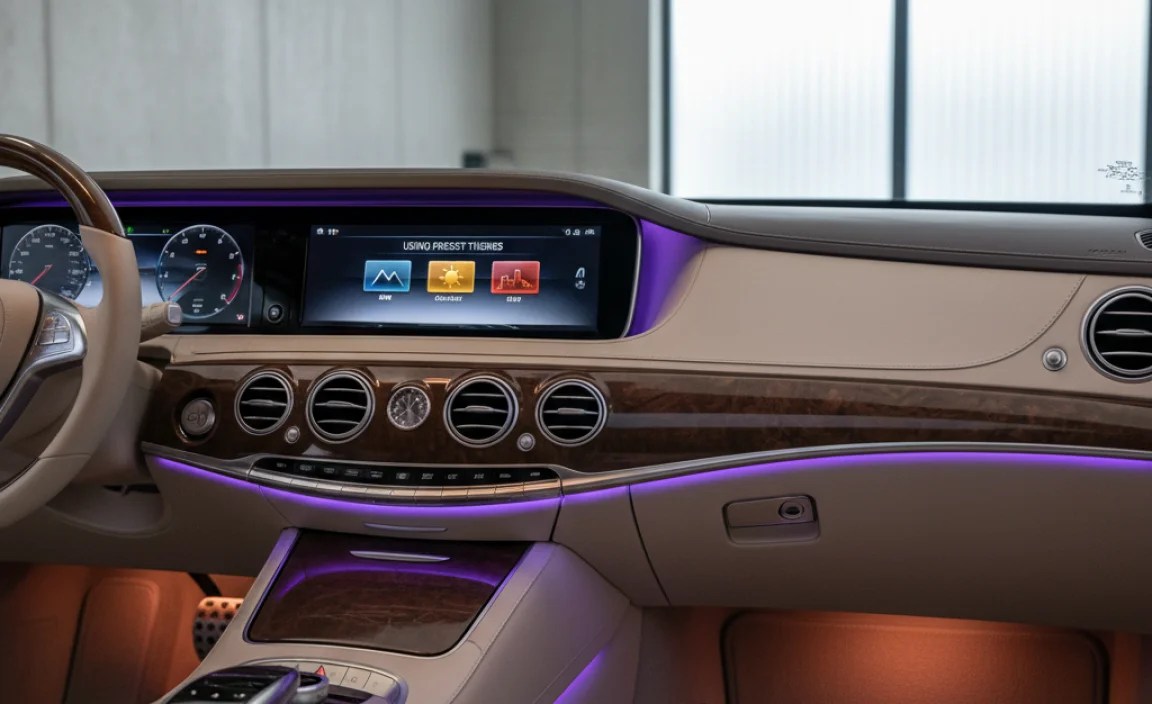
Mercedes-Benz offers a range of preset ambient lighting themes that provide coordinated color combinations. These themes can be a quick and easy way to change the entire mood of your interior.
Exploring Available Themes
- Access the Theme Selection Menu: Within the ambient lighting menu, look for an option to select preset themes.
- Browse the Themes: Scroll through the list of available themes. Each theme will have a unique name and color combination.
- Preview the Themes: Some systems allow you to preview the themes before applying them.
Applying a Theme
- Select a Theme: Choose the theme you want to use.
- Apply the Theme: Select the “Apply” or “OK” button to activate the chosen theme.
- Enjoy the New Atmosphere: The interior lighting will change to reflect the colors and settings of the selected theme.
Examples of Common Themes
- Ocean Blue: A calming theme with shades of blue and green.
- Sunset Red: A warm and inviting theme with shades of red and orange.
- Polar Ice: A cool and modern theme with shades of white and blue.
- Jungle Green: A vibrant and refreshing theme with shades of green and yellow.
- Energy Orange: An energetic and stimulating theme with shades of orange and yellow.
Creating Custom Themes
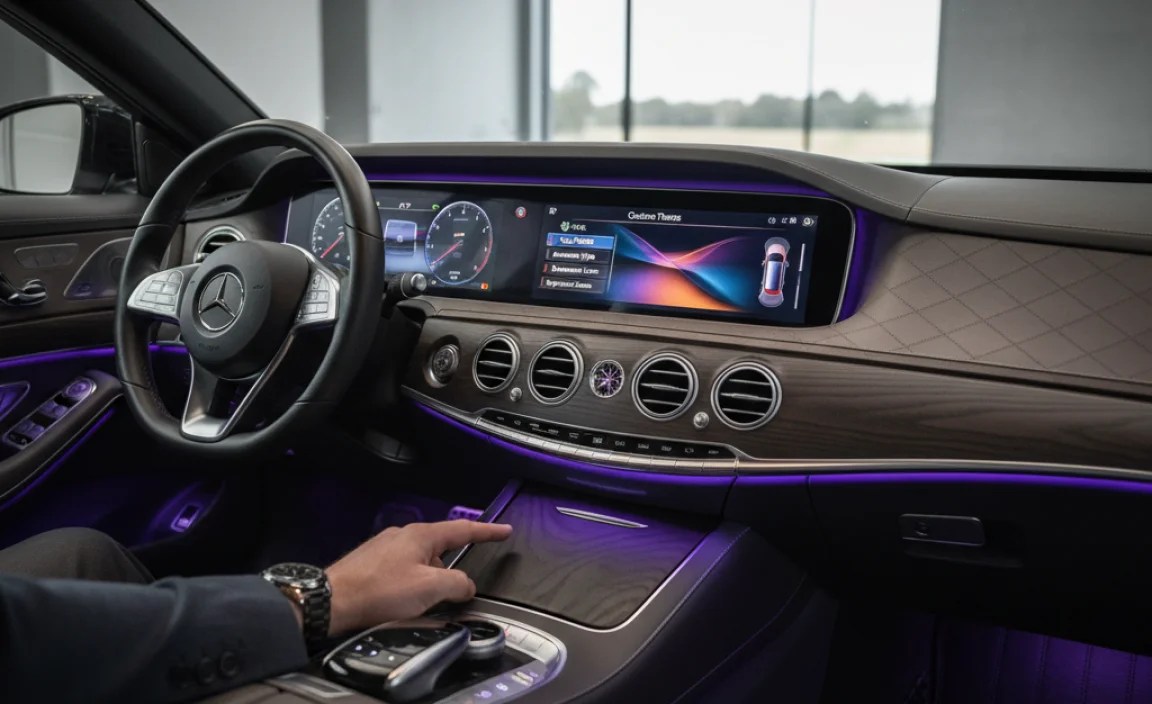
For those who want even more personalization, some Mercedes-Benz models allow you to create and save your own custom ambient lighting themes.
Steps to Create a Custom Theme
- Access Custom Theme Settings: Within the ambient lighting menu, look for an option to create a custom theme.
- Select Colors for Each Zone: Choose the desired colors for each zone of the interior, such as the dashboard, door panels, and footwells.
- Adjust Brightness Levels: Set the brightness levels for each zone to your liking.
- Save the Theme: Give your custom theme a name and save it for future use.
Tips for Designing Effective Themes
- Consider Color Harmony: Choose colors that complement each other for a visually pleasing effect.
- Balance Brightness Levels: Ensure the brightness levels are balanced across different zones to avoid distractions.
- Reflect Your Personal Style: Create themes that reflect your personality and preferences.
- Test Different Combinations: Experiment with different color and brightness combinations to find what works best for you.
Troubleshooting Common Issues
Even with a sophisticated system like Mercedes-Benz ambient lighting, you may encounter occasional issues. Here are some common problems and how to troubleshoot them.
Lighting Not Working
If the ambient lighting is not working at all, there are several potential causes.
- Check the Settings: Ensure that the ambient lighting is turned on in the vehicle settings menu.
- Inspect Fuses: Check the fuses related to the interior lighting system. Replace any blown fuses.
- Examine Bulbs/LEDs: If individual lights are out, they may need to be replaced. Contact a Mercedes-Benz service center for assistance.
Inconsistent Colors
If the colors of the ambient lighting are inconsistent or not displaying correctly, try the following.
- Restart the System: Turn off the vehicle and restart it to reset the system.
- Check for Software Updates: Ensure that the MBUX or COMAND system has the latest software updates.
- Reset to Factory Settings: If the problem persists, try resetting the ambient lighting settings to factory defaults.
Brightness Issues
If the brightness of the ambient lighting is not adjusting properly, consider these solutions.
- Check the Brightness Slider: Make sure the brightness slider is not set to the lowest level.
- Adjust Ambient Light Sensor Settings: The ambient light sensor may be affecting the brightness. Adjust the sensor settings in the vehicle menu.
- Inspect for Obstructions: Ensure that the ambient light sensors are not obstructed by anything.
Seeking Professional Help
If you are unable to resolve the issue using the troubleshooting steps above, it may be necessary to seek professional help from a Mercedes-Benz service center. They have the expertise and equipment to diagnose and repair more complex problems.
Maintaining Your Ambient Lighting System
Proper maintenance can help ensure that your Mercedes-Benz ambient lighting system continues to function optimally for years to come.
Regular Cleaning
Keep the interior of your vehicle clean to prevent dust and debris from affecting the ambient lighting system.
- Dust Regularly: Use a soft cloth or vacuum cleaner to remove dust from the dashboard, door panels, and other areas where the lights are located.
- Clean Spills Promptly: Clean up any spills immediately to prevent damage to the lighting components.
Software Updates
Keep the MBUX or COMAND system up to date with the latest software updates. These updates often include improvements and fixes for the ambient lighting system.
- Check for Updates: Regularly check for software updates in the vehicle settings menu.
- Install Updates: Follow the instructions to install any available updates.
Professional Inspections
During routine maintenance visits, ask your Mercedes-Benz service center to inspect the ambient lighting system.
- Request Inspection: Ask the service technician to check the lights, wiring, and control system.
- Address Issues Promptly: If any issues are identified, address them promptly to prevent further damage.
Examples Across Mercedes-Benz Models
Ambient lighting features and capabilities vary across different Mercedes-Benz sedan models and model years. Here’s a comparison table showcasing some key differences:
| Model | Year | Number of Colors | Zoned Lighting | Dynamic Modes | Notes |
|---|---|---|---|---|---|
| C-Class | 2022+ | 64 | Yes | Yes | Standard on most trims |
| E-Class | 2021+ | 64 | Yes | Yes | Enhanced customization options |
| S-Class | 2021+ | 64 | Yes | Yes | Includes additional lighting elements |
| CLA | 2020+ | 64 | Yes | No | Sporty design with ambient lighting |
| A-Class | 2019+ | 64 | Yes | No | Entry-level model with advanced features |
Note: Features and availability may vary depending on the specific trim level and optional packages.
Related Technologies and Features
Mercedes-Benz ambient lighting often integrates with other technologies and features to enhance the overall driving experience.
MBUX (Mercedes-Benz User Experience)
The MBUX system is the central hub for controlling many of the vehicle’s features, including ambient lighting. It allows you to customize the lighting settings, select themes, and create custom themes.
- Voice Control: Use voice commands to control the ambient lighting system.
- Touchscreen Interface: Use the touchscreen display to access and adjust the lighting settings.
- Personal Profiles: Save your preferred ambient lighting settings to your personal profile.
ENERGIZING Comfort Control
The ENERGIZING Comfort Control system combines various vehicle features, including ambient lighting, to create a holistic wellness experience.
- Preset Programs: Choose from preset programs like “Freshness,” “Warmth,” and “Vitality” that adjust the ambient lighting, climate control, and audio settings to create a specific mood.
- Custom Programs: Create your own custom programs to tailor the experience to your individual preferences.
Burmester Sound System
The Burmester sound system (if equipped) can synchronize with the ambient lighting to create a dynamic and immersive audio-visual experience.
- Lighting Effects: The ambient lighting can pulse and change colors in sync with the music.
- Customizable Settings: Adjust the intensity and sensitivity of the lighting effects to suit your preferences.
Conclusion
Mastering the ambient lighting system in your Mercedes-Benz sedan unlocks a new level of personalization and driving pleasure. By following this guide, you can easily navigate the settings, customize colors and brightness, use preset themes, and even create your own unique lighting schemes. Don’t hesitate to experiment and find the perfect in-cabin atmosphere that reflects your style and enhances every journey.
FAQ: Mercedes Sedan Interior Ambient Modes
What is Mercedes-Benz ambient lighting?
Mercedes-Benz ambient lighting is a customizable interior lighting system. It uses LED lights to add color and atmosphere to your car’s cabin, enhancing the driving experience.
How do I change the color of my ambient lighting?
Access the “Ambient Lighting” menu in your vehicle’s settings via the central display. From there, you can select your desired color from a color palette or list of available options.
Can I adjust the brightness of the ambient lighting?
Yes, you can adjust the brightness. Within the ambient lighting menu, look for a brightness slider or buttons to increase or decrease the light intensity.
Are there preset ambient lighting themes available?
Yes, Mercedes-Benz offers preset themes with coordinated color combinations. You can find these in the ambient lighting menu under “Themes.”
How do I create my own custom ambient lighting theme?
Some models allow you to create custom themes. In the ambient lighting menu, look for the option to create a custom theme, then select your desired colors and brightness levels for each zone.
What should I do if my ambient lighting is not working?
First, check the ambient lighting settings to ensure it’s turned on. If it’s still not working, check the fuses related to interior lighting. If the problem persists, consult a Mercedes-Benz service center.
Can the ambient lighting sync with music?
Yes, if your vehicle is equipped with the Burmester sound system, the ambient lighting can sync with the music to create a dynamic visual experience.


