
CLA Dashboard Layout: Ultimate Refinement
Quick Summary
Unlock the full potential of your Mercedes-Benz CLA’s dashboard. This guide breaks down the CLA dashboard layout, showing you how to customize displays, manage infotainment, and utilize advanced features for a personalized, intuitive driving experience that enhances every journey.
The dashboard of your Mercedes-Benz CLA is more than just a collection of gauges and buttons; it’s your command center. Navigating its features can sometimes feel a bit overwhelming, especially with the sophisticated technology Mercedes-Benz integrates. Understanding the CLA dashboard layout is key to unlocking its full potential, making your driving experience safer, more enjoyable, and seamlessly connected. This guide will demystify the system, transforming any initial confusion into confidence.
We’ll walk through each element, from the central infotainment screen to the customizable digital instrument cluster, offering clear explanations and practical tips. Get ready to refine your interaction with your CLA and make every drive more rewarding.
Understanding the CLA Dashboard Layout

Your Mercedes-Benz CLA boasts a driver-centric cockpit, designed for both aesthetics and intuitive functionality. The layout typically features a prominent central display, often integrated with a digital instrument cluster, and a variety of controls accessible within easy reach. The goal is a cohesive experience where information and entertainment are readily available without demanding excessive attention from the road.
At its heart is the MBUX (Mercedes-Benz User Experience) infotainment system. This isn’t just a screen; it’s an intelligent system that learns your habits and preferences, offering voice control and gesture functions. The layout is designed with distinct zones:
- Driver’s Instrument Cluster: Usually a digital display showing all essential driving information.
- Central Infotainment Display: The main hub for entertainment, navigation, climate, and vehicle settings.
- Center Console Controls: Physical buttons and a touchpad for quick access to core functions.
- Steering Wheel Controls: Multifunction buttons for managing audio, calls, and display menus.
Understanding how these components interact is the first step to mastering your CLA’s dashboard.
The Digital Instrument Cluster: Your Driving View

Many modern CLA models feature a fully digital instrument cluster, replacing traditional physical dials with a high-resolution screen. This offers unparalleled flexibility in how you view driving information. You can often choose from different display styles (known as “display styles” or “themes”) to suit your preferences.
Common Display Styles and Information
These digital clusters can typically be customized to show:
- Classic View: Mimics traditional analog tachometers and speedometers, offering a familiar feel.
- Sport View: Emphasizes performance metrics, often with a central rev counter and G-force indicators (if equipped).
- Progressive View: A more modern, minimalist layout that prioritizes navigation or other key information.
- Assistance View: Highlights driver assistance systems, showing how sensors are perceiving the road and other vehicles.
Within these views, you can typically cycle through different data readouts using the steering wheel controls. This might include:
- Trip computer (average speed, fuel consumption)
- Range to empty
- Navigation directions
- Media player information
- Telephone contacts
- Tire pressure monitoring
- Oil level and temperature
- Driver assistance system status
Customizing Your Instrument Cluster
Personalizing your instrument cluster is straightforward:
- Locate the “Display” or “Cluster” menu button on your steering wheel (often marked with a phone or a symbol resembling a dashboard).
- Navigate through the options using the scroll wheel or touchpads on the steering wheel.
- Select your preferred “Display Style.”
- Within the chosen style, you can often select which ” Widgets” or “Information Areas” should display specific data. For instance, you might choose to have your navigation map prominently displayed on one side.
Experimenting with these settings while parked is the best way to find your ideal layout. Refer to your owner’s manual for specific button locations on your model year, as they can vary slightly.
The Central Infotainment Display: MBUX in Action

The MBUX system is the nerve center for entertainment, communication, and vehicle functions. Its layout on the central touchscreen is designed for clarity and ease of use, typically divided into several key areas.
Navigating the MBUX Home Screen
The home screen is your starting point. It usually displays:
- Status Bar: At the top, showing time, temperature, and connectivity icons (Wi-Fi, Bluetooth).
- Main Content Area: This is the largest section and changes based on what you’re actively using (e.g., navigation map, radio station, media source).
- Quick Access Icons/Dock: A persistent bar, often at the bottom or side, providing direct access to core functions like Navigation, Radio, Media, Phone, and Vehicle Settings.
Key MBUX Functions and Their Layout
Let’s break down some of the most frequently used MBUX sections:
Navigation
The navigation system in the CLA is robust. Once activated, the map typically dominates the screen. You can input destinations via voice command (“Hey Mercedes, navigate to…”) or by typing on the touchscreen. The system can display traffic information, suggest alternative routes, and provide 3D city views for enhanced realism. The instrument cluster can also mirror key navigation prompts, keeping critical directional information in your direct line of sight.
Audio & Media
This section allows you to control your radio (AM/FM, DAB), connected devices via Bluetooth or USB, and streaming services. You can browse stations, albums, and playlists. The layout is usually intuitive, with clear options to switch between sources and adjust volume or track selection.
Climate Control
While physical buttons often remain for primary climate functions (like fan speed or temperature), detailed adjustments are made via the touchscreen. You’ll find icons and sliders to control air direction, seat heating/cooling, and recirculation. Some systems offer personalized climate profiles.
Connectivity & Phone
Pairing your smartphone via Bluetooth is typically done through this menu. Once connected, you can make calls, access your contacts, and view call history directly on the infotainment screen. Apple CarPlay and Android Auto integration are usually found within this section as well, offering a familiar interface for your mobile apps.
Vehicle Settings
This is where you fine-tune various aspects of your CLA. From ambient lighting color and brightness to driver assistance system settings, drive modes, and display preferences, this comprehensive menu allows for deep personalization. It’s wise to explore this section when you have time to familiarize yourself with all the options.
Using Voice Control: “Hey Mercedes”
One of the most powerful tools in the MBUX system is its natural language voice control. Simply say “Hey Mercedes” to activate it. You can then issue commands like:
- “Hey Mercedes, it’s cold in here.” (Adjusts cabin temperature)
- “Hey Mercedes, play my favorite playlist.” (Starts pre-selected music)
- “Hey Mercedes, what’s the weather like tomorrow?” (Provides weather forecast)
- “Hey Mercedes, find the nearest gas station.” (Initiates navigation)
The system learns your accent and common phrases, making it increasingly accurate over time. For more on the capabilities of MBUX and other Mercedes-Benz technologies, explore official resources from Mercedes-Benz USA.
Steering Wheel and Center Console Controls

While touchscreens and voice commands are advanced, physical controls remain crucial for quick, tactile adjustments. Your CLA combines these effectively.
Dual-Screen Control with Touch Control Buttons
The steering wheel in modern CLAs often features intuitive “Touch Control” buttons. These are small, touch-sensitive surfaces that allow you to swipe or tap to navigate menus on both the instrument cluster and the central infotainment display. Dedicate some time to learning their functions; they are incredibly efficient once mastered. Look for:
- Left-side controls: Typically for the instrument cluster menu – scrolling through information, selecting display styles.
- Right-side controls: Usually for the infotainment system – controlling audio, answering calls, activating voice commands.
The Touchpad and Direct-Access Buttons
Located on the center console, the touchpad provides an alternative to touching the central screen. It can be used to navigate menus, select icons, and scroll through lists. It often features haptic feedback to confirm your input.
Below the touchpad, you’ll find a row of physical buttons that offer direct access to the most frequently used MBUX functions:
- Home
- Back
- Audio/Media
- Climate
- Navigation
- Vehicle Settings
These buttons are invaluable for making immediate adjustments without needing to navigate through multiple touchscreen menus.
Customizing Your Driving Experience: Personalization Tips
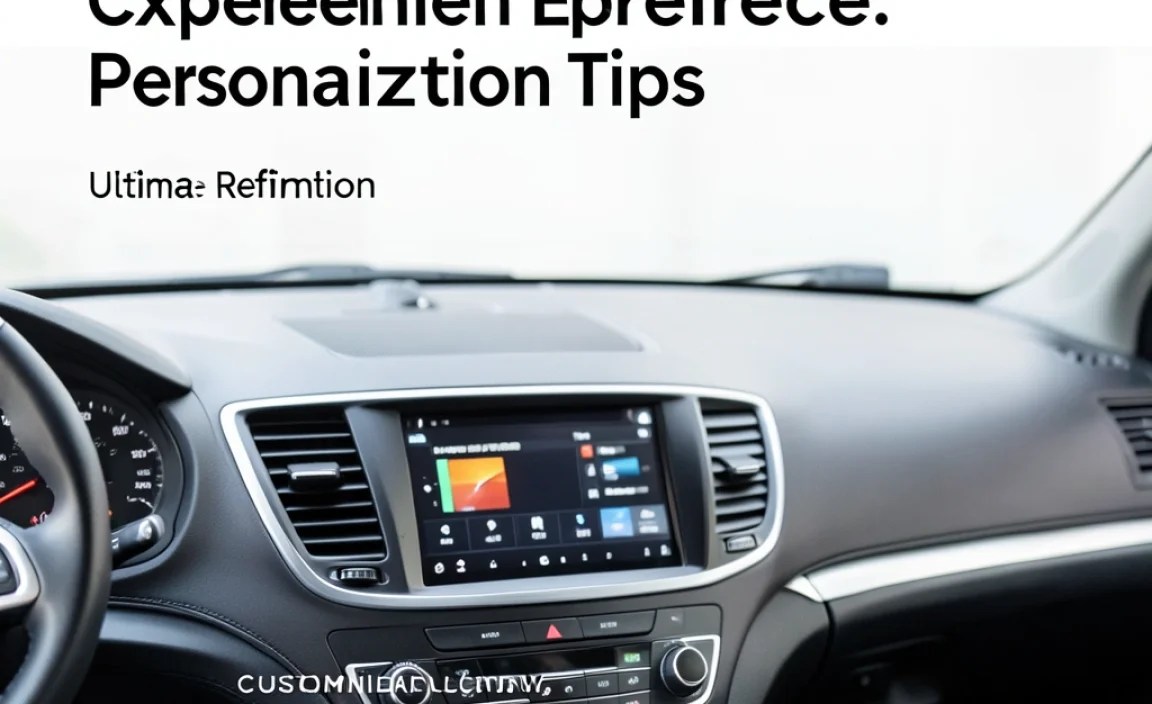
Beyond basic setup, your CLA’s dashboard can be tailored to reflect your driving style and preferences. This personalization enhances both comfort and efficiency.
Setting Up Driver Profiles
If your CLA is equipped with integrated memory seats and mirrors, it likely supports driver profiles. This feature allows you to save your preferred settings for:
- Seating position
- Mirror angles
- Steering wheel position (if power-adjustable)
- Instrument cluster display style
- Infotainment system layout
- Ambient lighting color and brightness
- Climate control preferences
- Radio presets and media connections
- Driver assistance system configurations
How to Set Up:
- Adjust your seat, mirrors, and steering wheel to your ideal position.
- Configure your preferred display styles and climate settings.
- On the center console or infotainment screen, find the “Profiles” or “Memory” menu.
- Select “Save Profile” and assign it to one of the available memory buttons (often on the driver’s door panel) or a user profile slot.
When you or another driver gets into the car, you can recall your profile with a single button press, instantly setting up the cabin perfectly.
Ambient Lighting and Its Impact
The multi-zone ambient lighting system in your CLA is more than just aesthetic. It can be configured to provide subtle visual cues:
- Color Zones: Choose different colors for different areas of the cabin.
- Brightness Control: Adjust intensity to suit the time of day or mood.
- Interactive Lighting: Some systems dynamically change ambient lighting based on climate control adjustments or driver assistance warnings, offering a more integrated feel.
Access these settings via the “Vehicle Settings” menu on the infotainment screen. Experiment with different colors; the options are extensive and can dramatically alter the cabin’s atmosphere.
Optimizing Driver Assistance Settings
The CLA is equipped with advanced driver assistance systems (ADAS). It’s vital to configure these to your comfort level and driving conditions. Common adjustable systems include:
- Active Lane Keeping Assist: Adjust sensitivity or choose to only receive visual/audible warnings instead of active steering intervention.
- Active Brake Assist: While typically non-adjustable for safety, understand its limitations and how it functions.
- Blind Spot Assist: Configure warning lights and audible alerts.
- Adaptive Cruise Control (DISTRONIC): Set following distance and acceleration behavior.
Adjustments are made through the “Driver Assistance” menu. For detailed specifics on each system’s functionality and adjustable parameters, consult the official documentation from the National Highway Traffic Safety Administration (NHTSA) for general information on ADAS safety standards.
Information at a Glance
To help consolidate the different areas of your CLA’s dashboard, here’s a quick reference table.
| Dashboard Area | Primary Function | Control Methods | Key Information/Features |
|---|---|---|---|
| Instrument Cluster (Digital) | Driving Information Display | Steering Wheel Touch Controls | Speed, RPM, Fuel, Navigation prompts, ADAS status, Trip data |
| Central Infotainment Display | MBUX System Hub | Touchscreen, Voice Control (“Hey Mercedes”), Touchpad, Steering Wheel Controls | Navigation, Audio/Media, Climate, Phone, Vehicle Settings, Apps (CarPlay/Android Auto) |
| Center Console | Primary Input & Quick Access | Physical Buttons, Touchpad | Direct access to Home, Back, Audio, Climate, Navigation, Settings |
| Steering Wheel | On-the-Fly Control | Touch Control Buttons (Swipe/Tap), Voice Command Button | Instrument cluster navigation, Infotainment control (volume, track, calls), Menu cycling |
Tips for Maintaining an Organized Dashboard
A well-organized dashboard contributes to a more focused and enjoyable driving experience. Here are some tips to keep your digital and physical controls tidy.
- Set Up Your “Home Screen” Widgets: Just like on your smartphone, MBUX often allows you to customize the widgets on its main display. Prioritize navigation, then add your favorite media source or quick climate controls.
- Utilize Presets: Save frequently used radio stations, navigation destinations, and climate settings. This saves you time and reduces interaction with the screen.
- Master Voice Commands: For tasks like changing the radio station, making a call, or getting directions, voice control is often faster and safer than using the touchscreen. Practice “Hey Mercedes” commands regularly.
- Clear Unused Apps: If you have apps that you rarely use, consider removing them from the quick access menu or home screen to avoid clutter.
- Regular Software Updates: Although often done automatically, ensure your MBUX system is up-to-date. Mercedes-Benz frequently releases software updates that can improve functionality, add new features, and streamline the user interface. Check your vehicle settings or consult your dealer if you suspect it’s been a while.
- Keep it Clean: A clean car interior, including the dashboard screens and controls, enhances the luxury feel and makes them easier to interact with. Use appropriate, non-abrasive cleaners designed for automotive interiors and screens. For screen cleaning, a microfiber cloth is your best friend.
Frequently Asked Questions
What is MBUX and how does it relate to the CLA dashboard?
MBUX stands for Mercedes-Benz User Experience. On the CLA dashboard, it is the advanced infotainment system that powers the central touchscreen display, offering navigation, media, communication, and vehicle settings, all managed through touch, voice, or steering wheel controls.
How do I change the display style on my CLA instrument cluster?
You can typically change the display style using the navigation buttons on the left side of your steering wheel. Navigate to the “Display” or “Cluster” menu and select your preferred style (e.g., Classic, Sport, Progressive).
Is it safe to adjust settings while driving?
While the CLA dashboard is designed for intuitive use with features like voice control and steering wheel buttons, it’s always safest to make adjustments when the vehicle is stationary. If you must make a change while driving, use voice commands or the steering wheel controls for minimal distraction.


