
Find Your Perfect Mercedes maps by model
Mercedes maps by model: Ultimate Guide for Effortless Navigation
Navigating the world in your Mercedes-Benz is an experience, and staying on track with up-to-date maps is essential. This guide simplifies understanding, checking, and updating your Mercedes maps across various models and systems, ensuring you always have the most accurate routes and points of interest for seamless, confident journeys.
Imagine cruising in your Mercedes, only to find your navigation system suggesting a non-existent road or missing a crucial new shortcut. It’s a common frustration that can disrupt even the most enjoyable drives. Your Mercedes-Benz is engineered for excellence, and its navigation system is no exception, but like all digital tools, it thrives on current data. Outdated maps can lead to missed turns, wasted time, and unnecessary detours, tarnishing the smooth driving experience you expect.
Fortunately, keeping your Mercedes maps updated is a straightforward process once you understand your vehicle’s specific system. Whether you drive a classic C-Class or a brand-new EQS, this comprehensive guide will walk you through everything you need to know. We’ll dive into the different navigation systems, explain why updates are vital, and provide clear, step-by-step instructions to ensure your maps are always current. Get ready to rediscover effortless navigation!
Understanding Your Mercedes Navigation System: COMAND vs. MBUX

Before diving into updates, it’s crucial to know which navigation system powers your Mercedes-Benz. Over the years, Mercedes has evolved its infotainment technology, primarily transitioning from the COMAND (Cockpit Management and Data System) platform to the more advanced MBUX (Mercedes-Benz User Experience) system. Each system offers distinct features and update procedures.
The COMAND Era: Tried and True Navigation
COMAND systems have been the backbone of Mercedes-Benz infotainment for decades, offering integrated navigation, audio, and communication functionalities. These systems typically use physical media (DVDs) for older versions or require manual downloads and USB transfers for later iterations. COMAND systems vary significantly by generation, often designated by an “NTG” number (e.g., NTG 4.5, NTG 5.0, NTG 5.5). While robust, their update process is generally more hands-on compared to modern systems.
- COMAND NTG 4.x: Found in models from the late 2000s to early 2010s (e.g., W204 C-Class, W212 E-Class). Updates often involved physical map DVDs or dealer installation.
- COMAND NTG 5.x: Present in mid-2010s models (e.g., W222 S-Class, W205 C-Class). These systems started to offer USB-based updates, sometimes requiring activation codes.
- COMAND NTG 5.5: A more refined version, bridging the gap to MBUX, found in later W213 E-Class and X253 GLC models. It often featured improved graphics and user interface.
The MBUX Revolution: Intelligent and Intuitive
Introduced in 2018 with the A-Class, MBUX represents a significant leap forward in automotive infotainment. It’s characterized by its intuitive touchscreen interface, advanced voice control (“Hey Mercedes”), augmented reality navigation, and seamless integration with the Mercedes Me connect ecosystem. MBUX systems are designed for convenience, offering over-the-air (OTA) map updates and a highly personalized user experience.
- MBUX (NTG 6.0 and later): Found in virtually all new Mercedes-Benz models since 2018, including the A-Class, C-Class, E-Class, S-Class, GLA, GLC, GLE, GLS, and the EQ electric vehicle lineup.
- Key Features: Touchscreen operation, voice control, artificial intelligence learning, customizable displays, and crucial for this guide, streamlined map updates.
Identifying Your System by Model
Not sure which system your Mercedes has? A quick check often involves looking at your dashboard display and center console. MBUX typically features a large, integrated widescreen display with touch functionality and a prominent “Hey Mercedes” voice assistant. Older COMAND systems often have a rotary controller and touchpad, with screens that may not be touch-sensitive.
| Mercedes-Benz Model Class | Primary Navigation System (Typical Year Range) | Key Characteristics |
|---|---|---|
| A-Class (W177) | MBUX (2018-Present) | Touchscreen, “Hey Mercedes” voice control, digital instrument cluster. |
| C-Class (W205) | COMAND NTG 5.x (2014-2021) | Rotary controller, fixed screen; later models offered integrated screen. |
| C-Class (W206) | MBUX (2021-Present) | Vertical central touchscreen, “Hey Mercedes,” advanced connectivity. |
| E-Class (W212) | COMAND NTG 4.5/4.7 (2009-2016) | Rotary controller, smaller integrated screen. |
| E-Class (W213) | COMAND NTG 5.5 (2016-2020), MBUX (2020-Present) | Dual widescreen display, later models with touchscreen. |
| S-Class (W222) | COMAND NTG 5.x (2013-2020) | Large dual screens, rotary controller, premium features. |
| S-Class (W223) | MBUX (2020-Present) | Large OLED central display, “Hey Mercedes” 3D driver display. |
| GLC (X253) | COMAND NTG 5.5 (2015-2019), MBUX (2019-Present) | Integrated display, later models with touchscreen. |
| GLE (W166/C292) | COMAND NTG 5.x (2015-2019) | Integrated display, rotary controller. |
| GLE (V167/C167) | MBUX (2019-Present) | Dual widescreen display, “Hey Mercedes.” |
| GLS (X166) | COMAND NTG 5.x (2016-2019) | Integrated display, rotary controller. |
| GLS (X167) | MBUX (2019-Present) | Dual widescreen display, “Hey Mercedes.” |
| EQA, EQB, EQC, EQE, EQS | MBUX (All Years) | Advanced MBUX features, EV-specific navigation. |
Note: Model years and system availability can vary by region and specific vehicle configuration. Always refer to your vehicle’s owner’s manual for precise details.
Why Map Updates Matter: Staying Ahead on the Road

Think of your navigation system’s maps like a living, breathing entity. Roads change, new developments emerge, and points of interest evolve. Without regular updates, your digital guide becomes increasingly out of touch with the real world. Here’s why keeping your Mercedes maps current is not just a recommendation, but a necessity for optimal driving:
- Accuracy and Efficiency: New roads are built, old ones are re-routed, and speed limits change. Updated maps reflect these alterations, ensuring your system calculates the most accurate and efficient routes, saving you time and fuel.
- Enhanced Safety: Navigating unfamiliar territory with outdated maps can lead to confusion, sudden braking, or unexpected turns, increasing the risk of accidents. Current maps provide clear, reliable guidance, reducing driver stress and improving safety.
- Up-to-Date Points of Interest (POIs): Businesses open, close, or relocate. Whether you’re searching for the nearest gas station, a new restaurant, or a specific landmark, updated POIs mean your system directs you to active, relevant destinations.
- Optimized Traffic Information: While real-time traffic data (often a separate service) is dynamic, its effectiveness is greatly enhanced when combined with accurate road network information from current maps.
- Improved Journey Planning: For longer trips, updated maps help in planning stops, estimating arrival times more precisely, and avoiding unexpected detours that can derail your schedule.
- Access to New Features: Sometimes, map updates come bundled with software enhancements that improve the navigation interface, voice commands, or overall system performance.
In essence, updated maps ensure your Mercedes-Benz navigation system performs at its peak, providing the seamless, intelligent guidance you expect from a luxury vehicle.
How to Update Your Mercedes Maps: A Step-by-Step Guide

The method for updating your Mercedes maps largely depends on the navigation system in your vehicle (COMAND or MBUX) and its specific generation. Mercedes-Benz offers several convenient ways to keep your maps current.
Method 1: Over-the-Air (OTA) Updates (Primarily MBUX Systems)
The most convenient method, available for modern MBUX systems, is automatic over-the-air updates. These updates occur in the background and don’t require any manual intervention from you. They often cover regional map data, keeping your immediate driving area current.
- Ensure Mercedes Me connect is Active: OTA updates rely on your vehicle’s active connection to the Mercedes Me connect services. Ensure your subscription is active. You can check this via the <a href=”https://www.mercedes-benz.com/en/mercedes-me/” target=”_blank” rel=”noopener”>Mercedes Me connect portal</a> or app.
- Verify Automatic Updates Setting: In your MBUX system, navigate to “Settings” > “System” > “Map updates.” Ensure “Automatic map updates” or similar is enabled.
- Regional vs. Full Updates: MBUX often performs regional updates automatically. For full regional map updates (e.g., updating an entire country’s map set), you might still need to use the Mercedes Me connect portal for a manual download or visit a dealer.
- Vehicle Connectivity: Ensure your vehicle is regularly driven or connected to Wi-Fi (if applicable) to allow the system to download updates.
Benefit: This method is largely hands-free and ensures your most frequently used map areas are always up-to-date.
Method 2: Manual Download via Mercedes Me connect Portal (MBUX & Later COMAND Systems)
For more comprehensive updates, or if your MBUX system doesn’t perform full regional updates automatically, you can download map data via the Mercedes Me connect portal and transfer it using a USB drive. This method is also applicable to some later COMAND NTG 5.x systems.
- Access the Mercedes Me connect Portal: Log in to your personal <a href=”https://www.mercedes-benz.com/en/mercedes-me/” target=”_blank” rel=”noopener”>Mercedes Me connect account</a> on a computer.
- Navigate to Map Update Section: Find the “Online Map Update” or “Navigation” section. Here, you’ll see available map updates for your specific vehicle.
- Select and Download Maps: Choose the desired region or country map. The portal will guide you to download the map data to your computer. This file can be very large, so ensure you have a stable internet connection.
- Prepare USB Drive: You’ll need a high-quality USB drive (at least 32 GB, formatted to FAT32 or exFAT, as specified by Mercedes). Ensure it’s empty.
- Transfer Files to USB: Follow the instructions provided by the Mercedes Me portal to extract and copy the downloaded map files directly to the root directory of your USB drive. Do not put them in a folder unless specifically instructed.
- Insert USB into Vehicle: Take the USB drive to your Mercedes-Benz. With the ignition on (engine running is recommended to prevent battery drain), insert the USB drive into the designated USB port in your vehicle. Your car will detect the new map data.
- Follow On-Screen Prompts: The infotainment system will typically prompt you to begin the map update. Follow the instructions carefully. The update process can take a significant amount of time (e.g., 30 minutes to several hours), depending on the size of the update. Do not remove the USB drive or turn off the ignition until the process is complete.
- Confirm Update: Once finished, the system will notify you. You can then check the map version in your system settings to confirm the update.
Recommendation: Keep your vehicle connected to a battery charger if the update is expected to be very long and the engine cannot run continuously.
Method 3: Dealer Installation (Older COMAND Systems & Comprehensive Updates)
For older COMAND systems (especially NTG 4.x), or if you prefer professional assistance for any system, your authorized Mercedes-Benz dealership can perform the map update.
- Schedule an Appointment: Contact your local Mercedes-Benz service center to schedule a navigation map update.
- Provide Vehicle Information: Give them your VIN so they can identify the correct map update package for your specific model and system.
- Professional Installation: The dealership will use specialized equipment to install the latest map data. This often includes installing any necessary software patches or firmware updates for optimal performance.
- Cost and Time: Dealer updates typically incur a service charge and may take a few hours. Inquire about the cost and expected time when booking your appointment.
Benefit: Ensures correct installation, includes any necessary system firmware updates, and provides peace of mind.
Checking Your Current Map Version
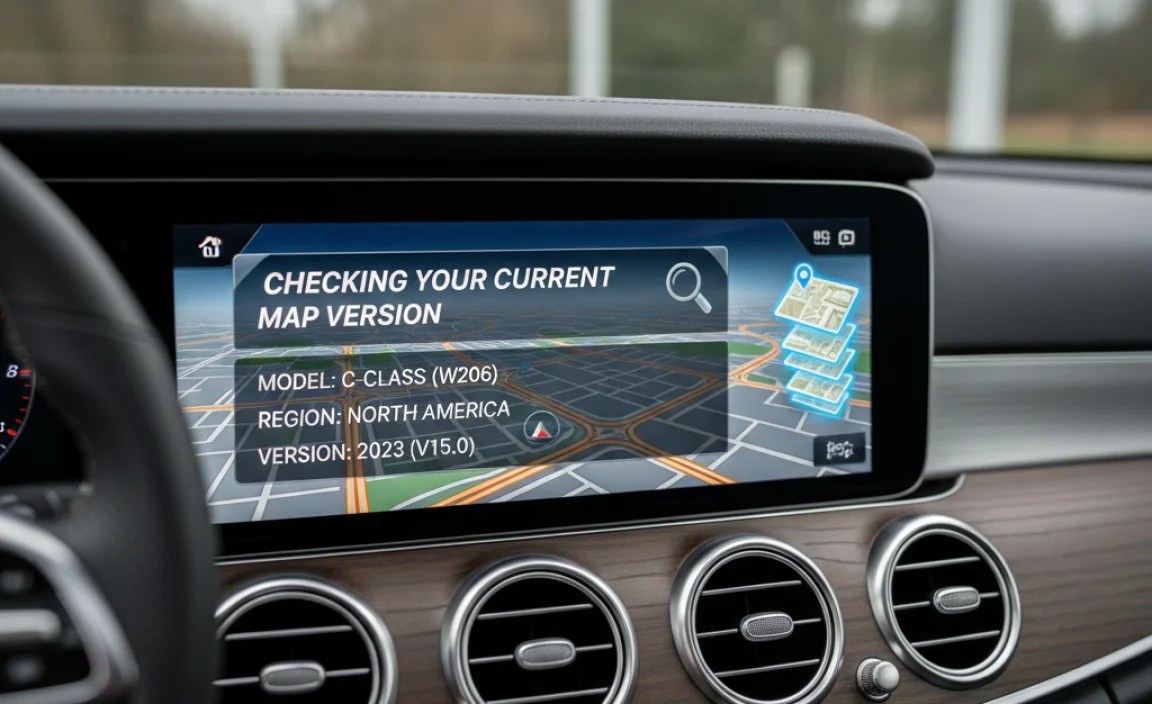
Knowing your current map version helps you determine if an update is needed. The steps vary slightly between COMAND and MBUX systems.
For MBUX Systems:
- From the main menu, navigate to “Navigation.”
- Select “Settings” (often represented by a gear icon).
- Look for “Map Content” or “Map Version Information.”
- Here you will see details about your current map package, including the region and version number.
For COMAND Systems:
- From the main menu, select “Navigation.”
- Go to “Settings” or “Navi Info.”
- Look for “Map Database Version” or “Map Data.”
- The displayed information will show your current map version.
It’s a good practice to check this periodically, especially if you haven’t received an OTA update notification for a while or are planning a long trip.
Cost and Frequency of Updates

The cost and frequency of map updates for your Mercedes-Benz can vary significantly based on your vehicle’s age, its navigation system, and your region. Understanding these factors will help you budget and plan accordingly.
MBUX Systems: Often Included with Mercedes Me connect
For most modern Mercedes-Benz vehicles equipped with MBUX, regional map updates are typically included as part of the Mercedes Me connect services package. This subscription-based service offers a suite of features, including navigation services and automatic map updates.
- Frequency: Regional OTA updates can occur several times a year (e.g., quarterly), ensuring your immediate driving area is always fresh. Full regional updates (e.g., for an entire country) might be less frequent, perhaps annually, and may require manual download via the Mercedes Me portal.
- Cost: Often covered by an initial complimentary period (e.g., 3 years) with a new vehicle. After this period, a subscription to Mercedes Me connect services (which includes navigation and map updates) is required. Prices vary by region and package.
COMAND Systems (USB-based): One-Time Purchase or Subscription
For many COMAND systems that support USB-based updates (NTG 5.x and later), map updates are typically purchased as a one-time package or as part of a limited-time subscription through the Mercedes Me connect portal (even if your car isn’t fully MBUX-enabled, it might still use this portal for map purchases).
- Frequency: Typically, updates are released annually. You purchase and download them when available.
- Cost: Can range from $150 to $300+ per update package, depending on the region and the complexity of the update. Some require an activation code, which is part of the purchase.
Older COMAND Systems (DVD/Dealer): Direct Purchase or Service Cost
For the oldest COMAND systems (NTG 4.x), updates often involved purchasing physical DVD map sets or relying solely on dealership installation.
- Frequency: Less frequent, sometimes every 1-2 years, as support for these older systems winds down.
- Cost: Physical DVD sets could be $100-$200+. Dealer installation will include the cost of the map data plus labor, potentially ranging from $200 to $500+.
| Navigation System Type | Update Frequency | Typical Cost Implications | Update Method |
|---|---|---|---|
| MBUX (Newer Models) | Quarterly (Regional OTA), Annually (Full Region) | Included with active Mercedes Me connect subscription (after complimentary period) | Over-the-Air (OTA) & Mercedes Me portal download |
| COMAND NTG 5.x (Later Models) | Annually | One-time purchase per update, or included with specific Mercedes Me packages | Mercedes Me portal download (USB transfer) |
| COMAND NTG 4.x (Older Models) | Annually / Biennially (decreasing) | Purchase of physical media or dealer service charge | Dealer installation / Physical media (DVD) |
Always check the <a href=”https://www.mercedes-benz.com/en/service-mercedes-me/digital-extras/navigation/” target=”_blank” rel=”noopener”>official Mercedes-Benz website</a> or your Mercedes Me connect portal for the most accurate and up-to-date pricing and availability for your specific VIN.
Troubleshooting Common Map Update Issues
While Mercedes-Benz aims for a smooth update experience, you might occasionally encounter a hitch. Here are some common issues and their straightforward solutions:
- Issue: “Download failed” or “Update interrupted” during manual download.
- Solution: Ensure a stable, fast internet connection on your computer. Large map files can be sensitive to network interruptions. Try pausing and resuming the download, or restart it entirely. Temporarily disable any firewalls or antivirus software that might be interfering.
- Issue: USB drive not recognized by the vehicle.
- Solution:
- Format: Confirm the USB drive is formatted to the correct file system (usually FAT32 or exFAT, as specified by Mercedes Me instructions).
- Capacity: Ensure the USB drive has sufficient capacity (e.g., 32 GB or 64 GB) and is not corrupted.
- File Structure: Double-check that the map files were copied directly to the root directory of the USB drive and not nested in extra folders.
- USB Port: Try a different USB port in your vehicle if available.
- Quality: Use a reputable, high-quality USB 3.0 drive.
- Solution:
- Issue: Map update process freezes or takes an unusually long time.
- Solution: Map updates can be lengthy. Ensure your engine is running or the vehicle is connected to a battery charger to prevent power interruption. Do not turn off the ignition or remove the USB. If it truly seems stuck for hours beyond the expected time, consult your owner’s manual for system reset procedures or contact your dealer.
- Issue: Maps not displaying correctly after an update.
- Solution: Perform a soft reset of your infotainment system (refer to your owner’s manual for specific instructions, often holding down the power button for 10-20 seconds). If the issue persists, verify the map version in the system settings. If it shows the old version, the update might not have completed successfully, and you may need to re-attempt it.
- Issue: “Mercedes Me connect subscription expired” prevents updates.
- Solution: Log into your Mercedes Me connect portal and renew your subscription for navigation services. Updates are often tied to an active subscription.
When in doubt, your Mercedes-Benz owner’s manual is an invaluable resource, offering specific troubleshooting steps for your model. For persistent issues, contacting a Mercedes-Benz service center is always the best course of action.
Beyond Navigation: Maximizing Your Mercedes Infotainment
Your Mercedes-Benz navigation system is part of a larger, sophisticated infotainment ecosystem designed to enhance every aspect of your drive. Understanding these integrated features allows you to unlock the full potential of your vehicle’s technology.
- Advanced Voice Control (“Hey Mercedes”): MBUX systems feature intelligent voice control. Beyond simple navigation commands like “Navigate to [address],” you can ask “Hey Mercedes, find a gas station near me” or “Hey Mercedes, what’s the weather like in [destination]?” This hands-free interaction boosts convenience and safety.
- Augmented Reality (AR) Navigation: Available in many MBUX-equipped models, AR navigation overlays directional arrows and street names directly onto a live video feed from the front camera, making complex intersections and turns incredibly clear and easy to follow.
- Real-Time Traffic Information: Most modern Mercedes navigation systems integrate real-time traffic data, dynamically adjusting routes to avoid congestion, accidents, and road closures. This often requires an active Mercedes Me connect subscription.
- Points of Interest (POIs) Search: Beyond basic addresses, your system allows you to search for specific POIs like restaurants, hotels, parking garages, and cultural landmarks. With updated maps, this feature is even more powerful and accurate.
- Personalization and Profiles: MBUX allows multiple user profiles, each storing individual settings for navigation, radio, display preferences, and more. This ensures a personalized experience for every driver.
- Smartphone Integration: While the native navigation is powerful, Apple CarPlay and Android Auto seamlessly integrate your smartphone, allowing you to use your preferred phone-based navigation apps (like Google Maps or Waze) directly on your Mercedes display. This offers flexibility and a familiar interface.
- Predictive Functions: Some advanced systems can learn your daily routes and commuting patterns, proactively suggesting alternative routes based on anticipated traffic conditions, even before you enter a destination.
By exploring these features and keeping your system updated, you transform your Mercedes-Benz from just a car into a truly intelligent co-pilot, making every journey more informed, enjoyable, and effortless.
FAQ: Your Mercedes Maps Questions Answered
Q1: How often should I update my Mercedes maps?
A1: For MBUX systems, regional updates often happen automatically several times a year. For full regional or older COMAND systems, aim for at least once a year to ensure you have the most current road data and points of interest. Check your Mercedes Me connect portal for available updates regularly.
Q2: Is a Mercedes map update free?
A2: For newer MBUX systems, regional over-the-air (OTA) map updates are typically included with an active Mercedes Me connect subscription, which often has a complimentary period. For older COMAND systems or comprehensive full regional updates, there is usually a cost involved, either as a one-time purchase or part of a renewed subscription package.
Q3: Can I update my Mercedes maps myself, or do I need to go to a dealer?
A3: Yes, for MBUX and later COMAND systems, you can often perform updates yourself by downloading data from the Mercedes Me connect portal to a USB stick and then transferring it to your car. Older COMAND systems (especially those using DVDs) or if you prefer professional assistance, may require a visit to your authorized Mercedes-Benz dealer.
Q4: What happens if I don’t update my Mercedes maps?
A4: If you don’t update your maps, your navigation system will still function, but it will rely on outdated information. This can lead to incorrect routes, missed new roads, inaccurate points of interest (POIs), and potentially longer or less efficient journeys. It can also cause frustration and reduce the overall effectiveness of your navigation experience.
Q5: How do I know which navigation system my Mercedes has?
A5: Generally, if your Mercedes was produced after 2018, it likely has the MBUX system, characterized by a large touchscreen and “Hey Mercedes” voice control. Older models typically have a COMAND system, often controlled by a rotary dial and touchpad. You can also check your vehicle’s owner’s manual or refer to the table in this article for guidance by model year.
Q6: Can I use Google Maps or Waze on my Mercedes navigation screen?
A6: Yes, most modern Mercedes-Benz models equipped with MBUX (and some later COMAND systems) support Apple CarPlay and Android Auto. This allows you to integrate your smartphone and use apps like Google Maps, Waze, or Apple Maps directly on your vehicle’s infotainment display, providing a familiar interface and up-to-the-minute traffic information.
Q7: What is the Mercedes Me connect portal, and how does it relate to map updates?
A7: The Mercedes Me connect portal is an online platform and app that provides


