
Coupe Car Infotainment System: Ultimate Driving Experience
Quick Summary:
A coupe car infotainment system is your central hub for navigation, entertainment, and connectivity, transforming your drive into a seamless, enjoyable experience. Mastering its features enhances safety, convenience, and overall driving pleasure.
Welcome to the cockpit of your coupe! Many drivers overlook the incredible technology at their fingertips – the infotainment system. This isn’t just a radio; it’s a sophisticated command center designed to make every journey smoother, more entertaining, and more connected. If you’ve ever felt a little lost in its menus or wondered about all those buttons and touchscreens, you’re not alone. We’re here to demystify your coupe’s infotainment system, turning complexity into clarity. Join me as we explore how to unlock its full potential and elevate your driving experience from everyday commute to exhilarating adventure.
Understanding Your Coupe Car Infotainment System

The heart of a modern coupe’s interior is its infotainment system. Think of it as the digital brain of your car, integrating entertainment, navigation, communication, and vehicle settings into one accessible interface. For luxury brands like Mercedes-Benz, this system is a crucial part of the premium experience, combining cutting-edge technology with intuitive design.
At its core, an infotainment system is built around a central display screen, often a touchscreen, complemented by physical controls like a rotary dial, touchpads, or buttons on the steering wheel. This combination ensures that you can interact with the system safely and efficiently, whether you’re on a long highway stretch or navigating busy city streets.
Key Components of an Infotainment System
While designs vary, most coupe infotainment systems share common components that work together:
- Central Display Screen: The primary interface for visuals, showing maps, media, settings, and more.
- Input Devices: This includes touchscreens, steering wheel controls, voice commands, and sometimes a console-mounted touchpad or rotary dial.
- Audio System: Integrated speakers and sound processing for music, podcasts, and navigation prompts.
- Connectivity Options: Bluetooth for phone calls and audio streaming, USB ports for charging and media playback, and sometimes integrated Wi-Fi or cellular modems.
- Navigation System: GPS capabilities for real-time traffic information and route guidance.
- Vehicle Settings: Access to adjust climate control, ambient lighting, driving modes, and other car functions.
Your Coupe’s Digital Cockpit: Navigation and Beyond

The infotainment system is your gateway to a world of connectivity and convenience. For many, the most significant function is navigation. Integrated GPS systems offer more than just directions; they provide real-time traffic updates, suggest alternative routes to avoid congestion, and often include points of interest (POIs) like restaurants, fuel stations, and parking. This feature alone can significantly reduce driving stress and save you valuable time.
Beyond navigation, the entertainment options are vast. Access your favorite music playlists via Bluetooth from your smartphone, stream online radio, or plug in a USB drive loaded with high-resolution audio files. The system’s audio processing is designed to deliver a rich, immersive sound experience, often enhanced by premium sound systems exclusive to luxury vehicles.
Seamless Connectivity: Staying in Touch and Entrained
In today’s connected world, staying in touch while on the move is paramount. Bluetooth connectivity allows for hands-free phone calls, ensuring you can communicate safely without compromising your focus on the road. Most systems also support audio streaming, letting you play music, podcasts, or audiobooks directly from your phone. For a truly integrated experience, many newer systems offer smartphone mirroring technologies like Apple CarPlay and Android Auto. These allow you to project a simplified, car-friendly version of your phone’s interface onto the car’s display, granting you access to your favorite apps – including navigation, music, and messaging – with familiar controls.
Personalizing Your Driving Environment
Your coupe’s infotainment system is also your command center for vehicle settings. You can typically adjust:
- Climate Control: Fine-tune fan speed, temperature, and airflow direction.
- Ambient Lighting: Choose from a spectrum of colors to create your desired cabin mood.
- Driving Modes: Select different driving profiles (e.g., Comfort, Sport, Eco) which can adjust throttle response, steering feel, and suspension settings.
- Driver Assistance Systems: Configure settings for features like lane keep assist, adaptive cruise control, and parking sensors.
This level of customization ensures that your driving experience is tailored precisely to your preferences and the driving conditions.
Mastering Your Coupe’s Infotainment Controls

Navigating a sophisticated infotainment system can seem daunting at first, but with a little practice, it becomes second nature. The key is understanding the primary input methods. Most luxury coupes offer a combination of:
- Touchscreen: Direct interaction with the display, similar to using a smartphone or tablet.
- Steering Wheel Controls: Buttons on your steering wheel allow you to access frequently used functions like volume, track selection, answering calls, and activating voice commands without taking your hands off the wheel.
- Voice Control: A powerful tool for hands-free operation. Modern systems are increasingly sophisticated, understanding natural language commands. Simply press a button and say, “Navigate to the nearest gas station,” “Play my ‘driving’ playlist,” or “Call Mom.”
- Center Console Controller: Many Mercedes-Benz vehicles, for example, feature a rotary dial with a select button, or a touchpad, located on the center console. This allows you to navigate menus and make selections by scrolling, tapping, or writing characters.
The best approach is to use a combination of these controls. For example, you might use the touchscreen for initial map setup, steering wheel controls for quick volume adjustments, and voice commands for frequent tasks like changing radio stations.
Tips for Safe Infotainment Use
Safety is paramount. Always prioritize driving and use the infotainment system responsibly. Here are some essential tips:
- Familiarize yourself before driving: Spend time with the system when the car is parked to learn basic functions.
- Use voice commands: They are the safest way to interact with the system while driving.
- Delegate tasks: If you have a passenger, let them handle the infotainment system.
- Keep it simple: Avoid complex menu diving while on the move. Set your destination or playlist before you start your journey.
- Understand emergency features: Know how to quickly access hazard lights or make emergency calls through the system.
Connecting Your Devices for an Enhanced Experience

The true power of a modern infotainment system lies in its ability to integrate your personal devices. This connectivity transforms your car into an extension of your digital life.
Bluetooth Pairing: The Foundation of Connectivity
Bluetooth is the most common method for wirelessly connecting your smartphone. The process is usually straightforward:
- Enable Bluetooth: On your smartphone, go to Settings and turn on Bluetooth.
- Access Bluetooth Menu: In your car’s infotainment system, navigate to the “Phone” or “Connectivity” menu and select “Bluetooth.”
- Initiate Pairing: Choose the option to “Add New Device” or “Pair Device.”
- Select Your Car: Your phone should display a list of available Bluetooth devices. Select your car’s system name (e.g., “Mercedes-Benz CLS”).
- Confirm Code: Both your phone and the car’s display will show a pairing code. Ensure they match and confirm.
- Grant Permissions: Your car may ask for permission to access your contacts and call history. Granting these permissions enables features like making calls from the car’s interface and displaying caller ID.
Once paired, your phone will typically connect automatically whenever you enter the car.
USB Ports: Charging and Media Playback
Multiple USB ports are standard in most coupes, serving dual purposes: charging your devices and playing media directly from a USB storage drive. You can load your favorite music, audiobooks, or even photos onto a compatible USB drive and access them through the infotainment system’s media player. For Apple users, connecting an iPhone via USB is often the primary method for enabling Apple CarPlay.
Apple CarPlay and Android Auto: Smart Integration
These features are game-changers for smartphone integration. Once your iPhone or Android device is connected (usually via USB, sometimes wirelessly), the car’s display will show specific icons for compatible apps.
- Navigation: Use Google Maps, Waze, or Apple Maps directly.
- Music & Audio: Access Spotify, Apple Music, Audible, podcasts, and more.
- Messaging: Send and receive text messages via voice command, with the system reading messages aloud and allowing hands-free replies.
- Calls: Make and receive calls using your phone’s contacts.
These systems are designed with driving safety in mind, featuring larger icons and simplified interfaces, making them much safer and more intuitive than trying to use your phone directly. For more information on using these technologies, you can refer to resources from Apple and Google, such as Apple’s CarPlay page and Google’s Android Auto page.
Advanced Features and Customization
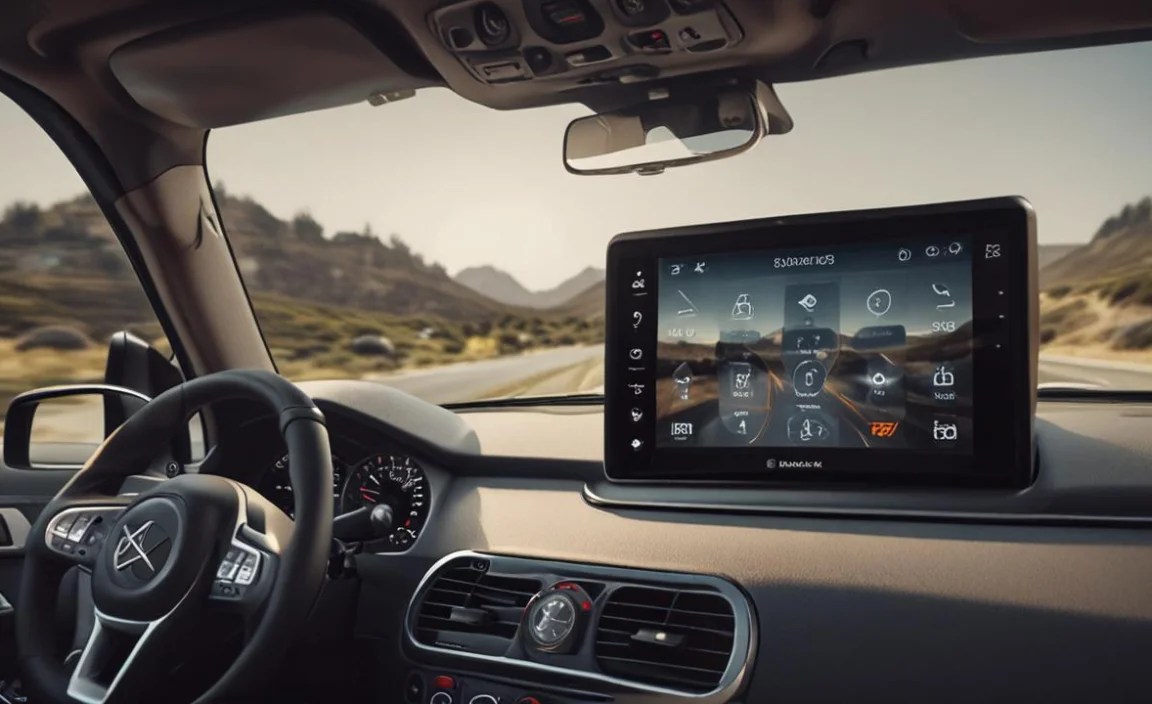
Beyond the basics, premium infotainment systems offer advanced features that further enhance your driving experience. These can include:
- Integrated Wi-Fi Hotspots: Many vehicles can act as a Wi-Fi hotspot, allowing passengers to connect their devices and get online.
- Over-the-Air (OTA) Updates: Similar to your smartphone, your car’s software can be updated remotely, improving performance, adding new features, or fixing bugs without a trip to the dealership.
- Personalized Profiles: Create individual driver profiles that store your preferred seat position, mirror settings, climate preferences, radio presets, and even infotainment shortcuts.
- Gesture Control: Some high-end systems allow you to control certain infotainment functions with simple hand gestures in front of a sensor.
- Augmented Reality Navigation: For supported models, the navigation system can overlay directional arrows and street names onto a live video feed displayed on the screen, making complex intersections easier to navigate.
- Premium Sound Systems: Brands often partner with audio specialists (like Burmester in Mercedes-Benz vehicles) to create custom sound systems optimized for the car’s acoustics, delivering audiophile-quality sound.
Understanding Your Vehicle’s Specific System
While many features are common, Mercedes-Benz, for instance, uses its proprietary MBUX (Mercedes-Benz User Experience) system. MBUX is renowned for its AI-powered voice control (“Hey Mercedes”), stunning dual-screen displays, and advanced graphics. Other manufacturers have their own systems, such as BMW’s iDrive, Audi’s MMI, and Porsche Communication Management (PCM).
Each system has its unique interface and capabilities. The best way to learn is to consult:
- Your Vehicle’s Owner’s Manual: This is the most definitive source of information.
- The Manufacturer’s Website: Official sites often have detailed descriptions and tutorials for their infotainment systems.
- Dealership Resources: Your sales representative or service advisor can often provide personalized demonstrations.
Troubleshooting Common Infotainment Issues
Even the most advanced systems can sometimes encounter glitches. Fortunately, many common issues are easily resolved.
When the Screen Freezes or Becomes Unresponsive
Solution: A soft reset is often the first step. Try turning the vehicle off completely, opening and closing the driver’s door (this ensures all systems power down), and then restarting the car. If the issue persists, consult your owner’s manual for a specific hard reset procedure, or contact your dealership.
Bluetooth Connectivity Problems
Solutions:
- Forget and Re-pair: On both your phone and the car’s system, “forget” the other device, then go through the pairing process again.
- Check for Updates: Ensure both your phone’s operating system and your car’s infotainment software are up to date.
- Clear Cache: On your phone, clear the Bluetooth cache.
- Test on Another Device: Try pairing a different phone to see if the issue lies with the car or your specific device.
Navigation Not Working Correctly
Solutions:
- Check GPS Signal: Ensure your car is in an open area with a clear view of the sky. Underground parking or dense urban canyons can interfere with reception.
- Update Maps: Check if your navigation system’s maps need an update. This can sometimes be done via USB or wirelessly.
- Restart System: Perform a soft reset of the infotainment system.
Audio Issues (No Sound, Distorted Sound)
Solutions:
- Check Volume and Source: Ensure the volume is up and the correct audio source is selected.
- Restart System: A simple reboot can resolve temporary audio glitches.
- Test Different Sources: Play audio from radio, Bluetooth, USB, and Apple CarPlay/Android Auto to isolate the problem.
- Check App Settings: If the issue is with a specific app (like Spotify), check the app’s own audio settings.
Apple CarPlay/Android Auto Not Connecting
Solutions:
- Use a High-Quality USB Cable: A damaged or low-quality cable is a common culprit. Try a different, reputable cable.
- Ensure Apps are Enabled: On your phone, make sure CarPlay or Android Auto is enabled in the settings and that the relevant apps (like Maps, Music) are allowed to run.
- Update All Software: Ensure your phone’s OS, the CarPlay/Android Auto app, and your car’s infotainment software are all current.
- Reinstate Pairing: Remove your phone from the car’s list of devices and vice versa, then re-pair.
For persistent issues, consulting your vehicle’s owner’s manual or contacting an authorized service center is always recommended. For instance, the U.S. Department of Energy provides excellent resources on vehicle maintenance and troubleshooting tips that can indirectly apply to understanding your car’s complex systems: Vehicle Technology and Consumer Assistance.
The Infotainment System in Different Coupe Models
Luxury coupes often push the boundaries of automotive technology, and their infotainment systems are a prime example. Here’s a brief look at how systems might differ across some popular coupe segments:
Entry-Level Luxury Coupes
These vehicles often feature well-integrated systems with essential functions like navigation, smartphone mirroring, and good audio. While they might not have every cutting-edge feature, they provide a solid foundation for connectivity and entertainment.
Example Features:
- Standard touch-sensitive displays
- Apple CarPlay & Android Auto
- Bluetooth connectivity
- Basic voice command
- Navigation often an option
Performance Luxury Coupes (e.g., Mercedes-AMG C 63 Coupe)
Performance-oriented coupes often incorporate more driver-focused displays and features. They balance advanced entertainment with performance data and vehicle settings for track-day readiness.
Example Features:
- Dynamic instrument clusters and central displays
- Performance metrics (lap timers, G-force meters)
- Advanced AMG-specific menus
- High-end audio systems
- Robust MBUX or similar advanced interfaces
Ultra-Luxury & Grand Tourer (GT) Coupes (e.g., Mercedes-AMG GT Coupe, Bentley Continental GT)
These vehicles represent the pinnacle of automotive luxury and technology. Infotainment systems here are designed to be seamless, intuitive, and often highly customizable, blending into the luxurious cabin design.
Example Features:
- Large, high-resolution displays, sometimes spanning the dashboard
- AI-powered voice assistants
- Augmented reality navigation
- Gesture controls
- Exceptional bespoke audio systems
- Extensive personalization options
The table below provides a simplified comparison of typical infotainment system features you might find:
| Feature | Entry-Level Luxury Coupe | Performance Luxury Coupe | Ultra-Luxury / GT Coupe |
|---|---|---|---|
| Display Size & Resolution | Moderate; Good | Moderate-Large; High | Large-to-Very Large; Highest |
| Smartphone Mirroring | Standard (Wired/Wireless) | Standard (Wired/Wireless) | Standard (Wired/Wireless) |
| Voice Control | Basic/Good | Advanced (AI-Powered) | State-of- |


