
Mercedes SUV Voice Control: Ultimate Effortless Driving
Unlock effortless driving in your Mercedes SUV with its intuitive voice control system. You can manage navigation, climate, entertainment, and more, all hands-free, enhancing safety and convenience. This guide will show you how to activate and master it.
Driving a Mercedes-Benz SUV is an experience in refined luxury and cutting-edge technology. Among its most impressive features is the advanced voice control system, designed to make your journeys smoother, safer, and more enjoyable. Imagine adjusting the temperature, finding the fastest route, or queuing up your favorite playlist, all without taking your hands off the wheel or your eyes off the road. This isn’t science fiction; it’s the reality of modern Mercedes-Benz engineering. However, for many owners, this powerful tool remains largely untapped. Fiddling with buttons or distracting infotainment screens can detract from the driving pleasure. If you’ve ever wondered how to truly leverage your Mercedes SUV’s voice control, or perhaps felt intimidated by its potential, you’re in the right place. We’re here to demystify this sophisticated system, guiding you step-by-step to effortless command. Get ready to unlock a new level of interaction with your vehicle.
Understanding the Power of MBUX™ Voice Control

At the heart of your Mercedes SUV’s intelligent driving experience lies the Mercedes-Benz User Experience, or MBUX™ system. This sophisticated infotainment platform is far more than just a touchscreen; it’s an intelligent assistant designed to understand and respond to your natural voice. The system aims to provide a truly intuitive interaction, allowing you to control a wide array of vehicle functions without ever needing to press a button or navigate complex menus. It learns your preferences over time, becoming an even more personalized co-pilot for every journey. The goal is to keep your focus where it belongs: on the road ahead.
Getting Started: Activating and Personalizing
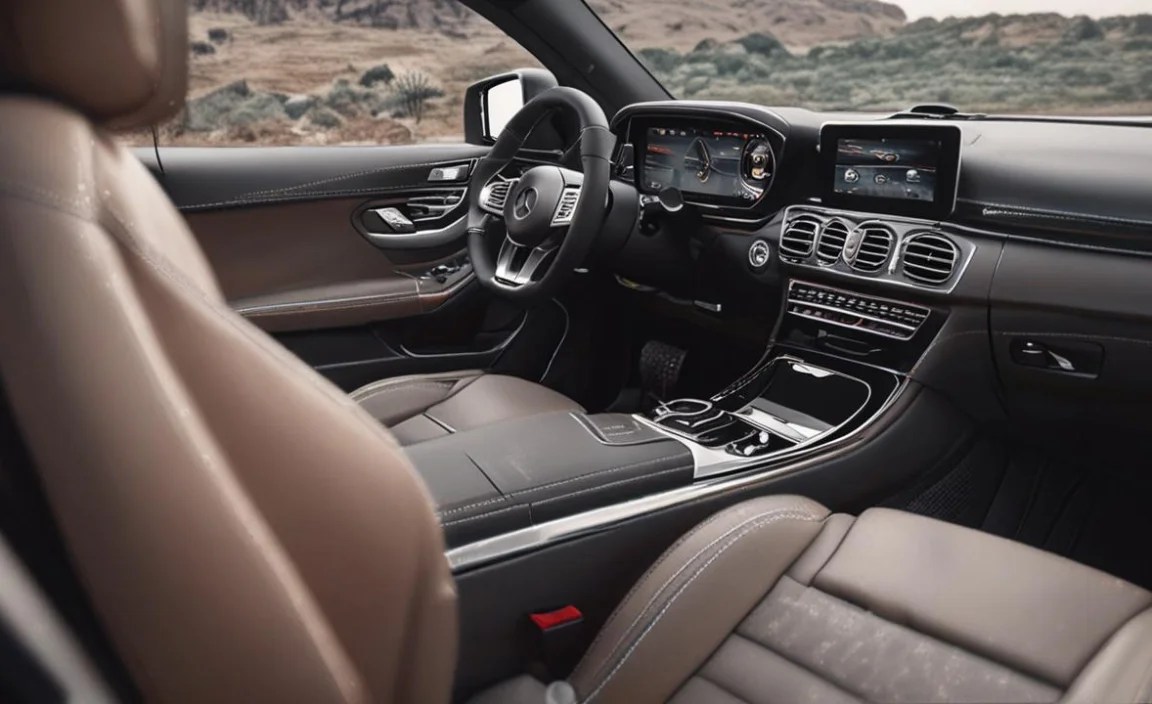
To begin experiencing the magic of MBUX™ voice control, the first step is ensuring it’s active and then personalizing it to your needs. This process is designed to be straightforward, setting the foundation for effortless command.
Activating Voice Control
In most modern Mercedes-Benz SUVs equipped with MBUX™, the voice control system is activated by default when the ignition is on and the MBUX™ system is initialized. However, there are specific phrases you need to use to wake it up.
- The Wake Word: The primary way to engage the system is by saying, “Hey Mercedes.” You’ll usually hear a subtle chime or see an indicator on the MBUX™ display confirming that the system is listening.
- Pressing the Button: You can also activate the voice control system by pressing the voice command button, typically located on the steering wheel. A quick press initiates a single command, while a long press might activate a more general conversational mode.
Personalization for a Seamless Experience
For the best results, tailoring the voice control to your habits is key. MBUX™ is designed to learn and adapt.
- Profile Creation: Setting up a driver profile within the MBUX™ system allows the voice control to learn your individual preferences, linked contacts, and common destinations. Access this through the “Settings” menu on your MBUX™ display.
- Linking Your Smartphone: Ensure your smartphone is connected via Bluetooth or USB for voice control to access your contacts, call history, and text messaging functionalities. This is crucial for calling people by name or dictating messages.
- Learning Your Accent: While MBUX™ is sophisticated, speaking clearly and at a moderate pace will yield the best results. Over time, it becomes better at understanding your specific accent and speech patterns.
Mastering Key Functions, Hands-Free

The true power of Mercedes SUV voice control lies in its ability to manage a wide range of vehicle functions. Here’s a breakdown of the most common and useful commands, categorized for clarity.
Navigation Commands
Getting where you need to go has never been easier. Simply tell “Hey Mercedes” your destination.
- Setting a Destination: “Hey Mercedes, navigate to 123 Main Street, Anytown, USA.” or “Hey Mercedes, take me to the nearest coffee shop.”
- Finding Points of Interest (POIs): “Hey Mercedes, find a highly-rated Italian restaurant nearby.” or “Hey Mercedes, where is the closest gas station that is open now?”
- Traffic Information: “Hey Mercedes, what’s the traffic like on the way home?” or “Hey Mercedes, are there any traffic jams on I-95 North?”
- Route Adjustments: “Hey Mercedes, add a stop in Springfield.” or “Hey Mercedes, avoid tolls.”
- Navigation Settings: “Hey Mercedes, show me the route overview.” or “Hey Mercedes, cancel navigation.”
Climate Control Commands
Ensure your cabin is always at the perfect temperature without lifting a finger.
- Temperature Adjustments: “Hey Mercedes, set the temperature to 72 degrees.” or “Hey Mercedes, I’m feeling cold.” (This often increases the temperature by a degree or two.)
- Fan Speed: “Hey Mercedes, turn up the fan speed.” or “Hey Mercedes, set the fan to low.”
- Airflow Direction: “Hey Mercedes, blow air on my feet.” or “Hey Mercedes, direct air to the windshield.”
- AC/Defrost: “Hey Mercedes, turn on the air conditioning.” or “Hey Mercedes, defrost the rear window.”
- Recirculation: “Hey Mercedes, turn on air recirculation.”
Entertainment Commands
Control your audio and media effortlessly.
- Music Playback: “Hey Mercedes, play Bohemian Rhapsody by Queen.” or “Hey Mercedes, play my playlist ‘Road Trip’.”
- Radio Stations: “Hey Mercedes, tune to 99.5 FM.” or “Hey Mercedes, play NPR.”
- Volume Control: “Hey Mercedes, turn the volume up.” or “Hey Mercedes, lower the volume to 15.”
- Source Selection: “Hey Mercedes, switch to Bluetooth audio.” or “Hey Mercedes, play music from my phone.”
Communication Commands
Stay connected safely by managing calls and messages.
- Making Calls: “Hey Mercedes, call Mom.” or “Hey Mercedes, call John Smith mobile.” (Requires your phone’s contacts to be synced.)
- Sending Text Messages: “Hey Mercedes, send a text to Sarah. The message is: I’m running a few minutes late.” (The system will ask for confirmation before sending.)
- Reading Messages: “Hey Mercedes, read my new messages.”
- Calling Back: “Hey Mercedes, call back my last missed call.”
Vehicle Settings & Optimization
MBUX™ can also adjust various vehicle settings for your comfort and convenience.
- Ambient Lighting: “Hey Mercedes, change the ambient light to blue.” or “Hey Mercedes, make the interior lighting brighter.”
- Seat Settings (if applicable): “Hey Mercedes, set the seat heating to level 3.” or “Hey Mercedes, slide the passenger seat forward.”
- Voice Control Preferences: “Hey Mercedes, show me my voice command history.” or “Hey Mercedes, what can I say?” (This is a great command to learn more.)
Advanced Tips for Ultimate Control
Once you’re comfortable with the basics, you can unlock even more power from your Mercedes SUV’s voice control. These tips will help refine your interactions and make the system feel even more seamless.
Leveraging Natural Language Understanding
MBUX™ thrives on natural language. Don’t feel like you need to recite commands robotically.
- Be Conversational: Instead of just “Navigate home,” try “Hey Mercedes, I need to get home.” The system will likely prompt you for confirmation and then proceed with navigation.
- Contextual Awareness: The system often understands context. If you’ve just asked for directions, and then say “Add a stop here,” it will usually understand you mean adding a stop to the current route.
- Follow-up Questions: After a command, you can often ask follow-up questions. For example, after setting navigation, you could say, “How long will the drive take?” or “Is there heavy traffic ahead?”
Customizing Shortcuts
While MBUX™ doesn’t allow direct programming of custom wake words, you can make certain functions more accessible.
- Driver Profiles: Ensure your driver profile is active. This links your personalized settings, including navigation history and contacts, to the voice assistant.
- Frequently Used Commands: Simply using commands often will help MBUX™ learn your patterns and respond more quickly. Save frequently called numbers to your contacts for easy access.
Exploring the MMI Menu for Voice Settings
Dive into the MBUX™ infotainment system menu to discover and fine-tune voice control settings.
- Navigate to the main MBUX™ menu.
- Select “Settings.”
- Look for an option labeled “Voice Control,” “Linguatronic,” or “Assistant.”
- Here, you can usually adjust speech recognition sensitivity, enable/disable certain features, and find helpful tutorials or command lists.
A good resource for understanding the broader MBUX™ system and its capabilities, including voice control, can often be found on the official Mercedes-Benz USA website or through their owner’s portal. For example, exploring the technologies section can provide deeper insights into how MBUX™ is designed to enhance the driving experience: Mercedes-Benz MBUX™ Technology.
Troubleshooting Common Issues
Occasionally, you might encounter minor hiccups. Here are solutions to common problems:
- “Hey Mercedes” Not Responding: Ensure the microphone isn’t obstructed and that the MBUX™ system is fully booted up. Check if the voice control feature is enabled in the settings.
- Misunderstanding Commands: Speak clearly and directly at the microphone. Avoid speaking over loud music or other noises. Try rephrasing the command using simpler terms.
- Connectivity Problems: For commands involving contacts or messages, ensure your phone is properly connected via Bluetooth or USB and that permissions for MBUX™ to access these features are granted.
- System Lag: If the system seems slow, try restarting the MBUX™ system by turning the car off and on again after a few minutes.
The Benefits of Voice Control: A Summary
Integrating Mercedes SUV voice control into your driving routine offers significant advantages that enhance both the driving experience and safety.
| Benefit | Description |
|---|---|
| Enhanced Safety | Reduces driver distraction by allowing control of vehicle functions without manual interaction, keeping hands on the wheel and eyes on the road. |
| Increased Convenience | Effortlessly adjust settings, find destinations, or play music with simple spoken commands, streamlining daily tasks. |
| Intuitive Interaction | Utilizes natural language processing, making it feel like you’re interacting with a helpful assistant rather than a rigid command system. |
| Personalization | MBUX™ learns user preferences and adapts over time, offering a more tailored and efficient experience for each driver. |
| Seamless Integration | Works harmoniously with other MBUX™ features like navigation, media, and communication systems for a unified user experience. |
Frequently Asked Questions
What is the main command to activate Mercedes voice control?
The primary command to activate the voice control system is “Hey Mercedes.” You can also activate it by pressing the voice command button on your steering wheel.
Do I need to connect my phone for voice control to work?
While basic commands like climate control or general knowledge questions can work without a phone, connecting your smartphone via Bluetooth or USB is essential for controlling calls, text messages, and accessing your contacts and music library through voice commands.
Can “Hey Mercedes” understand different accents?
“Hey Mercedes” is designed to understand a wide range of accents. However, speaking clearly and at a normal pace will improve recognition accuracy. The system also learns from your speech patterns over time.
What is the difference between a single press and a long press on the voice button?
A single press on the steering wheel voice button typically activates the system for one specific command. A long press often engages a more conversational mode, allowing for follow-up questions or multi-part instructions.
How can I teach “Hey Mercedes” my preferences?
You can teach “Hey Mercedes” your preferences by using it regularly, creating and using a driver profile, syncing your smartphone contacts, and consistently using commands to set destinations, play music, or adjust climate settings. The system learns from your usage patterns.
What happens if “Hey Mercedes” doesn’t understand me?
If the system doesn’t understand, it will usually ask you to repeat yourself or offer suggestions. Try rephrasing your command using simpler wording or specifying your request more clearly. You can also say “Hey Mercedes, what can I say?” to get a list of available commands.
Can I use voice control to adjust my ambient lighting?
Yes, you can. You can say commands like “Hey Mercedes, change the ambient light color to blue” or “Hey Mercedes, make the interior lighting brighter/dimmer,” provided your Mercedes SUV is equipped with ambient lighting and MBUX™.
Conclusion: Embrace the Effortless Drive
Mastering your Mercedes SUV’s voice control system transforms driving from a task into a truly integrated and intuitive experience. It’s about reclaiming your focus on the road while effortlessly managing the complex technology designed to serve you. By understanding the simple “Hey Mercedes” command, learning the key phrases for navigation, climate, and entertainment, and taking advantage of personalization options, you unlock a level of convenience and safety previously unimaginable. Remember that practice is key; the more you engage with the system, the more responsive and helpful it becomes. So, next time you slide behind the wheel of your Mercedes SUV, don’t just drive – command. Embrace the future of effortless driving, powered by your voice. Enjoy the journey, made that much smoother and safer by the intelligent technology at your command.


