
Mercedes SUV AI Assistant: Ultimate Perfect Ride
Unlock the ultimate perfect ride with your Mercedes SUV AI Assistant. Master voice commands and intelligent features to transform your driving experience into a personalized, seamless journey.
Driving a Mercedes-Benz SUV is already an experience in refined luxury and cutting-edge technology. But what if your vehicle could anticipate your needs, learn your preferences, and make every journey smoother, safer, and more enjoyable? That’s the promise of the Mercedes SUV AI Assistant, often referred to as MBUX (Mercedes-Benz User Experience). This intelligent system is more than just a navigation tool; it’s your co-pilot, concierge, and personal assistant, all rolled into one. Many owners find themselves only scratching the surface of its capabilities, often sticking to basic voice commands. This guide is here to demystify the AI Assistant, showing you how to harness its full power for the ultimate perfect ride, whether you’re a new owner or looking to explore deeper functionalities.
We’ll break down everything from simple voice commands to sophisticated personalization settings, ensuring you get the most out of this groundbreaking technology. Get ready to transform your Mercedes SUV into an even more intuitive and connected companion.
Understanding Your Mercedes SUV AI Assistant (MBUX)

At the heart of your Mercedes SUV’s intelligent features lies the Mercedes-Benz User Experience, or MBUX. This system is designed to be incredibly intuitive, using artificial intelligence to learn and adapt to your driving habits. Think of it as having a sophisticated assistant that gets to know you better with every mile you drive.
MBUX isn’t just about voice control; it’s a comprehensive infotainment system that integrates with your vehicle’s various functions. It combines a sleek touchscreen interface with advanced natural language voice recognition, allowing you to control everything from climate settings and navigation to media playback and vehicle diagnostics, all through simple, conversational commands.
The goal of MBUX is to make interacting with your car effortless and natural, reducing distractions and enhancing your overall driving pleasure. It aims to provide a personalized experience that feels uniquely yours, making your Mercedes SUV not just a mode of transportation, but a true extension of your lifestyle.
Key Components of MBUX
MBUX is built upon several interconnected components that work together to deliver its intelligent capabilities:
- AI-Powered Voice Control: This is the most prominent feature, allowing you to speak naturally to the system. It understands a wide range of commands, not just pre-programmed phrases.
- Intelligent Touch Interface: The high-resolution touchscreen and the touchpad on the center console provide responsive and intuitive control over various functions.
- Augmented Reality Navigation: For supported models, MBUX can overlay navigation instructions onto a live camera feed of the road, making it easier to follow directions, especially in complex intersections.
- Personalization Profiles: The system can store individual settings for multiple drivers, including seat position, climate preferences, media choices, and even ambient lighting.
- Predictive Functions: Over time, MBUX learns your habits and can proactively suggest actions, like navigating home at a usual time or playing your favorite music.
- Over-the-Air (OTA) Updates: Like your smartphone, MBUX can receive software updates wirelessly, ensuring you always have the latest features and improvements.
How to Activate and Use Your AI Assistant

Getting started with your Mercedes SUV’s AI Assistant is straightforward. Most of the core functionality is already built-in and ready to go. The key is knowing how to address it and what types of commands it understands.
The Wake Word
To activate the AI Assistant, you need to use a specific wake word. For MBUX, this is typically: “Hey Mercedes.”
Simply say, “Hey Mercedes,” followed by your command. For example, “Hey Mercedes, navigate to the nearest gas station,” or “Hey Mercedes, set the cabin temperature to 22 degrees.” The system will recognize the wake word and respond, indicating it’s listening.
Basic Voice Commands to Get You Started
Here’s a glimpse of what you can do right away:
- Navigation:
- “Hey Mercedes, take me home.”
- “Hey Mercedes, find a Italian restaurant nearby.”
- “Hey Mercedes, what’s the traffic like on the I-5?”
- “Hey Mercedes, add a stop to my route.”
- Climate Control:
- “Hey Mercedes, it’s too hot in here.” (The system will suggest lowering the temperature).
- “Hey Mercedes, turn on the seat heater for the driver.”
- “Hey Mercedes, defog the windshield.”
- Media and Entertainment:
- “Hey Mercedes, play rock music.”
- “Hey Mercedes, turn up the volume.”
- “Hey Mercedes, switch to the radio station 98.1.”
- “Hey Mercedes, what song is this?”
- Communication:
- “Hey Mercedes, call Mom.” (Requires phone to be paired via Bluetooth).
- “Hey Mercedes, send a text message to John.”
- Vehicle Settings:
- “Hey Mercedes, what’s my tire pressure?”
- “Hey Mercedes, turn on the interior ambient lighting.”
- “Hey Mercedes, show me the fuel level.”
Understanding Natural Language Processing
The beauty of MBUX lies in its ability to understand natural language. You don’t need to memorize exact phrases. The AI is designed to interpret your intent, much like you would speak to a human assistant.
For instance, instead of saying “Set temperature to 21 Celsius,” you can say, “Hey Mercedes, I’m feeling a bit cold,” and the system will likely suggest increasing the temperature. Similarly, “Hey Mercedes, guide me to the nearest coffee shop” will work just as well as “Hey Mercedes, navigate to the nearest Starbucks.”
Advanced Features for the Ultimate Perfect Ride

Once you’re comfortable with the basic commands, it’s time to explore the deeper capabilities that truly elevate your driving experience.
Personalization and Learning Capabilities
MBUX is designed to learn your preferences over time. The more you use it, the better it becomes at anticipating your needs.
- Profile Management: You can set up individual driver profiles. When you’re recognized (either by a connected key or by logging in), the system adjusts everything from seat and mirror positions to climate control, radio presets, and even ambient lighting color to your specific preferences.
- Learning Navigational Habits: If you consistently drive home from work around 5 PM, MBUX might proactively suggest navigating home. Similarly, if you frequently visit a certain store on Saturdays, it might remind you to check if you need to go.
- Favorite Settings: You can assign specific settings to be easily accessible. For example, “Hey Mercedes, my ‘driving home’ setting,” could activate your preferred navigation destination, music playlist, and a relaxing ambient light color.
Augmented Reality Navigation (Enhancing Awareness)
For supported models and navigation destinations, MBUX can utilize augmented reality to provide incredibly clear visual guidance. This feature is a game-changer for complex urban environments.
How it works: A live front camera feed is displayed on the central screen. Virtual arrows, street names, traffic light indicators, and building numbers are overlaid onto the video feed, helping you pinpoint exactly where to turn or what lane to be in. This significantly reduces the cognitive load and potential for missed turns.
To enable: Navigate to the Navigation menu, select your destination, and ensure Augmented Reality is turned on within the navigation settings. You can often access specific AR controls via voice command as well: “Hey Mercedes, show me the augmented reality view.”
Smart Home Integration
For those with connected smart home devices, MBUX can even act as a remote control. Imagine pulling into your driveway and having your home’s smart lighting and thermostat adjust automatically.
How it works: You can link your MBUX system to compatible smart home platforms (e.g., through the Mercedes me connect store or specific apps). Once linked, you can use voice commands like:
- “Hey Mercedes, turn on the living room lights.”
- “Hey Mercedes, set the house temperature to 20 degrees.”
- “Hey Mercedes, lock the front door.”
This feature adds an extra layer of convenience, extending the intelligence of your Mercedes beyond the cabin.
Predictive Maintenance and Diagnostics
Your AI Assistant can also keep an eye on your vehicle’s health. While it won’t replace professional servicing, it can provide early warnings and insights.
- System Checks: You can ask, “Hey Mercedes, how’s my tire pressure?” or “Hey Mercedes, check the engine oil level.”
- Warning Interpretation: If a warning light appears on your dashboard, you can often ask, “Hey Mercedes, what does this warning light mean?” The system can provide an explanation and suggest whether immediate attention is required.
- Service Reminders: MBUX, in conjunction with Mercedes me connect, can remind you about upcoming maintenance or service appointments based on mileage or time.
Optimizing Your AI Assistant for Peak Performance
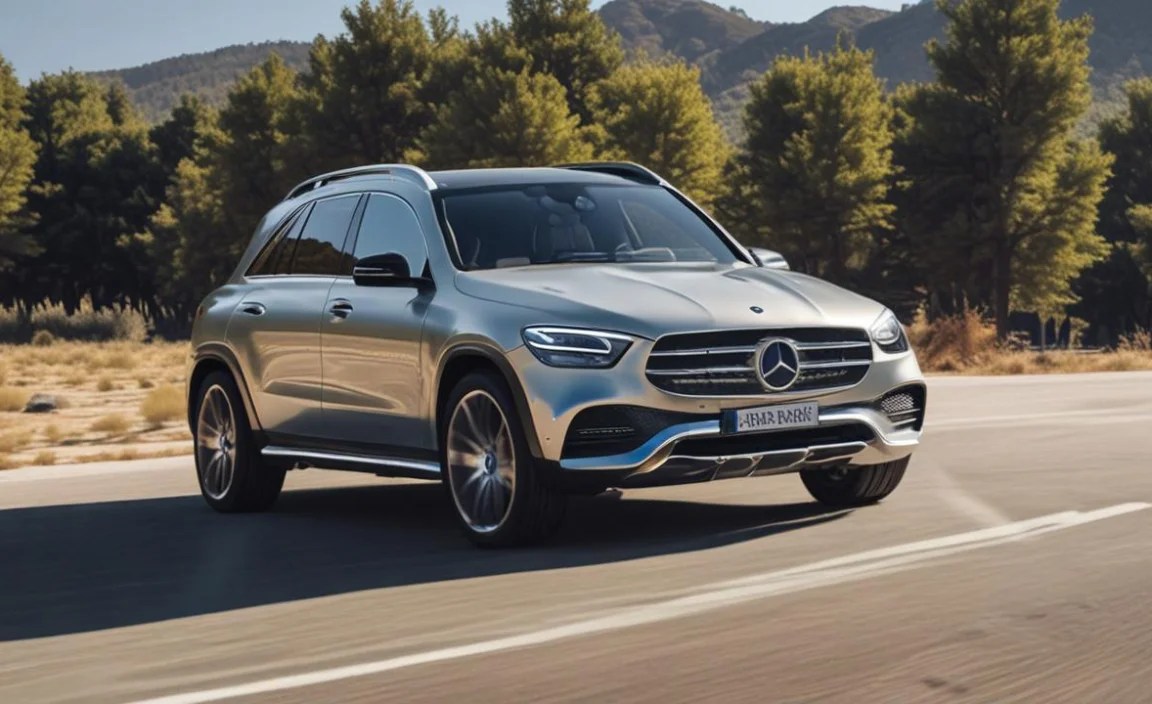
To truly achieve the “ultimate perfect ride,” you need to ensure your AI assistant is configured correctly and that you’re using it to its full potential.
Setting Up Your Driver Profile
A personalized profile is the first step to a truly tailored experience. This is typically done through the central display under the “Settings” or “My Vehicle” menu.
- Access Settings: On the central touchscreen, find and tap the “Settings” icon.
- Navigate to Profiles: Look for an option like “Driver Profiles” or “Personalization.”
- Create New Profile: Select “Create New Profile” and enter your name.
- Configure Preferences: As you adjust seat position, mirrors, climate, radio, and MBUX settings (like display themes or frequently used apps), the system will prompt you to save these as part of your profile.
- Assign Recognition Method: For automatic profile loading, you might link your car key or set up facial recognition if available on your model. Otherwise, you can select your profile from a list when you start the car.
Remember to update your profile whenever you make significant changes you’d like to save.
Connecting Your Smartphone Seamlessly
For many AI assistant features, such as making calls or sending texts via voice, a paired smartphone is essential. MBUX supports both Apple CarPlay and Android Auto, as well as direct Bluetooth connectivity.
Via Bluetooth:
1. Go to your smartphone’s Bluetooth settings and make sure it’s discoverable.
2. On the MBUX central display, go to “Phone” > “Connect New Device.”
3. Follow the on-screen prompts on both your phone and the car’s display to confirm the pairing code.
Via USB/Wireless CarPlay/Android Auto:
1. Connect your compatible smartphone to the car’s USB port (or ensure wireless connectivity is enabled if your car supports it).
2. You may be prompted on both your phone and the car’s display to enable CarPlay or Android Auto. Follow the instructions.
Customizing Voice Commands and Shortcuts
While MBUX understands natural language, you can also create custom commands or shortcuts for frequently used actions.
- Saving Favorites: Within many MBUX menus (like Navigation, Media, or Climate), you’ll find a “star” or “favorite” icon. Tapping this saves the current setting or destination. You can then recall it with a voice command like, “Hey Mercedes, go to my favorites” or “Hey Mercedes, navigate to [Saved Destination Name].”
- Personal Assistant Settings: Explore the MBUX settings for options related to voice control. Here, you might be able to adjust voice recognition sensitivity or enable/disable certain learning features if you prefer not to have the system proactively suggest actions.
| Feature | Benefit | How to Activate |
|---|---|---|
| Natural Language Voice Control | Effortless hands-free operation of most vehicle functions. | Say “Hey Mercedes” followed by your command. |
| Personalized Driver Profiles | Instantly recalls individual driving settings for multiple drivers. | Set up via “Settings” > “Driver Profiles”. |
| Augmented Reality Navigation | Clearer, real-world visual guidance for navigation. | Enable in Navigation settings; activate via voice command. |
| Smart Home Integration | Control compatible smart home devices from your car. | Link via Mercedes me connect or the “Connected” menu. |
| Predictive Functions | Offers proactive suggestions based on learned habits. | Learned automatically through usage; some controls in settings. |
Troubleshooting Common Issues
While MBUX is incredibly robust, you might encounter occasional glitches. Here are solutions to common problems:
- “Hey Mercedes” Not Responding:
- Ensure the microphone icon on the central display is not muted.
- Check if the system is connected to the internet (required for advanced voice processing).
- Try a soft reboot by holding down the power button of the central display for a few seconds.
- If issues persist, consider a system reset through advanced diagnostics or by contacting a Mercedes-Benz service center.
- Voice Commands Misinterpreted:
- Speak clearly and at a moderate pace. Avoid background noise if possible.
- Try rephrasing your command. The system may understand a slightly different wording better.
- Ensure the language settings in MBUX match the language you are speaking.
- Smartphone Connectivity Problems:
- Ensure your smartphone’s Bluetooth or Wi-Fi is enabled and discoverable.
- Delete the old pairing from both your phone and the car and re-pair them.
- Make sure your phone’s operating system and relevant apps (like the Mercedes me connect app, CarPlay, or


