
Mercedes A-Class Navigation: Effortless Journeys Begin Now
Your Mercedes A-Class navigation system is your key to stress-free driving. Learn how to set destinations, customize routes, and utilize its features for seamless journeys right from the start.
Getting lost can be a real headache, especially when you’re behind the wheel of a luxurious Mercedes-Benz A-Class. You’ve chosen a vehicle renowned for its advanced technology, and its navigation system is a prime example. But like any sophisticated piece of tech, understanding how to use it effectively is key to unlocking its full potential. This guide is here to demystify the process, transforming any confusion into confidence. We’ll walk you through everything you need to know, step-by-step, so you can focus on enjoying the drive, not figuring out directions.
From simply finding your way across town to planning longer, more scenic routes, your A-Class navigation is designed to make every journey effortless. Let’s dive in!
Mastering Your Mercedes A-Class Navigation System

The navigation system in your Mercedes-Benz A-Class is more than just a GPS; it’s an integrated hub designed to enhance your driving experience. It provides real-time traffic updates, suggests efficient routes, and even offers points of interest along your way. Understanding its core functions will make your travels smoother and more enjoyable.
Getting Started: Initial Setup and Basic Functions

When you first get into your A-Class, the navigation system might seem a little intricate. Don’t worry, the basics are incredibly straightforward. The primary interface is typically accessed through the central infotainment display, often controlled via the touchpad controller, steering wheel buttons, or directly touching the screen itself.
Accessing the Navigation Menu
To begin, locate and select the “NAV” or “Navigation” icon on your MBUX (Mercedes-Benz User Experience) infotainment screen. This will bring up the main navigation interface, ready for your input.
Entering a Destination
There are several ways to tell your A-Class where you want to go:
- Voice Command: This is often the quickest and safest method. Simply press the voice command button on your steering wheel and say, “Navigate to [address]” or “Find [point of interest].” For example, “Navigate to 1600 Pennsylvania Avenue, Washington D.C.”
- Manual Entry: If you prefer to type, select the “Destination Entry” option. You can then input the address manually, including street name, house number, city, and postcode.
- Points of Interest (POI): Use the search function to find specific locations like restaurants, petrol stations, hospitals, or car parks. You can search by category or by name.
- Recent Destinations / Favorites: The system remembers your frequently visited places and allows you to save specific locations as favorites for quick access in the future.
Navigating with Your A-Class: Step-by-Step

Once you’ve entered your destination, the system will calculate the best route. Before you set off, it’s a good idea to review the proposed route and understand its key features.
Route Preview and Options
After entering a destination, the navigation system will typically present you with the fastest route. Before confirming, you might see options for:
- Alternative Routes: The system may offer one or two alternative routes, often showing estimated travel times for each.
- Route Preferences: You can often customize how the system calculates your route. Common options include:
- Avoid highways
- Avoid tolls
- Avoid ferries
Select your preferred route and then press “Start Navigation” or a similar confirmation button. You’ll then be guided by voice prompts and visual cues on the display.
Understanding the Navigation Display
The main navigation screen provides a wealth of information at a glance:
- Map View: A clear, intuitive map showing your current position and the planned route.
- Next Turn: Prominently displays the upcoming maneuver, including street names and distance.
- Estimated Time of Arrival (ETA): Shows your expected arrival time, which often updates in real-time based on traffic conditions.
- Distance Remaining: Indicates how much further you have to travel.
- Speed Limit: Displays the current speed limit for the road you’re on.
- Lane Guidance: On complex junctions, the system will highlight which lane to be in for your intended turn or exit.
Advanced Navigation Features
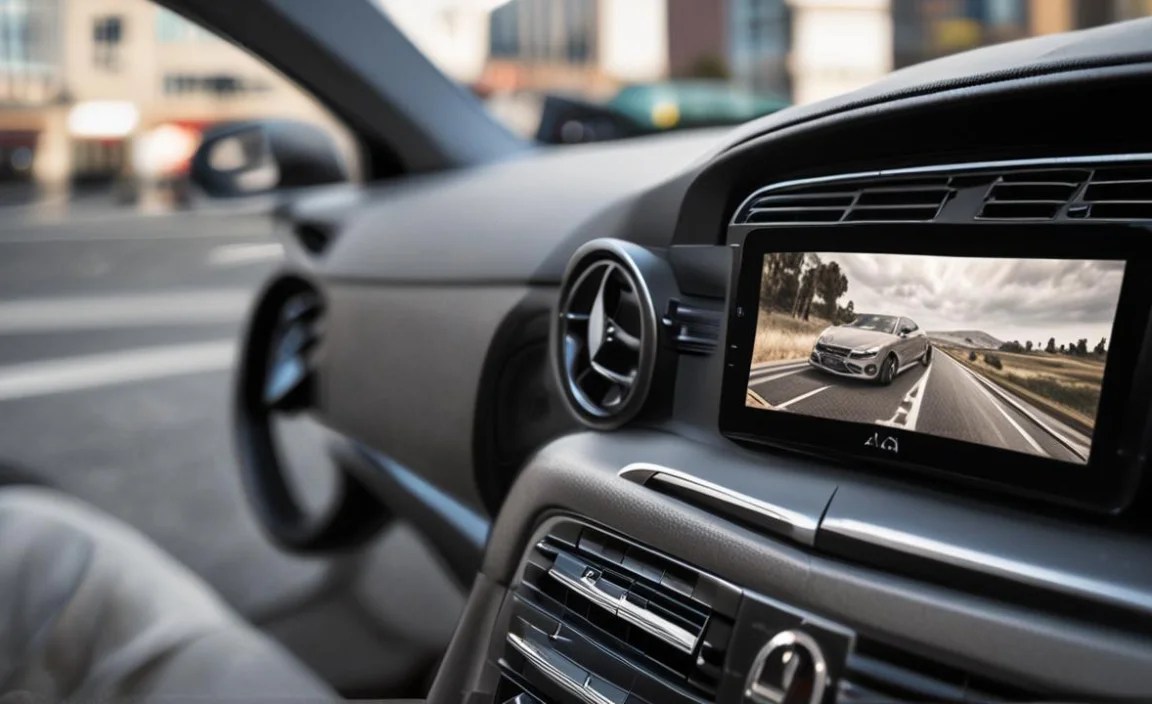
Your A-Class navigation system offers much more than basic turn-by-turn directions. Exploring these features can significantly enhance your journeys.
Live Traffic Information
One of the most valuable features is real-time traffic data. This allows the navigation system to:
- Detect congestion and delays.
- Proactively re-route you if a faster alternative is available.
- Provide accurate ETAs considering current traffic conditions.
To ensure this feature works optimally, your navigation system needs an active internet connection, usually provided via a SIM card in the vehicle or through smartphone integration (like Apple CarPlay or Android Auto).
3D Map Views and Satellite Imagery
For a more immersive experience, your A-Class system likely supports 3D map views and even satellite imagery. These can help you recognize landmarks and get a better sense of your surroundings, especially in urban environments. You can usually toggle these views within the map settings.
Online Destination Search
Beyond pre-loaded POIs, the system can often perform an online search for destinations. This gives you access to a much wider and more up-to-date database of businesses, services, and attractions. Simply select the online search option within the destination input menu.
Sharing Your Trip
Some A-Class models allow you to share your current trip progress or destination with contacts. This can be a useful feature for letting friends or family know when you expect to arrive.
Personalized Navigation Settings
Tailor the system to your preferences:
- Voice Settings: Adjust the volume, gender, and even accent of the voice guidance.
- Map Appearance: Choose between 2D and 3D views, day/night modes, and customize map data displayed.
- Navigation Prompts: Decide how often and how detailed you want the voice and visual prompts to be.
Integrating Your Smartphone with the Navigation System

For many drivers, using their familiar smartphone navigation apps is a preference. Mercedes-Benz integrates seamlessly with systems like Apple CarPlay and Android Auto, allowing you to use your preferred apps directly on the car’s display.
Apple CarPlay
If you have an iPhone, simply connect it to the USB port (or wirelessly, depending on your model and setup). Once connected:
- Launch CarPlay: The CarPlay icon will appear on your MBUX display. Select it.
- Access Apps: You’ll see icons for supported apps like Maps, Messages, Music, and more.
- Use Apple Maps or Google Maps: Select Apple Maps or Google Maps for navigation. You can use Siri for voice commands.
- Voice Control: Press and hold the voice command button on your steering wheel to activate Siri.
Android Auto
For Android users, the process is similar:
- Activate Android Auto: Ensure you have the Android Auto app installed on your phone and connect it via USB (or wirelessly).
- Control via MBUX: The Android Auto interface will appear on your car’s screen.
- Use Google Maps: Select Google Maps for navigation.
- Voice Control: Press and hold the voice command button to activate Google Assistant.
Using CarPlay or Android Auto also allows your phone’s data connection to power the navigation apps, ensuring you have the latest map data and traffic information.
Keeping Your Navigation System Up-to-Date

Maps and road networks are constantly changing. To ensure your navigation system is accurate and efficient, it’s crucial to keep it updated.
Importance of Map Updates
Outdated maps can lead to incorrect routing, missed turns, and incorrect information about speed limits or road closures. Regular updates ensure:
- Accuracy of new roads and changed road layouts.
- Inclusion of new points of interest.
- Correct traffic data processing algorithms.
Methods for Updating
Mercedes-Benz offers several ways to update your navigation maps:
- Over-the-Air (OTA) Updates: Many newer A-Class models can download and install map updates automatically when connected to Wi-Fi or via the vehicle’s built-in SIM card. You’ll usually receive a notification when an update is available.
- USB Updates: If OTA updates aren’t available or preferred, you can often download map data to a USB drive from the official Mercedes-Benz owner portal and then install it in your vehicle. Visit the Mercedes-Benz official website for specific instructions related to your vehicle’s navigation generation.
- Dealership Updates: Your local Mercedes-Benz dealership can also perform map updates during scheduled service appointments.
Tip: Always ensure your vehicle’s electrical system is stable during an update. For larger updates, it’s recommended to have the engine running or be connected to a stable power source if performing a USB update.
Troubleshooting Common Navigation Issues
Even the most advanced systems can sometimes encounter minor glitches. Here are a few common issues and how to resolve them:
GPS Signal Loss
- Problem: The system shows “No GPS Signal” or frequently loses its position.
- Solution: Ensure your vehicle is not in an underground car park, tunnel, or surrounded by very tall buildings that can block satellite signals. Check the vehicle’s GPS antenna (usually a small fin on the roof) for any obstructions. A soft reset of the infotainment system may also help.
Incorrect Routing
- Problem: The system is directing you incorrectly or taking an illogical route.
- Solution: Verify that map updates are current. Double-check that your route preferences (e.g., “avoid highways”) are set correctly. If the issue persists for a specific area, consider using a smartphone app temporarily.
Slow System Response
- Problem: The screen is laggy, or map loading is slow.
- Solution: Close any unnecessary applications running on the MBUX system. Ensure that background data usage for navigation services is enabled. A system restart (often by holding down the power button of the infotainment screen for a longer period) can resolve temporary slowdowns.
Voice Command Not Working
- Problem: The voice assistant doesn’t respond or misunderstands commands.
- Solution: Ensure the microphone is not obstructed. Speak clearly and at a normal volume. Check that the voice control feature is enabled in the system settings and that your vehicle has an active data connection for online voice services.
Table: Navigation System Features Comparison (General)
While specific features can vary by model year and trim level for the Mercedes-Benz A-Class, here’s a general overview of what you might expect:
| Feature | Standard on Many A-Class Models | Optional / Higher Trims | Smartphone Integration (CarPlay/Android Auto) |
|---|---|---|---|
| Basic Turn-by-Turn Navigation | ✓ (Yes) | – | ✓ (Yes, via app) |
| Real-Time Traffic Information | Often included (requires data) | Enhanced features | ✓ (Yes, via phone data) |
| 3D Map Views | ✓ | Enhanced realism | Depends on app (e.g., Google Maps) |
| Voice Control | ✓ | Advanced conversational AI | ✓ (Siri/Google Assistant) |
| Online Destination Search & POIs | ✓ | Expanded database | ✓ (Via phone data) |
| Map Updates (OTA/USB) | ✓ | Automatic updates | N/A (App data is live) |
| Lane Guidance | ✓ | Detailed graphical guidance | Yes (within apps) |
Maximizing Navigation Efficiency for Daily Commutes and Road Trips
Whether you’re navigating the urban jungle for your daily commute or planning an epic road trip, a few smart strategies can make your Mercedes A-Class navigation even more effective.
For Daily Commutes:
Real-time traffic is your best friend. Make sure it’s enabled and rely on the system to alert you to jams. If you have a regular commute, save your home and work addresses as favorites for quick access. Consider setting up pre-drive checks during rush hour to see the quickest route before you even leave.
For Road Trips:
- Plan Ahead: Input your full itinerary into the system before you leave, or use the multi-stop function to chain destinations together.
- Explore Options: Before starting a long leg of the journey, check “Route Options” for things like “Scenic Route” or “Avoid Highways” if you have extra time and want a more leisurely drive.
- Points of Interest: Use the POI search to find services like fuel stations, rest stops, or even attractions along your route. This avoids last-minute scrambling.
- Download Offline Maps: If you anticipate driving through areas with poor mobile reception, see if your system allows for downloading offline map regions. This is often an option with both MBUX navigation and smartphone apps like Google Maps.
A valuable resource for understanding how satellite navigation works in general, and its benefits, can be found on the U.S. Department of Transportation’s GPS.gov website. Understanding the underlying technology can further enhance your appreciation for the system in your A-Class.
Frequently Asked Questions (FAQ) about A-Class Navigation
Here are some common questions beginner users have about their Mercedes A-Class navigation system.
Q1: How do I activate voice control for navigation in my A-Class?
A1: To use voice control, press and hold the voice command button on your steering wheel. Wait for the prompt, and then clearly state your command, such as “Navigate to [address]” or “Find the nearest gas station.” Ensure your MBUX system has an active data connection for optimal voice command functionality.
Q2: Can I use my phone’s navigation apps like Google Maps or Waze directly in my A-Class?
A2: Yes! If your A-Class is equipped with Apple CarPlay or Android Auto, you can connect your compatible smartphone via USB or wirelessly. This will display your phone’s navigation apps directly on the car’s infotainment screen, allowing you to use them with voice commands and on the car’s display.
Q3: How often should I update the maps on my Mercedes A-Class navigation system?
A3: It’s recommended to update your maps at least once or twice a year. Newer models may offer Over-the-Air (OTA) updates automatically. You can also check the Mercedes-Benz owner portal for manual updates or have them done during a service appointment.
Q4: My navigation is showing incorrect speed limits. What can I do?
A4: Incorrect speed limits are usually due to outdated map data. Ensure your navigation maps are up-to-date. Some systems also have a setting to display speed limits from traffic signs detected by the car’s cameras, which can sometimes override map data. Check your system’s display settings.
Q5: How do I save a frequently visited address as a favorite?
A5: After entering a destination, you can usually find an option to “Save as Favorite” or “Add to Contacts” on the destination details screen. You can also navigate to the “Favorites” or “Contacts” menu and manually add addresses that way.
Q6: What does “Live Traffic Information” do?
A6: Live Traffic Information uses real-time data to provide up-to-date traffic conditions, including congestion, accidents, and road closures. This allows your navigation system to calculate the fastest route and provide accurate estimated times of arrival, even rerouting you if a faster path becomes available.


