
Mercedes EQE Augmented Reality Navigation: Ultimate Driving
Mercedes EQE Augmented Reality Navigation: Ultimate Driving Enhances Your Journey by Overlaying Navigation Cues onto a Live View of the Road, Making Driving Safer and More Intuitive.
Navigating a new city or a complex intersection can be stressful, especially when you’re trying to keep your eyes on the road while also glancing at your GPS. The Mercedes EQE introduces a revolutionary solution: Augmented Reality Navigation. This advanced technology overlays crucial navigation information directly onto a live video feed of your surroundings, streamed via cameras on the car. It’s designed to make your driving experience more intuitive and less distracting. Let’s dive into how this incredible feature works and how you can get the most out of it in your EQE, ensuring every drive is a confident, informed adventure.
What is Mercedes EQE Augmented Reality Navigation?

At its core, the Mercedes EQE Augmented Reality (AR) Navigation system is a sophisticated integration of sensors, cameras, and advanced software designed to transform how you navigate. Instead of just a map on a screen, AR Navigation projects vital directional information directly onto the real-world view captured by the car’s external cameras. This creates a seamless blend of digital guidance and physical reality, keeping your focus where it belongs – on driving.
This system uses the car’s front camera to capture live video of the road ahead. Then, using sophisticated algorithms and GPS data, it strategically overlays graphics such as directional arrows, lane guidance, street names, house numbers, and even traffic signs directly onto this video feed. This visual overlay appears on the car’s central display or, if equipped, on the expansive MBUX Hyperscreen, providing a clear, contextual understanding of your route at any given moment.
How it Enhances the Driving Experience

The primary benefit of AR Navigation is its ability to significantly reduce driver distraction and cognitive load. When you’re trying to follow a traditional map, your brain has to constantly switch between the map display and the road, interpreting directions and translating them to your physical surroundings. AR Navigation eliminates this mental gymnastics. Here’s how it enhances your drive:
- Intuitive Directional Cues: Big, clear arrows appear directly on the video feed, showing you exactly when to turn, which lane to be in, or when to exit.
- Reduced Cognitive Load: By presenting information contextually, the system reduces the mental effort required to navigate, allowing you to relax and enjoy the drive.
- Precise Lane Guidance: Crucial for complex intersections and multi-lane highways, AR Navigation highlights the correct lane to occupy well in advance.
- Enhanced Situational Awareness: Seeing street names and house numbers overlaid on your surroundings provides an immediate contextual understanding of where you are.
- Safer Driving: By keeping your eyes closer to the road and minimizing the need to look away, AR Navigation contributes to a safer driving environment.
Understanding the Technology Behind AR Navigation

The magic behind Mercedes EQE Augmented Reality Navigation lies in a combination of cutting-edge hardware and intelligent software. It’s not just about pretty graphics; it’s a deeply integrated system that relies on several key components working in harmony.
Key Components
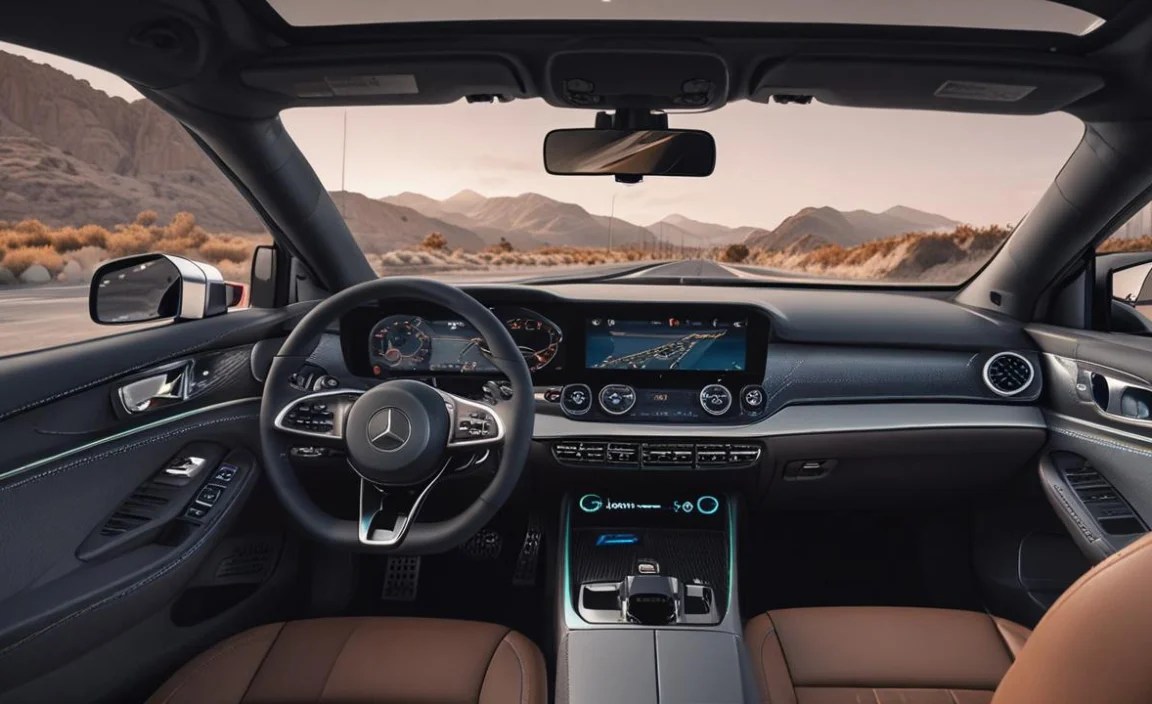
- Forward-Facing Camera(s): These cameras capture the live video feed of the road ahead. Multiple cameras might be used for a more comprehensive view and redundancy.
- GPS and Navigation Data: Precise location data from GPS, combined with detailed map information, tells the system where the vehicle is and where it needs to go.
- Sensors: Various sensors, including accelerometers and gyroscopes, help the system understand the car’s movement, orientation, and environment, ensuring the overlaid graphics stay perfectly aligned.
- Processing Unit: A powerful onboard computer processes the video feed, GPS data, sensor information, and navigation instructions to render the AR graphics in real-time.
- High-Resolution Display: The MBUX infotainment system, particularly the MBUX Hyperscreen if equipped, provides the high-definition canvas for the AR overlays.
How It Works in Real-Time

When you enter a destination into the EQE’s navigation system, the AR system springs to life. It constantly:
- Captures Video: The front camera streams live footage of the road.
- Processes Location: GPS and other sensors pinpoint the EQE’s exact position and direction of travel.
- Analyzes Route: The navigation software calculates the optimal route and identifies upcoming maneuvers (turns, lane changes, etc.).
- Generates Overlays: Digital graphics (arrows, street names, etc.) are generated and precisely positioned to correspond with the real-world view.
- Displays Information: The graphics are projected onto the live video feed on the central display, seamlessly integrating digital guidance with your physical surroundings.
The system is incredibly dynamic, adjusting the overlays as your perspective changes or as you approach a maneuver. This continuous adaptation is what makes AR Navigation so effective and engaging.
Getting Started with Your EQE AR Navigation

Activating and using the Augmented Reality Navigation in your Mercedes EQE is straightforward. The system is designed to be intuitive, but a little understanding can go a long way in maximizing its benefits from your very first drive.
Entering a Destination

You can input your destination in several ways:
- Touchscreen Interface: Use the central touchscreen to type in an address, point of interest, or contact from your saved list.
- Voice Command: The MBUX voice assistant is highly intelligent. Simply say, “Hey Mercedes, navigate to [address]” or “Hey Mercedes, I want to go to the nearest charging station.”
- Smartphone Integration: If you use Mercedes me connect services, you can send destinations from your smartphone directly to your EQE’s navigation system.
Activating AR View

Once a destination is set, the AR Navigation will typically activate automatically for the relevant parts of your journey. You’ll see the live video feed with overlaid graphics on your central display. If you prefer to see the AR view more prominently, you can usually access it through the ‘Navigation’ menu or by tapping on the navigation display itself. Look for an icon that indicates the AR view or a way to expand the navigation display.
Customizing Your AR Experience

While the core functionality is automatic, you might have some options to tailor the AR experience within the MBUX settings:
- Volume of Information: Some systems allow you to adjust how much detail is displayed. You might be able to choose between basic directional cues and more comprehensive information like house numbers and points of interest.
- Voice Assistant Preferences: You can adjust the voice assistant’s volume, speed, and even the accent.
- Map Display Options: While in AR view, you can often switch to a traditional 2D or 3D map view as a supplement or alternative, though the AR view is the focus here.
Key Navigation Prompts to Watch For

Familiarize yourself with these visual cues:
- Directional Arrows: Large, animated arrows indicating which turn to take.
- Lane Indicators: Highlighting the correct lane you should be in for upcoming turns or exits.
- Street Names and House Numbers: Displayed directly on the visual feed to confirm your current location and upcoming streets.
- Points of Interest (POI) Icons: May highlight nearby restaurants, charging stations, or other relevant locations.
- Traffic Information Overlays: Visual representation of traffic conditions on your route.
Pros and Cons of Augmented Reality Navigation

Like any advanced technology, AR Navigation in the Mercedes EQE comes with its set of advantages and some considerations. Understanding these can help you make the most of the system and manage your expectations.
Advantages (Pros)

- Enhanced Safety: By reducing glance time away from the road, it inherently promotes safer driving habits.
- Improved Navigation Accuracy: Real-world overlays make it much easier to understand exactly where to go, especially in complex environments.
- Reduced Driver Stress: Less confusion means a more relaxed and enjoyable driving experience.
- Intuitive for New Drivers: For those less familiar with navigation systems, the visual real-world cues are incredibly helpful.
- Modern and Engaging Experience: It offers a high-tech, futuristic feel that aligns with the EQE’s character.
- Seamless Integration: It perfectly blends digital information with the physical driving environment, feeling less like an add-on and more like an integral part of the car.
Considerations (Cons)

- Requires Compatible Display: The AR Navigation is best experienced on the larger MBUX central display; its usability might be less impactful on smaller screens if available on lower trims.
- Weather and Lighting Conditions: In extremely poor visibility (heavy fog, snow) or direct, harsh sunlight, the camera feed might be obscured, potentially affecting the clarity of the overlays.
- System Dependence: Relies on accurate GPS signals and sensor data. Any disruption to these could temporarily affect AR performance.
- Learning Curve: While intuitive, some users may need a short period to fully adapt to interpreting the AR overlays compared to traditional maps.
- Potential for Distraction (for some): While designed to reduce distraction, the novelty and visual richness of AR might, for a very small subset of users, initially draw attention away from the primary driving task until they acclimate.
Comparing AR Navigation with Traditional Systems

To truly appreciate the EQE’s AR Navigation, let’s see how it stacks up against the navigation systems we’ve all grown accustomed to.
| Feature | Mercedes EQE AR Navigation | Traditional In-Car Navigation (2D/3D Maps) |
|---|---|---|
| Information Display | Overlaid graphics on a live video feed of the road. | Abstract 2D or 3D map representation on a screen. |
| Contextual Relevance | High – graphics directly relate to the driver’s immediate surroundings. | Moderate – map shows general layout, requiring mental translation to the real world. |
| Ease of Understanding Turns/Lane Changes | Very High – clear arrows and lane markers precisely indicate actions. | Moderate to High – requires interpreting map angles and symbols. |
| Street Identification | Directly superimposed on the view, showing exact house numbers. | Displayed on the map, but requires the driver to correlate with physical signs. |
| Reliance on Driver’s Interpretation | Low – minimal mental processing needed. | Moderate to High – requires significant mental translation and comprehension. |
| Potential for Distraction | Low (designed to reduce it) – integrated into the driving view. | Moderate – distinct screen requiring a glance away from the road. |
| Visual Experience | Dynamic, immersive, and futuristic. | Functional, informational, and familiar. |
The key difference is the bridge it builds between the digital instruction and the physical reality of driving. Traditional systems tell you what to do; AR Navigation shows you precisely what to do, where to do it, and when to do it, all within the context of what you’re seeing right in front of you.
Maximising Your EQE AR Navigation for Different Driving Scenarios

The EQE’s AR Navigation shines in various driving situations, helping you navigate with unprecedented ease and confidence.
Urban Driving and City Navigation

Cities are often mazes of one-way streets, complex intersections, and hidden turns. AR Navigation excels here by:
- Highlighting correct lanes early: Essential for navigating multi-lane intersections or sudden decisions about which way to go.
- Displaying street names and house numbers: Helps you confirm you’re on the right street and approaching the correct destination, even on busy blocks.
- Warning of upcoming turns: Arrows appear well in advance, giving you ample time to prepare without last-minute swerving.
Highway Driving and Departures

Navigating multi-lane highways and complex interchanges can be daunting. AR Navigation makes it simpler by:
- Indicating correct exit lanes: Clearly shows which lane you need to be in for your desired exit, often well before the exit ramp.
- Showing exit numbers and route confirmation: Reinforces that you are on the correct path.
- Providing a visual cue for lane changes: Helps you merge or change lanes smoothly by showing your intended path.
Long-Distance Journeys

While AR might seem most beneficial for complex urban driving, it’s still valuable on longer trips:
- Reducing driver fatigue: By making navigation more passive and less demanding, it helps alleviate mental strain on long drives.
- Confirming route adherence: Simple checks of the AR overlay ensure you haven’t drifted off course, especially during monotonous stretches.
- Highlighting upcoming services: If your system is configured, it can visually flag approaching rest stops or fuel stations.
Integration with Other MBUX Features

The AR Navigation doesn’t operate in a vacuum. It’s part of the larger MBUX ecosystem:
- Complementing Live Traffic: Real-time traffic updates can be integrated into the AR view, visually showing congestion ahead.
- Working with Parking Assist: While not directly showing parking spots with AR, the navigation often guides you to the general vicinity of your destination, where parking assist features can then take over.
- Voice Control Integration: You can modify your route or ask navigation-related questions using voice commands, and the AR system will adapt accordingly on screen.
- Augmented Reality for the Co-Pilot: Passengers can also benefit from the AR display, making it easier for them to help with navigation or point out points of interest.
Maintaining and Troubleshooting Your AR Navigation System

While the AR Navigation system is designed for reliability, like any technology, occasional issues might arise. Here’s how to keep it running smoothly and what to do if you encounter a problem.
Ensuring Optimal Performance

The best maintenance is preventative:
- Keep Software Updated: Mercedes-Benz regularly releases software updates for the MBUX system, which often include improvements to navigation and AR functionality. Ensure your vehicle’s software is up-to-date, typically via over-the-air (OTA) updates or at a dealership.
- Clean Camera Lenses: The front camera(s) responsible for the AR feed need a clear view. Regularly clean them with a soft, damp cloth, especially after washing the car or in dusty conditions. Ensure any grime or obstruction is removed from the area around the camera.
- Maintain GPS Signal: While often automatic, ensure there are no large metallic objects constantly blocking the car’s view of the sky, which could intermittently affect GPS accuracy.
- Regular System Restarts: Occasionally, simply turning the car off and on again can resolve minor glitches.
Common Issues and Solutions

Here are some potential issues and how to address them:
| Issue | Possible Cause | Troubleshooting Steps |
|---|---|---|
| AR Overlays Not Displaying | AR view is not activated; navigation not active; software glitch. | 1. Ensure a destination is set and navigation is active. 2. Check the display settings to ensure AR view is selected. 3. Restart the MBUX system (refer to your EQE owner’s manual for the specific procedure). 4. Verify camera lenses are clean and unobstructed. |
| Inaccurate or Misaligned Overlays | Poor GPS signal; sensor issue; software error; camera obstruction. | 1. Ensure the vehicle has a clear view of the sky for GPS. 2. Clean camera lenses and surrounding areas. 3. Restart the navigation system or MBUX. 4. If persistent, seek professional diagnosis from a Mercedes-Benz dealer. |
| Delayed or Lagging Graphics | System overload; complex route calculation; older software |


