
Citan Van Multimedia System: Ultimate Review
Quick Summary
The Citan van multimedia system offers a user-friendly interface with essential features for navigation, communication, and entertainment. This review helps you understand its functions, connectivity options, and how to maximize its benefits for your workday.
Citan Van Multimedia System: Your Ultimate Guide
Welcome to the cockpit of your Citan van! Inside this versatile vehicle, the multimedia system is more than just a way to play music; it’s your command center for navigation, communication, and staying connected. For many hardworking van owners, understanding and effectively using this technology can feel a bit daunting. Perhaps you’ve struggled to pair your phone, find a specific destination, or simply figure out all the buttons. Don’t worry, you’re not alone. This guide is here to demystify your Citan’s multimedia system, breaking down its features, benefits, and how to get the most out of it, ensuring your drives are as productive and enjoyable as possible.
Understanding Your Citan’s Multimedia Hub

At its core, the Citan van multimedia system is designed for practicality and ease of use. It aims to integrate essential digital functions seamlessly into your driving experience, reducing distractions and keeping you informed. Mercedes-Benz has a reputation for thoughtful engineering, and even in its more utilitarian vehicles like the Citan, this attention to detail shines through. The system typically features a central display, intuitive controls, and a range of connectivity options. Our goal is to explore these features comprehensively, making you a confident user in no time.
Key Features and User Interface Explained
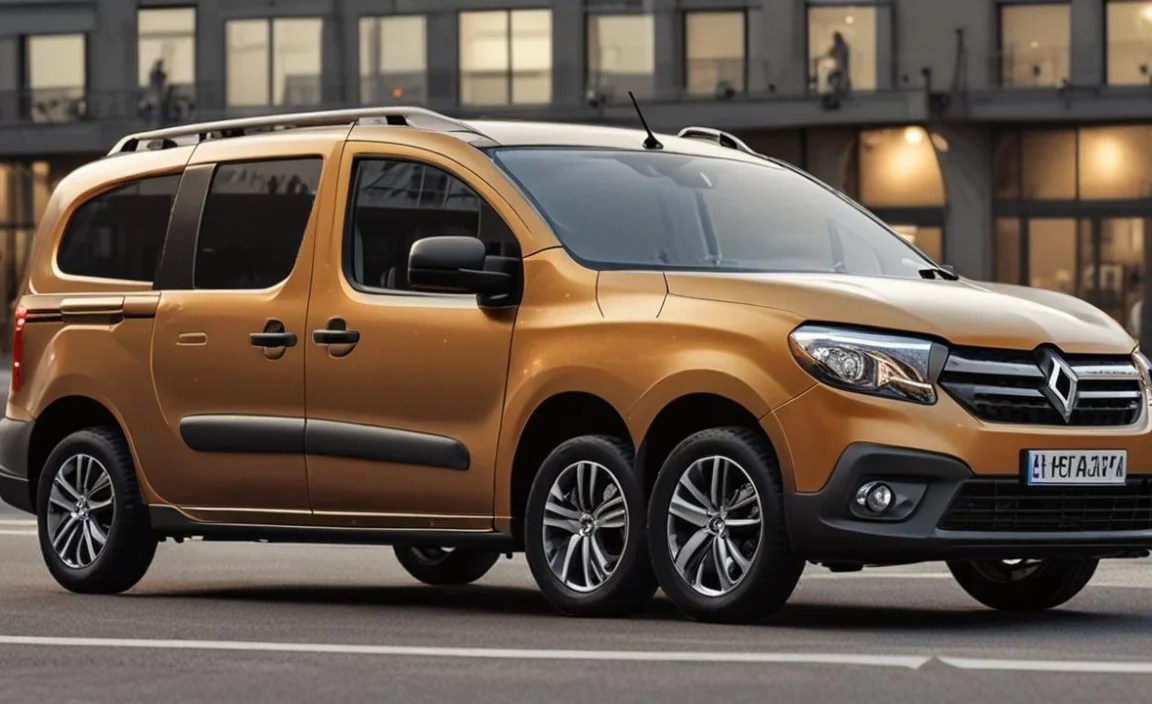
Navigating the Citan’s multimedia system is designed to be straightforward. The main interface is usually accessed via a central touchscreen or a combination of physical buttons and a rotary dial.
The Central Display
The display acts as your primary visual hub. It typically shows:
Navigation: Maps, route guidance, and points of interest.
Audio: Radio stations, connected devices (like USB or Bluetooth audio), and media player controls.
Phone: Call logs, contacts, and hands-free calling interface.
Vehicle Settings: Some basic vehicle information and customization options might be accessible here.
Control Methods
Depending on your Citan’s specific trim and options, you might have a few ways to interact with the system:
Touchscreen: Direct interaction with icons and menu items on the screen.
Steering Wheel Controls: Buttons on your steering wheel often allow you to adjust volume, change radio stations, answer calls, and navigate through menus without taking your hands off the wheel.
Rotary Dial/Buttons: A physical dial and buttons, often located on the center console, provide an alternative or complementary way to navigate menus and select options. This can be particularly useful when wearing gloves or in bumpy conditions.
Connectivity: Bluetooth and Beyond

Modern vehicles are all about connectivity, and the Citan van is no exception. The ability to connect your devices enhances both convenience and safety.
Bluetooth Connectivity
Bluetooth is the workhorse for wireless connections in your Citan. It’s incredibly useful for hands-free calling and streaming audio.
Pairing your smartphone via Bluetooth is usually a simple process. You’ll typically need to:
- Ensure Bluetooth is enabled on your smartphone.
- On the Citan’s multimedia system, navigate to the ‘Phone’ or ‘Bluetooth’ menu.
- Select the option to ‘Add New Device’ or ‘Pair Device’.
- On your phone, scan for Bluetooth devices and select your Citan when it appears in the list.
- Confirm any pairing codes or prompts that appear on both your phone and the vehicle’s display.
Once paired, your phone can be used for calls, and your music or podcast library can be streamed directly through the van’s speakers.
USB Ports
For a more direct connection, your Citan likely features USB ports. These are typically used for:
Charging: Keeping your devices powered up on the go.
Media Playback: Connecting a USB drive loaded with music files.
Smartphone Integration (if equipped): Some systems support Apple CarPlay or Android Auto via USB, offering a more integrated smartphone experience on the vehicle’s display.
Auxiliary Input (if fitted)
An auxiliary (AUX) input jack allows you to connect almost any audio device with a headphone jack using a standard 3.5mm audio cable. This is a reliable, albeit slightly older, method for playing audio from various sources.
Navigation Made Easy

Getting lost is a thing of the past with the Citan’s integrated navigation system. Whether you’re a business owner making deliveries or a tradesperson heading to a new client, precise navigation is crucial.
Using the Navigation System
The process generally involves these steps:
1. Access Navigation: Find the ‘Navigation’ or ‘Navi’ icon on your multimedia display.
2. Enter Destination: You can usually input an address directly, search for points of interest (like fuel stations or restaurants), or select a previously saved destination from your favorites or history. For optimal use, ensure your navigation system is updated. You can often find information on updating Mercedes-Benz navigation systems through official Mercedes-Benz channels or reputable third-party providers. For example, the official Mercedes-Benz website offers insights into their navigation technologies.
3. Start Guidance: Once your destination is confirmed, initiate the route guidance. The system will provide turn-by-turn directions, often displayed visually on the screen and audibly through the speakers.
4. Traffic Information: Many systems integrate live traffic data, allowing them to suggest alternative routes to avoid congestion.
Tips for Effective Navigation
Pre-Plan Routes: For complex journeys or areas you’re unfamiliar with, set your destination before you start driving.
Voice Commands: If your system supports voice control, use it to enter destinations or search for points of interest. This keeps your hands on the wheel and your eyes on the road.
Understand Route Options: Familiarize yourself with settings like ‘avoid tolls,’ ‘avoid highways,’ or ‘shortest route’ to tailor guidance to your needs.
Audio and Entertainment Options

Keeping your spirits up during long drives or busy workdays is easy with the Citan’s entertainment features.
Radio
Your Citan will have a standard AM/FM radio tuner. You can typically:
Scan for Stations: Automatically search for available frequencies.
Preset Stations: Save your favorite stations for quick access.
DAB Radio (Digital Audio Broadcasting): If your Citan is equipped with DAB+, you’ll enjoy a wider selection of stations and often clearer sound quality.
Media Playback from Connected Devices
USB/SD Card: Play supported audio files (like MP3, AAC) directly from a USB stick or SD card.
Bluetooth Audio Streaming: Stream music from your phone’s music apps or downloaded playlists.
Auxiliary Input: Connect older MP3 players or other audio devices.
Phone Integration and Hands-Free Calling
Staying in touch is vital, and the Citan’s system prioritizes safe communication.
Making and Receiving Calls
Once your phone is paired via Bluetooth, you can:
Access Contacts: View and dial numbers directly from your phone’s contact list stored in the vehicle.
Call History: Redial recent calls or check missed calls.
Initiate Calls via Voice Command (if supported).
Answer/Reject Incoming Calls: Use steering wheel or system controls to manage calls.
Text Messaging
Some advanced systems may offer basic text message notifications and even the ability to dictate replies via voice command. Always check your specific model’s capabilities and ensure it complies with local driving laws regarding phone use. For information on mobile device usage while driving, the National Highway Traffic Safety Administration (NHTSA) provides valuable safety guidance.
Smartphone Integration: Apple CarPlay & Android Auto
If your Citan is equipped with smartphone integration, this is a game-changer. Apple CarPlay and Android Auto mirror a simplified version of your smartphone’s interface onto the van’s display.
How they work:
- Connect your compatible smartphone via a USB cable.
- The vehicle’s system will typically detect the phone and prompt you to launch CarPlay or Android Auto.
- You’ll get access to navigation apps (like Google Maps, Waze, Apple Maps), music apps, messaging, and calling – all optimized for in-car use.
The icons are larger, and the controls are simplified, making it easier and safer to use your phone’s essential features while driving. This integration is a significant upgrade for anyone who relies heavily on their smartphone for work or navigation.
Voice Control Systems
Many modern Citan multimedia systems include voice control capabilities. This allows you to operate various functions using simple spoken commands.
Using Voice Commands
Common commands might include:
“Call [Contact Name]”
“Navigate to [Address/Location]”
“Play [Song Title/Artist]”
“Tune to [Radio Station]”
The effectiveness of voice control can vary, but it’s designed to be a safe way to interact with your system. Refer to your Citan’s owner’s manual for a comprehensive list of supported voice commands.
Table: Citan Van Multimedia System – Feature Comparison (Example)
To illustrate the variations you might find, here’s a sample comparison. Please note that exact features depend on the model year, trim level, and optional packages chosen for your Citan.
| Feature | Basic System | Optional/Advanced System |
|---|---|---|
| Display Size | Likely smaller (e.g., 5-7 inches) | Larger touchscreen (e.g., 8 inches or more) |
| Navigation | May require smartphone projection (CarPlay/Android Auto) | Integrated 3D Navigation with live traffic |
| Bluetooth | Audio streaming and hands-free calling | Enhanced phone book access, messaging features |
| USB Ports | 1-2 ports for charging/media | Multiple ports, potentially for smartphone integration |
| Smartphone Integration | Optional | Standard or readily available (Apple CarPlay, Android Auto) |
| Voice Control | Limited or basic | More comprehensive voice command system |
| Radio | AM/FM | AM/FM, DAB/DAB+ Digital Radio |
Tips for Maximizing Your Citan’s Multimedia System
To get the most out of your Citan van’s technology, consider these practical tips:
Read Your Owner’s Manual: This is the most definitive source for understanding your specific system’s functions, features, and troubleshooting. Many manuals are also available digitally on the Mercedes-Benz owner’s portal.
Regular Software Updates: Like any computer, your multimedia system can benefit from software updates. Check with your Mercedes-Benz dealer or the official Mercedes-Benz website for any available updates that can improve performance and add features.
Customize Settings: Take time to adjust audio equalizer settings, display brightness, and frequently used navigation destinations to your preference.
Practice Safe Usage: Always prioritize driving. Use voice commands or delegate adjustments to a passenger whenever possible. Only use functions that do not distract you from the road.
Troubleshooting Common Issues: If you encounter problems, such as Bluetooth connectivity issues, try restarting your phone and the infotainment system. Sometimes, a simple reset can resolve minor glitches. If issues persist, consult your manual or a qualified technician.
Frequently Asked Questions (FAQ)
Q1: How do I connect my phone to the Citan van’s multimedia system?
You primarily connect your phone via Bluetooth for hands-free calls and audio streaming. For advanced features like Apple CarPlay or Android Auto, you’ll usually need to connect your phone using a compatible USB cable.
Q2: Can I use Google Maps or Waze on the Citan’s navigation screen?
Yes, if your Citan is equipped with Apple CarPlay or Android Auto and you connect your compatible smartphone, you can use navigation apps like Google Maps, Waze, or Apple Maps directly on the vehicle’s display.
Q3: How do I update the multimedia system software?
Software updates are typically handled by your Mercedes-Benz dealer during a service appointment, or in some cases, they can be downloaded and installed by the owner. Check your owner’s manual or contact your dealer for specific instructions.
Q4: My Bluetooth connection keeps dropping. What can I do?
First, try deleting the paired device from both your phone and the Citan’s system and then re-pair them. Ensure your phone’s operating system and the vehicle’s software are up to date. Interference from other devices can also be a cause; try to minimize other active Bluetooth or Wi-Fi devices nearby.
Q5: Does the Citan van have a built-in GPS?
Many Citan models come with an integrated navigation system. However, some base models might rely on smartphone projection (like Apple CarPlay or Android Auto) for navigation.
Q6: How can I improve the sound quality of my audio?
The multimedia system usually has an equalizer (EQ) setting that allows you to adjust bass, treble, and mid-ranges. Experiment with these settings to find a sound profile you prefer. Ensure your audio source (e.g., MP3 file) is of good quality.
Conclusion
The multimedia system in your Mercedes-Benz Citan van is a powerful tool designed to enhance your daily operations, making journeys safer, more informed, and more enjoyable. From seamless phone integration for vital communication to intuitive navigation that keeps you on track, and a robust audio system to power through your day, understanding its features is key. By familiarizing yourself with the display, connectivity options, navigation tools, and entertainment features, you can transform your Citan into an even more efficient and pleasant mobile workspace. Don’t hesitate to explore your system’s settings and consult your owner’s manual. With a little practice, you’ll be navigating, communicating, and entertaining yourself like a pro, ensuring every drive is a productive one.


